
You can pay your GoHosting invoices using Visa/Mastercard, PayPal, or bank transfer. Follow this guide to learn how to view your unpaid invoices and use each payment method.
Step 1: Log in and access your invoices
Visit www.gohosting.com.au and log in to your account. Then, navigate to the top menu and click on "Billing", then select "My Invoices".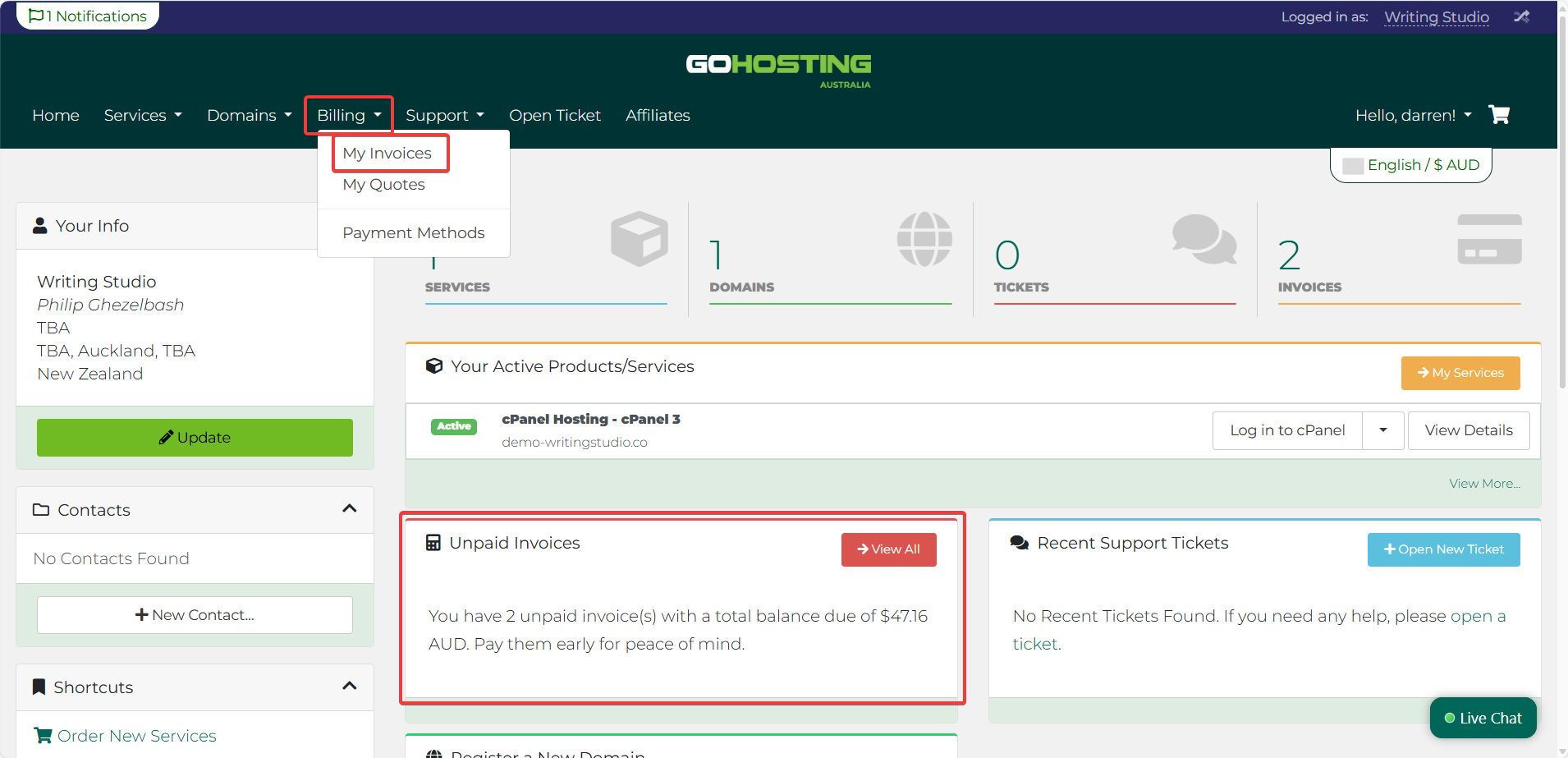
This will take you to a summary page where you can see how many invoices you have and whether any are unpaid.
If you have unpaid invoices, you’ll see a notification showing the number of invoices due and the total balance.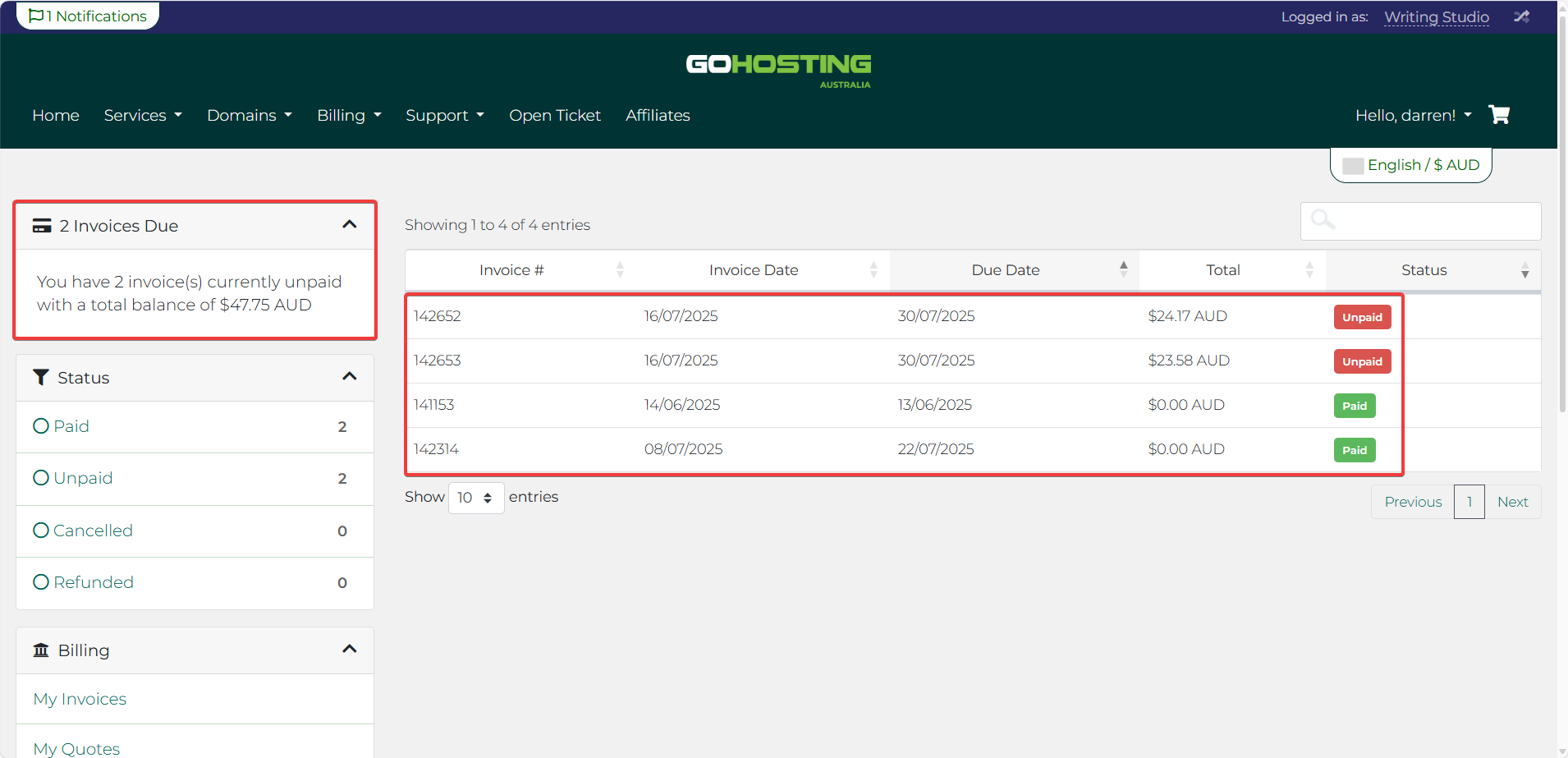
Step 2: Open the invoice you want to pay
On the left side of the page, under the "Status" tab, you can tick "Unpaid" to filter and show only the unpaid invoices.
Select the invoice you want to pay by clicking on its invoice number — this will open the full invoice details.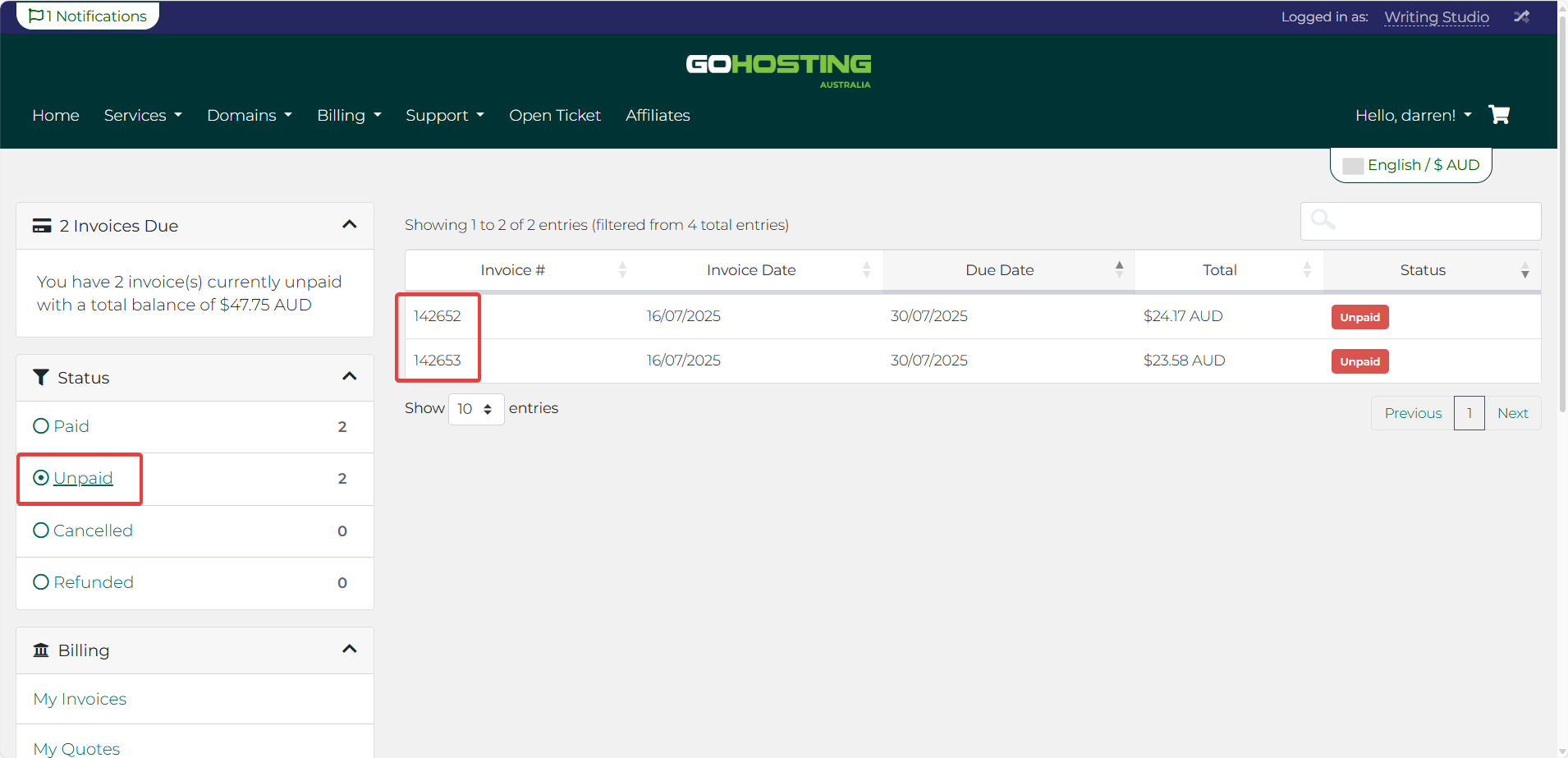
Step 3: Choose your payment method
Once you open an individual invoice, you’ll see a dropdown menu labelled "Payment Method" on the right-hand side. You can choose from three payment options:
Visa / Mastercard — Pay with your credit or debit card.
PayPal — Use your PayPal account to pay.
Bank Transfer — Transfer funds from your bank account to GoHosting.
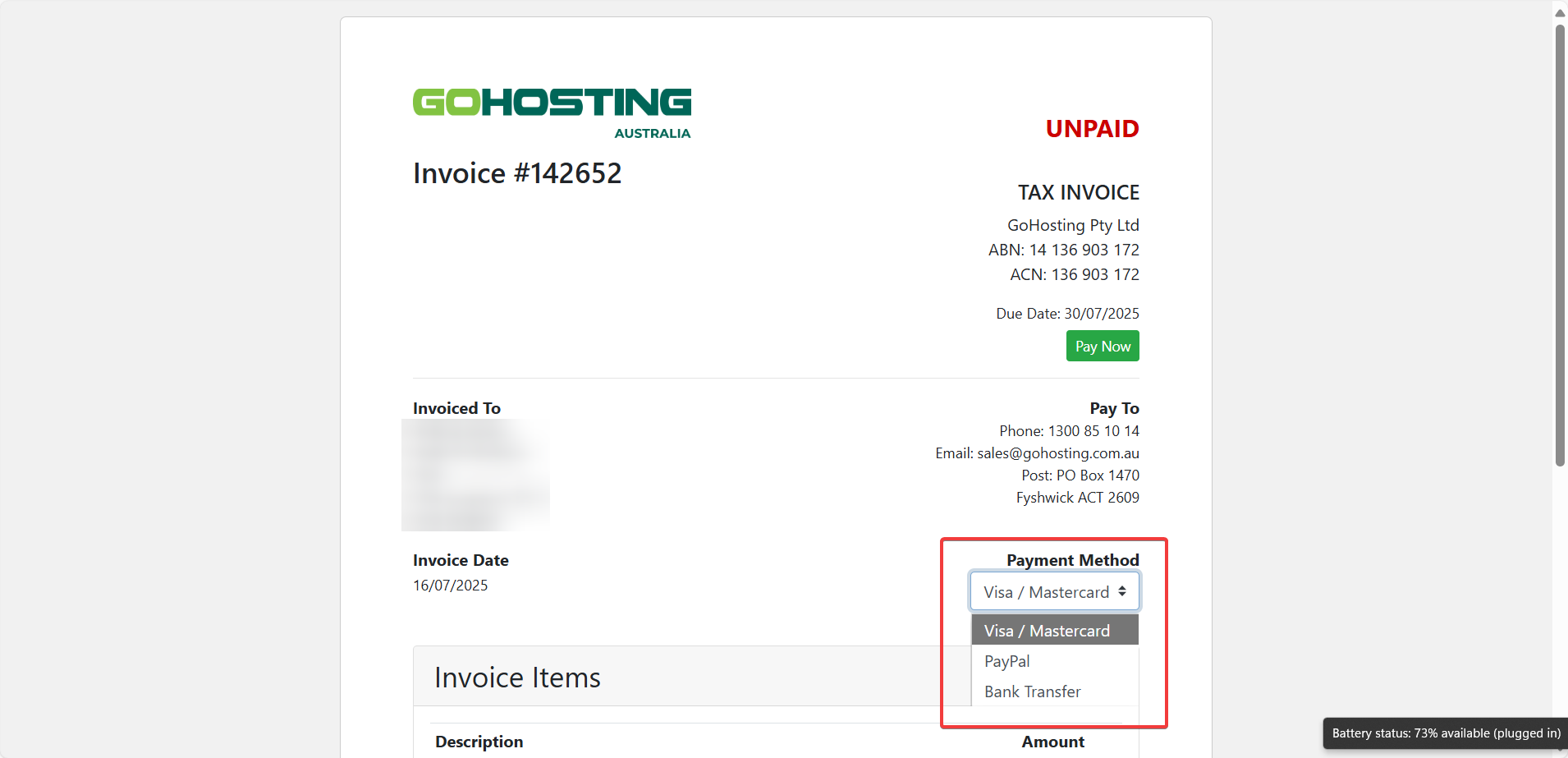
Select the method that suits you.
Step 4: Complete the payment
Depending on the method you select, follow these steps to make the payment:
For Visa / Mastercard
Click the green "Pay Now" button on the invoice, and you'll be directed to a page where you can enter your card details.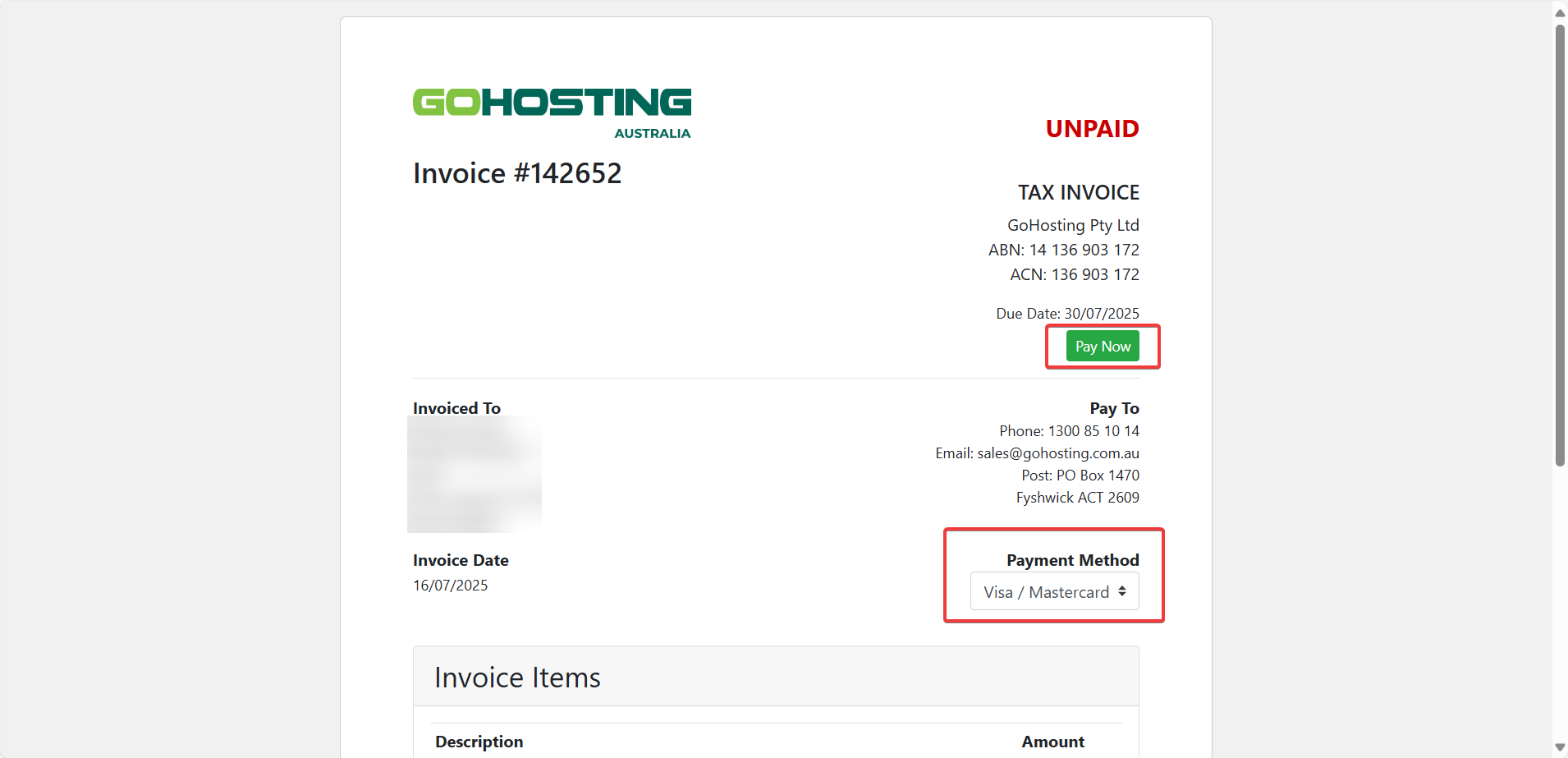
Enter your debit or credit card number, expiry date, CVV, and billing address. You can also choose to save the card for faster future payments.
When ready, click "Submit Payment".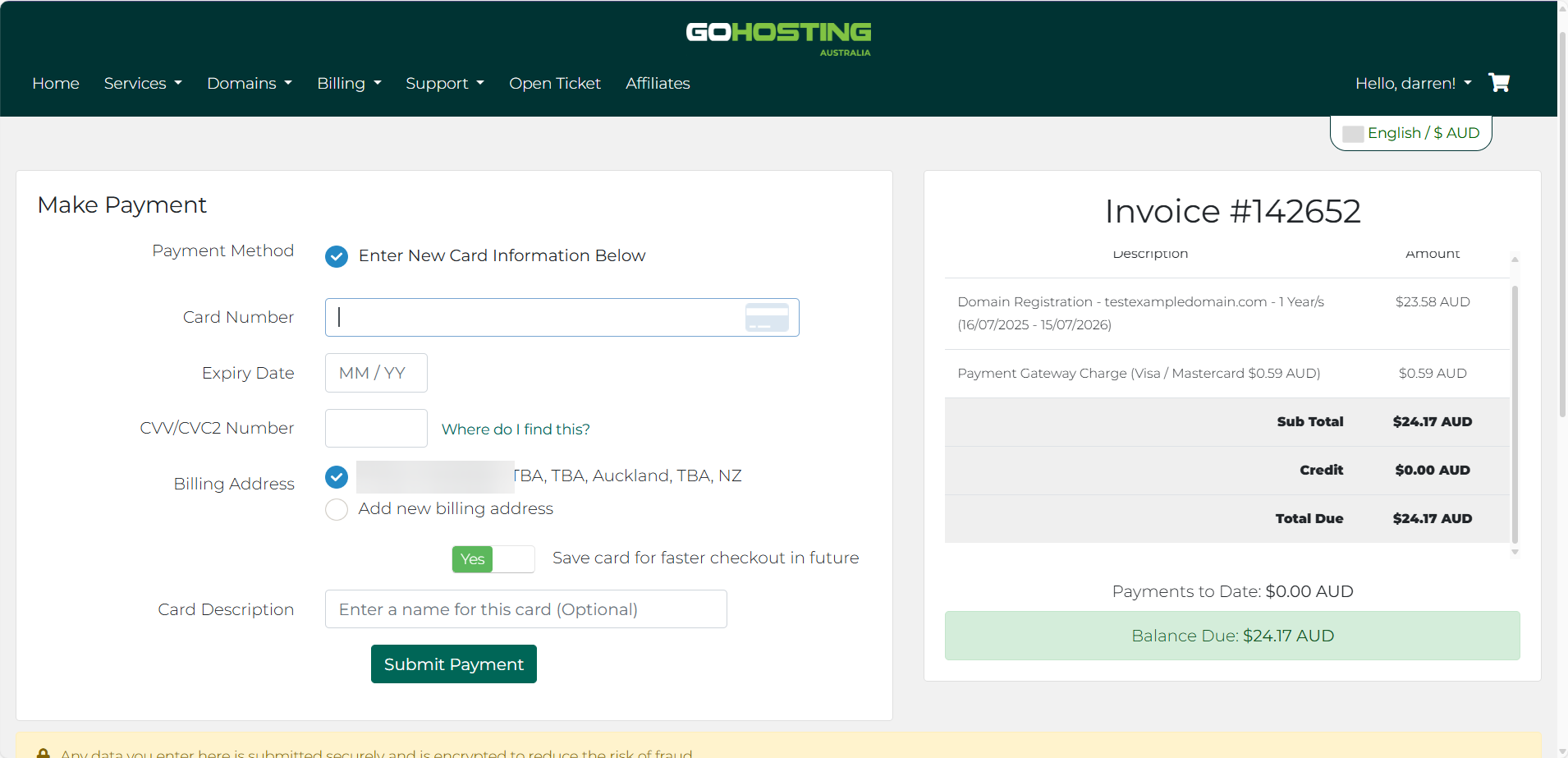
For PayPal
Click the "PayPal Check Out" button on the invoice, and you will be redirected to the PayPal checkout page.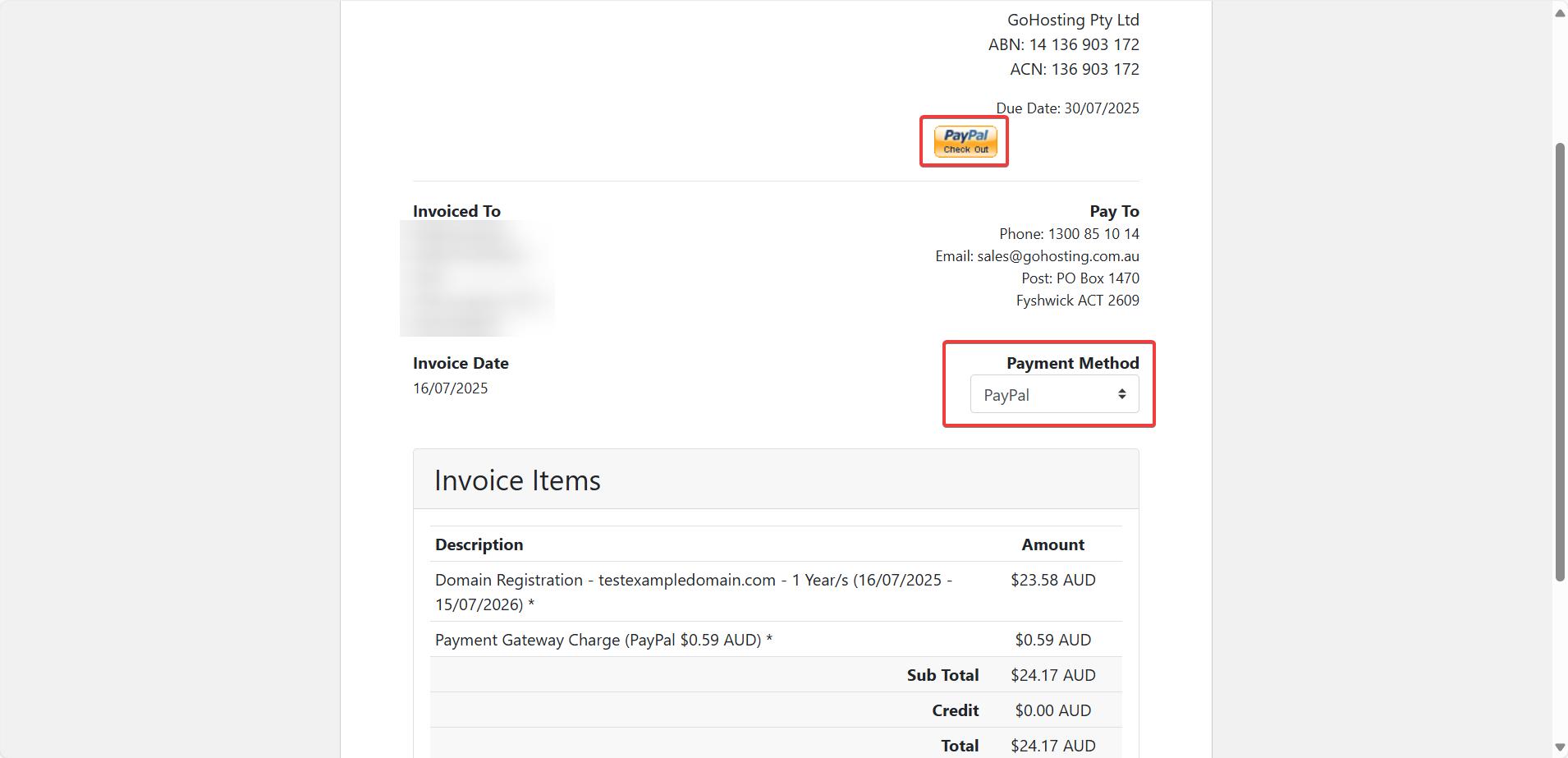
Log in to your PayPal account or choose "Pay by Debit or Credit Card".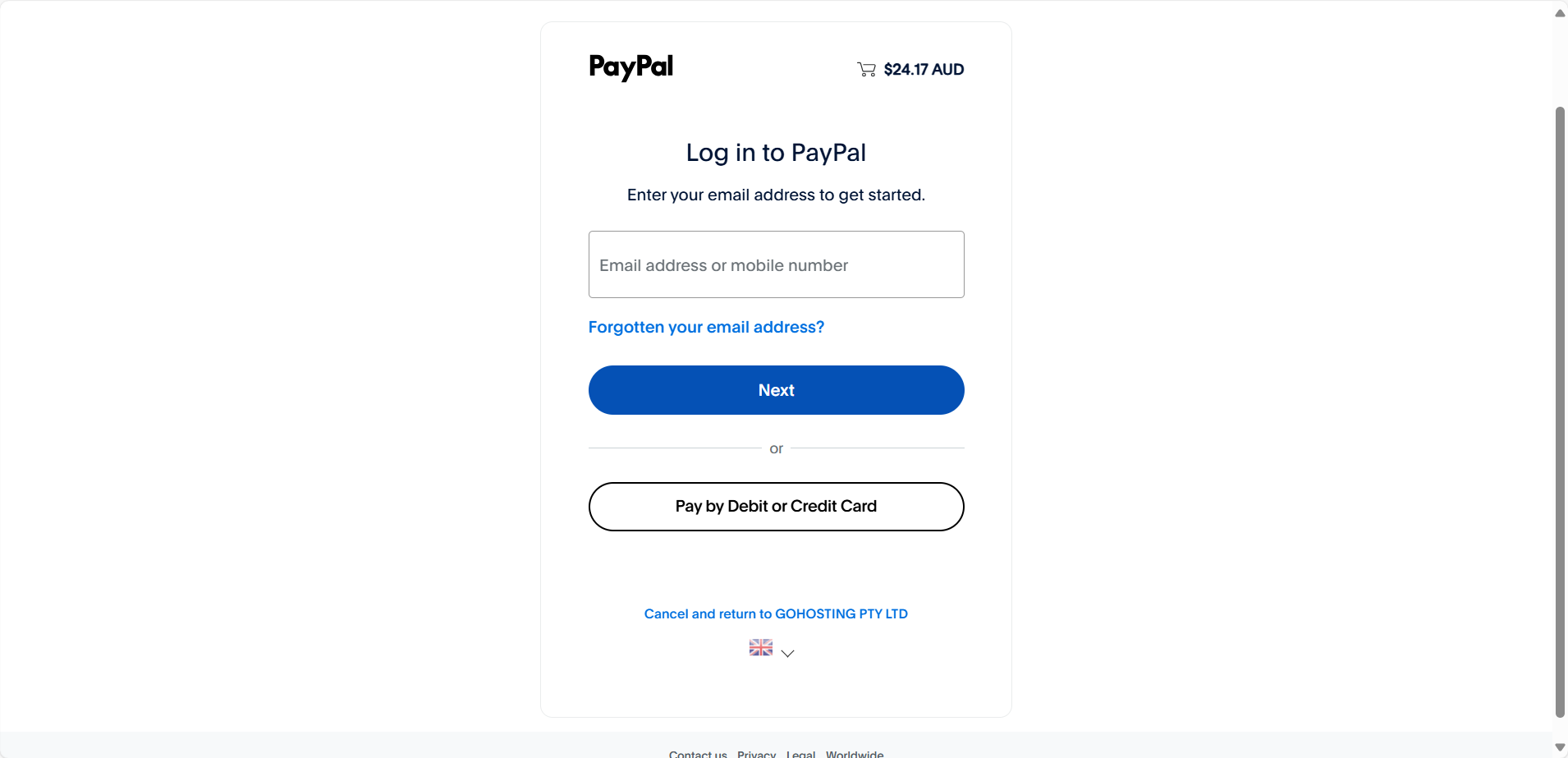
Follow the steps to complete the payment through PayPal’s secure gateway.
For Bank Transfer
The invoice will display GoHosting’s bank account details, including the payee name, BSB number, account number, and your unique reference number.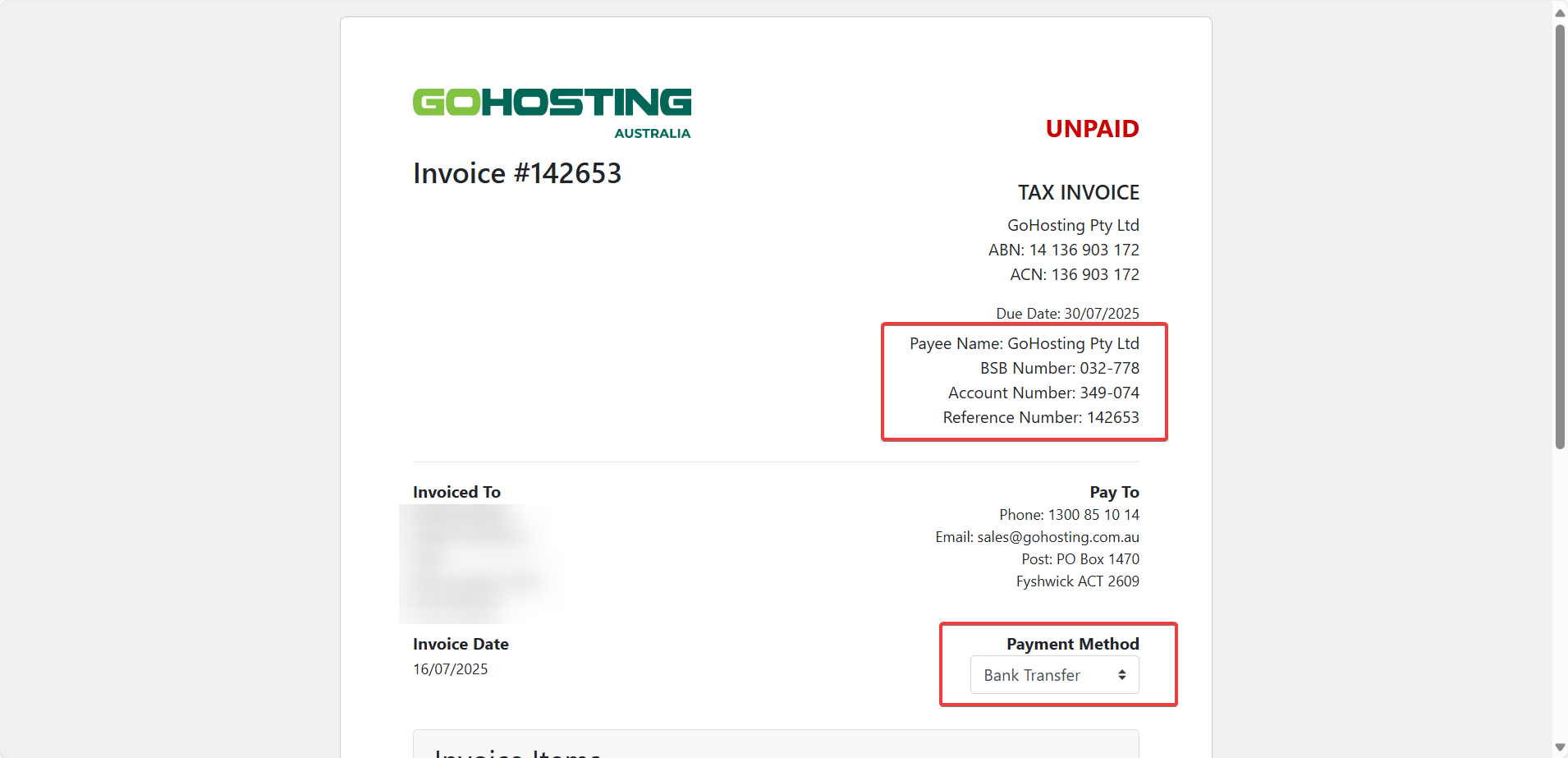
Please log in to your bank and transfer the specified amount, ensuring you include the reference number so we can correctly match your payment.
Step 5: Confirm the payment
Once payment is made, your invoice status will update to “Paid,” and you’ll receive a confirmation email.
If you encounter any issues, our support team is available 24/7 via live chat or by submitting a support ticket through the client portal.