
Logs are records that show what’s happening on your hosting account. They track details such as who visits your site, which files are accessed, any errors that occur, and the status of sent or received emails.
In your GoHosting cPanel, you have access to several types of logs. Some are stored as raw files that you can download and open, while others can be viewed through cPanel’s built-in tools.
This guide shows you where to find these logs and explains their purpose.
How to find logs in your GoHosting cPanel
Follow these steps to access and view the different types of logs in your GoHosting cPanel hosting package.
1. Log in to your GoHosting cPanel
Go to the cPanel login page using the link provided in your GoHosting welcome email, and enter your username and password.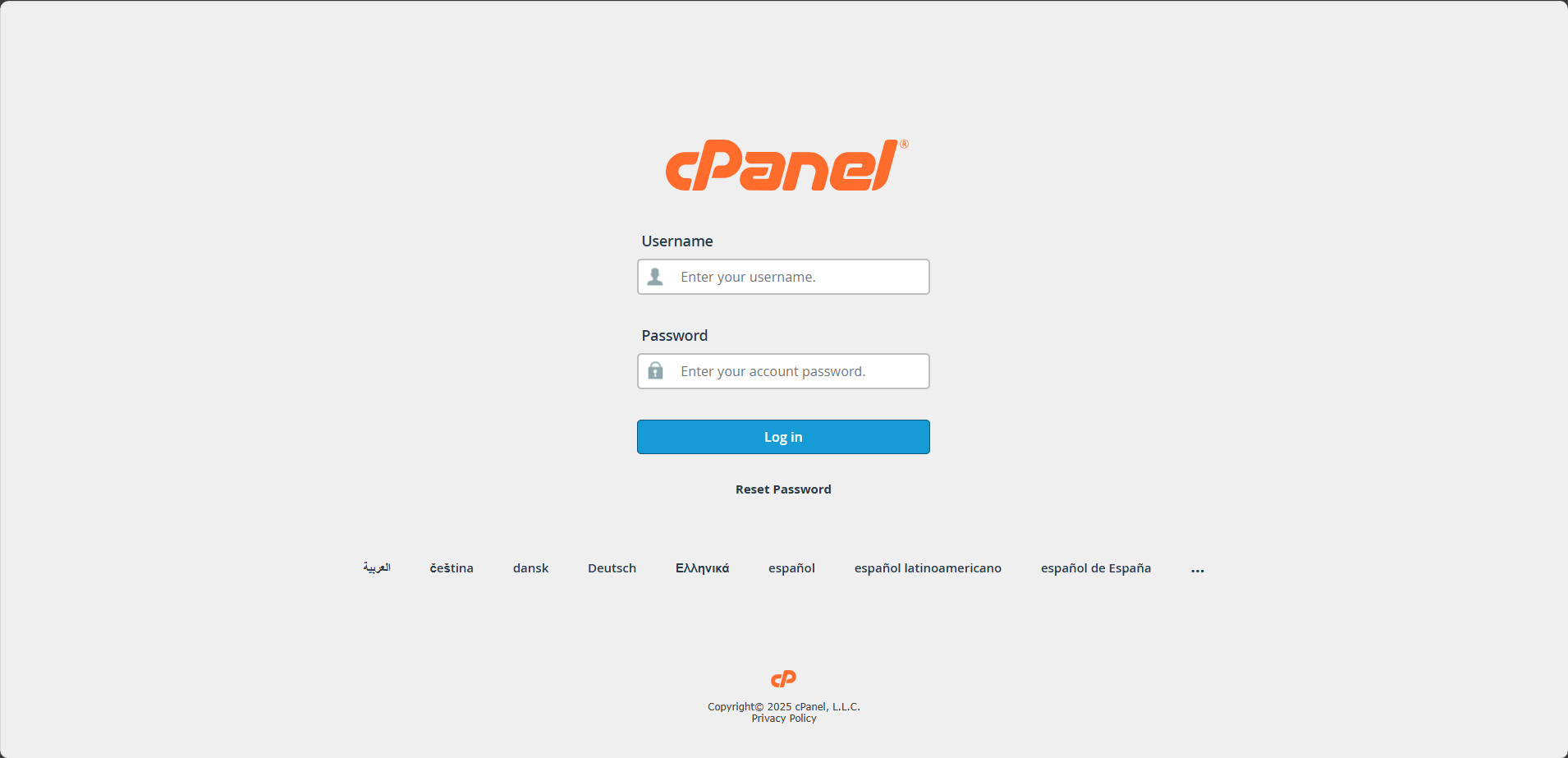
Alternatively, visit gohosting.com.au, log in to your account, and click "Log in to cPanel" on your client dashboard.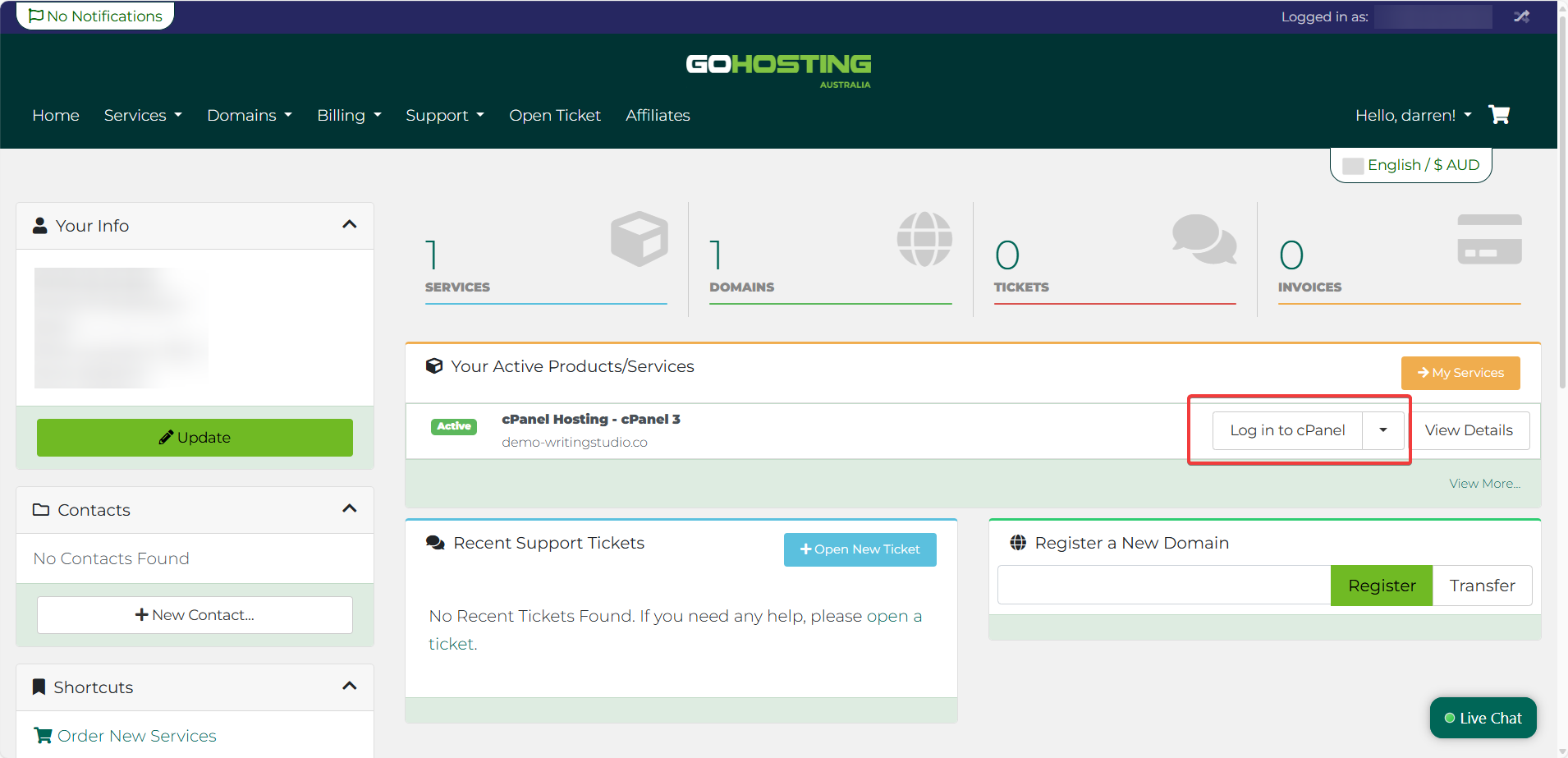
2. View logs in the Metrics section
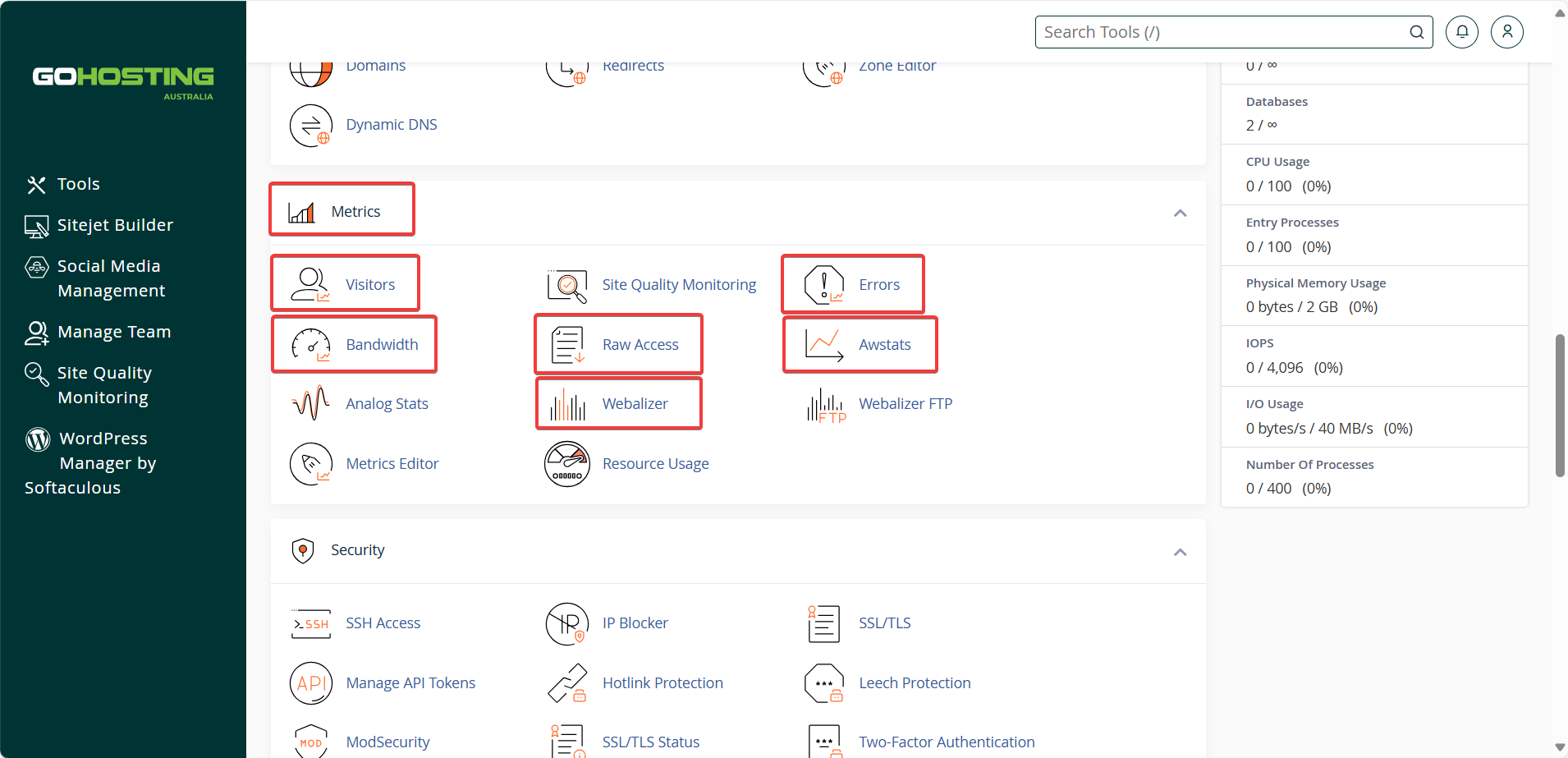
On the cPanel dashboard, scroll down until you find the "Metrics" section.
Here, you will find several tools for viewing and accessing logs in a user-friendly format, including:
Visitors: Displays logs detailing recent visitors, including IP addresses, URLs visited, and date/time of visits.
Errors: Shows recent error log entries for issues like broken links, missing files, script issues, and more.
Raw Access: View or download raw access logs that detail every HTTP request made to your website.
Bandwidth: Displays data from logs detailing bandwidth usage across web, FTP, and email services.
AWStats or Webalizer: Provide graphical insights into traffic patterns, top pages, referrers, browsers, and more, based on access log data.
3. Access logs via File Manager
Return to the cPanel dashboard and scroll down to the "Files" section. Then, click on "File Manager".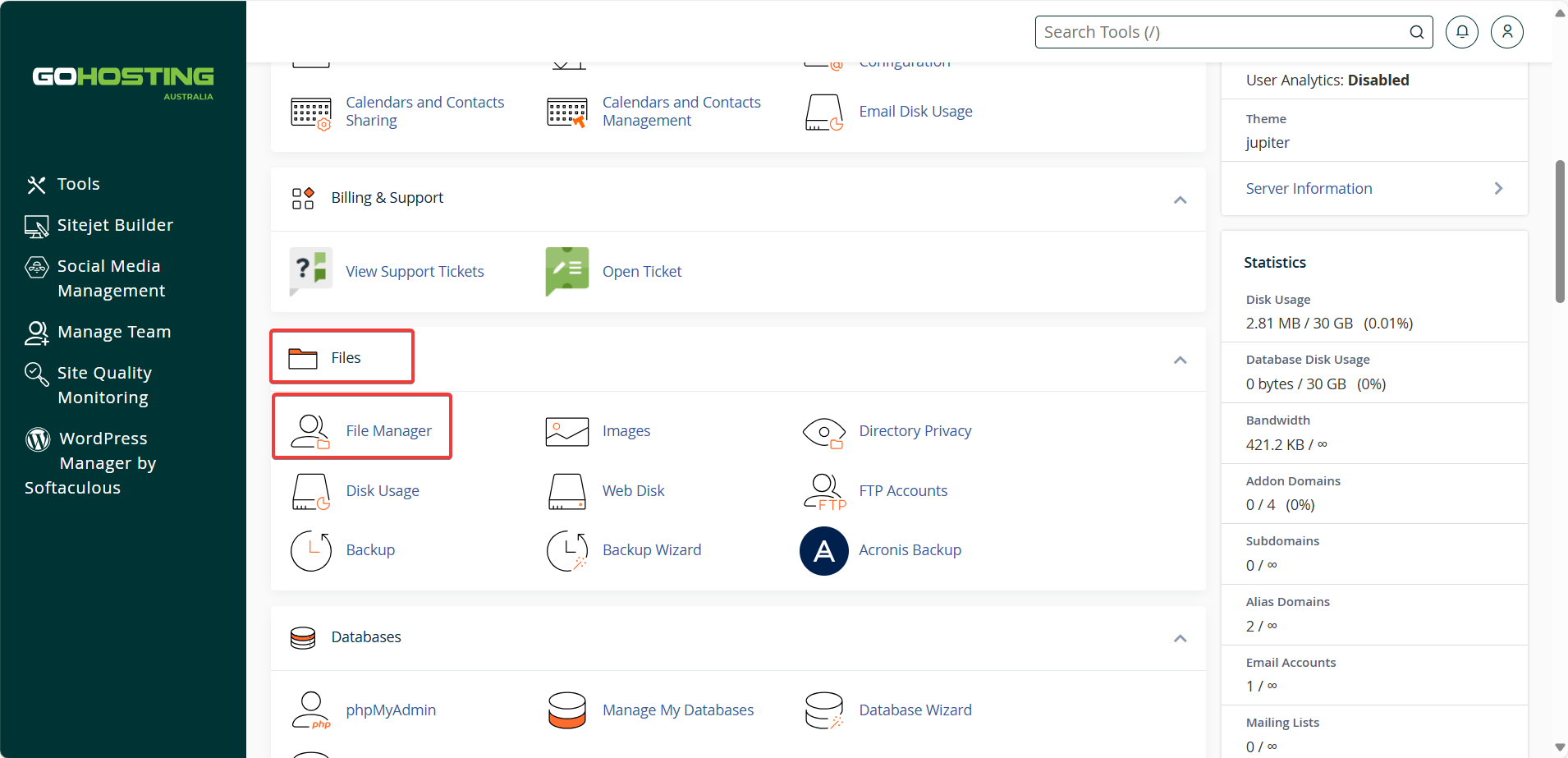
This gives you direct access to log files stored on the server, allowing you to view or download them.
Inside File Manager, you can find logs in various locations, including:
logs (/home/{username}/logs/): Contains various logs, including FTP and other server logs.
access-logs (/home/{username}/access-logs/): Holds raw access logs for each domain.
public_html (/home/{username}/public_html): May contain an error_log file recording PHP errors for scripts running within the public_html directory.
Note: Replace {username} with your actual cPanel username.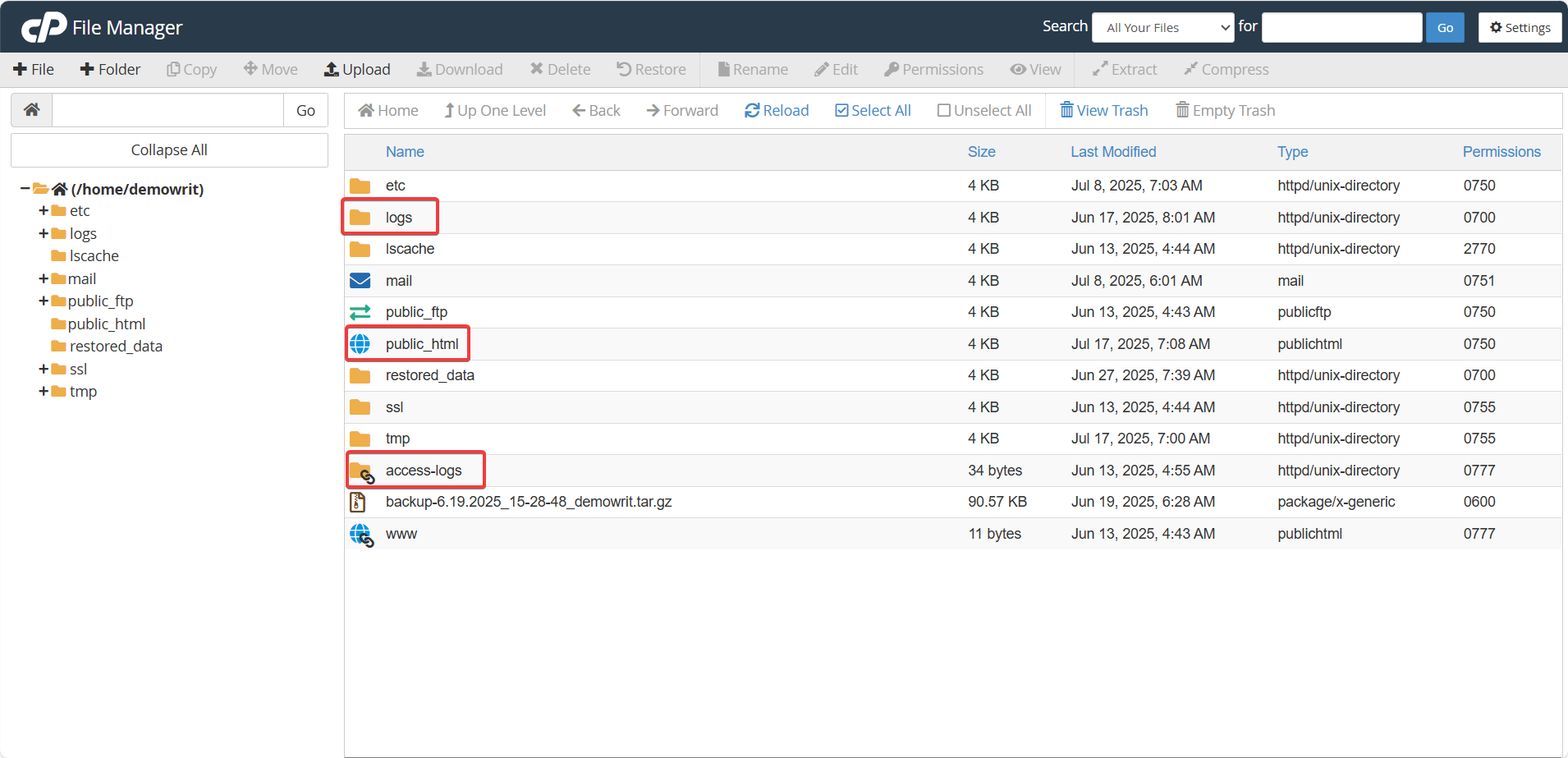
4. View email logs
Back on the cPanel dashboard, go to the "Email" section and click "Track Delivery".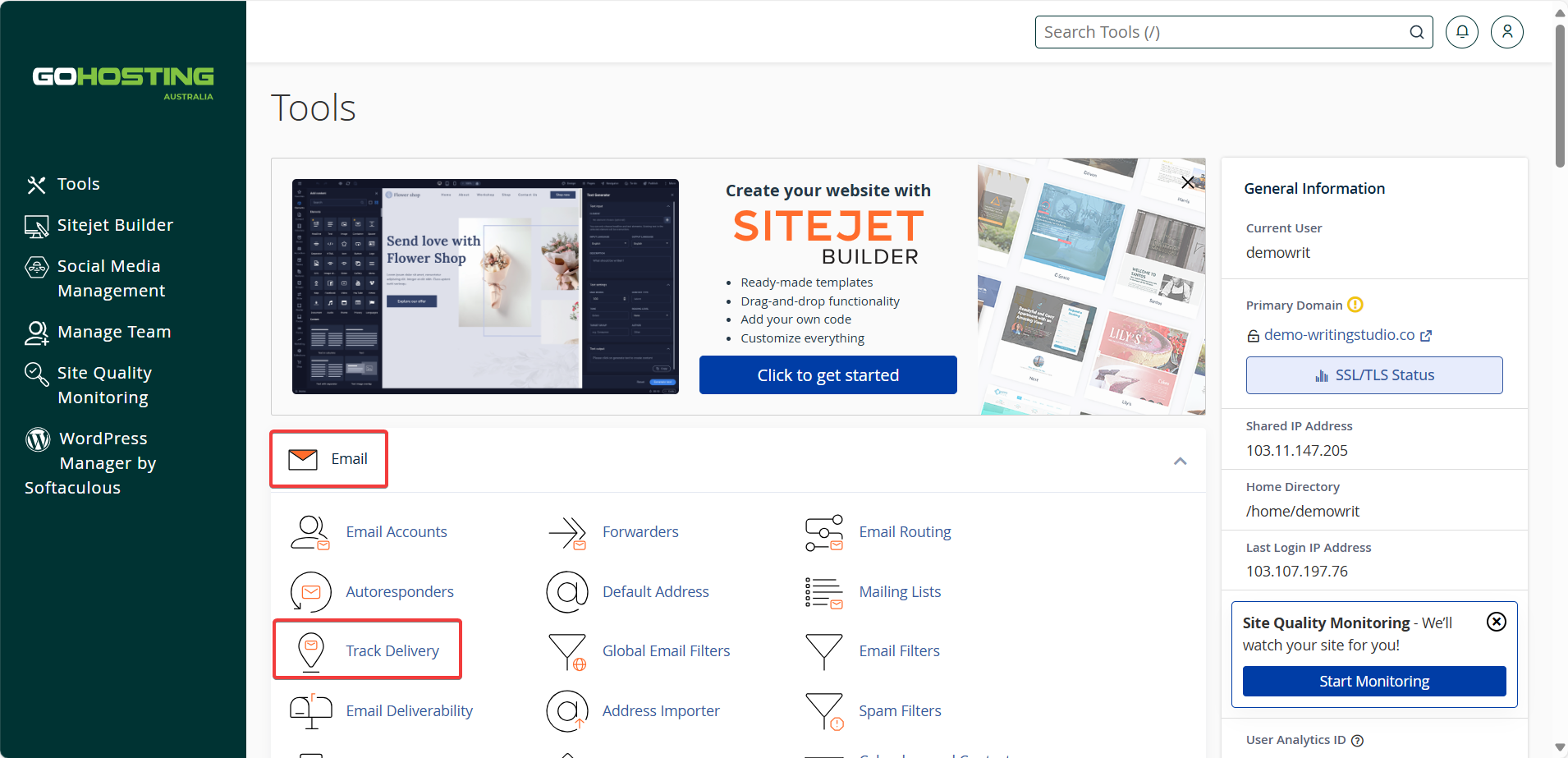
This tool allows you to view detailed email delivery logs, showing whether emails sent from your account have been delivered successfully, queued, or encountered email issues.
You can filter email logs by recipient and delivery status, and sort the results by date.
