
You can transfer your domain to GoHosting at any time, and the process is straightforward as long as the necessary steps are followed. The steps involved only take a few minutes to complete, but the domain transfer itself may take 24–48 hours to finalize.
How to transfer your domain to GoHosting
Follow the step-by-step instructions below to successfully transfer your domain from its current registrar to GoHosting.
Step 1: Check eligibility
Before you begin, check whether your domain can be transferred. While anyone can move a domain between registrars, certain rules may temporarily block a transfer.
For many common ICANN-regulated domain types (called gTLDs, or generic top-level domains), such as:
.com
.net
.org
.info
The ICANN rules state that you cannot transfer a domain:
Within 60 days of its initial registration
Within 60 days of a previous transfer
Within 60 days of updating the registrant contact information
All domain hosts are required by ICANN to enforce this waiting period, commonly known as a domain lock.
Note: This rule does not apply to .au domains, as they are regulated by auDA instead of ICANN. It may also not apply to other domain types that fall outside of ICANN’s jurisdiction.
Step 2: Prepare your domain
To ensure a smooth and successful domain transfer, follow these essential steps. First, log in to your current registrar, locate the domain you wish to transfer, and check the following settings:
Unlock the domain: Domains are usually locked by default to prevent unauthorized transfers. Look for an option such as “Disable Registrar Lock” or “Unlock Domain,” and make sure the domain is unlocked.
Disable WHOIS privacy: If enabled, temporarily disable it so that GoHosting can access your domain’s registered contact details. This step does not apply to .au domains, as they do not have WHOIS privacy.
Verify contact information: Ensure you have access to the administrative email address listed for your domain. You’ll need to approve the transfer via this email address later in the process.
Step 3: Request the EPP/Auth code
The EPP/Auth code is a unique code provided by your current domain registrar. It acts like a password or PIN that authorizes the transfer of your domain to another registrar.
The method of obtaining it may vary slightly depending on your current registrar, but it’s typically located in your domain settings. Look for options such as "Get EPP Code," "Authorization Code," or "Transfer Key."
The code will either be:
Displayed on the screen
Emailed to the registered domain contact address
Step 4: Start the transfer at GoHosting
Visit gohosting.com.au, hover your mouse over "Domains" in the top menu, and click "Transfer a domain." On the page that loads, click "Transfer Now."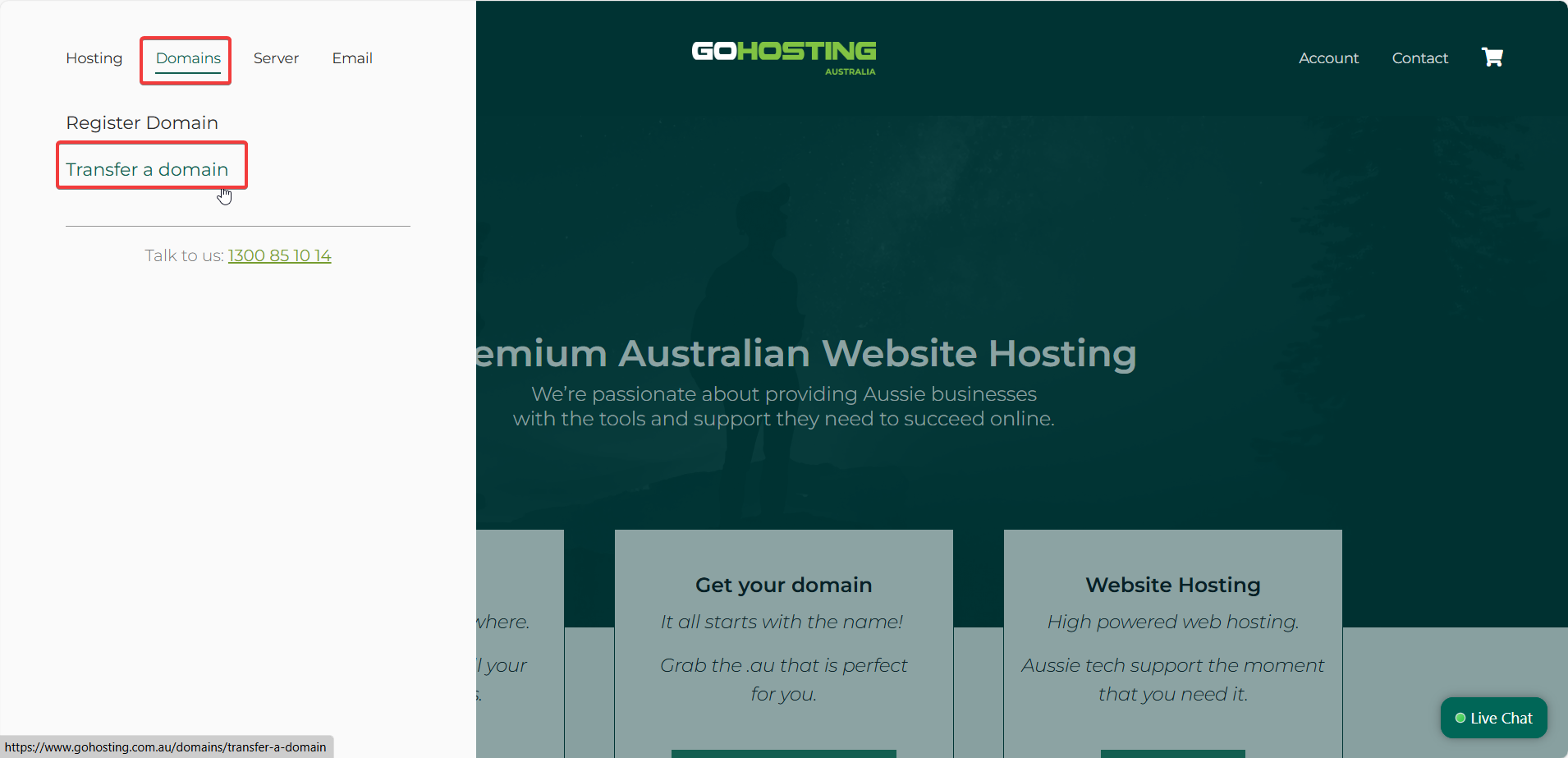
Alternatively, you can log into your GoHosting account, click "Domains" in the top menu, and select "Transfer Domains to Us."
Enter your domain name and the authorization code you obtained earlier, then click "Add to Cart."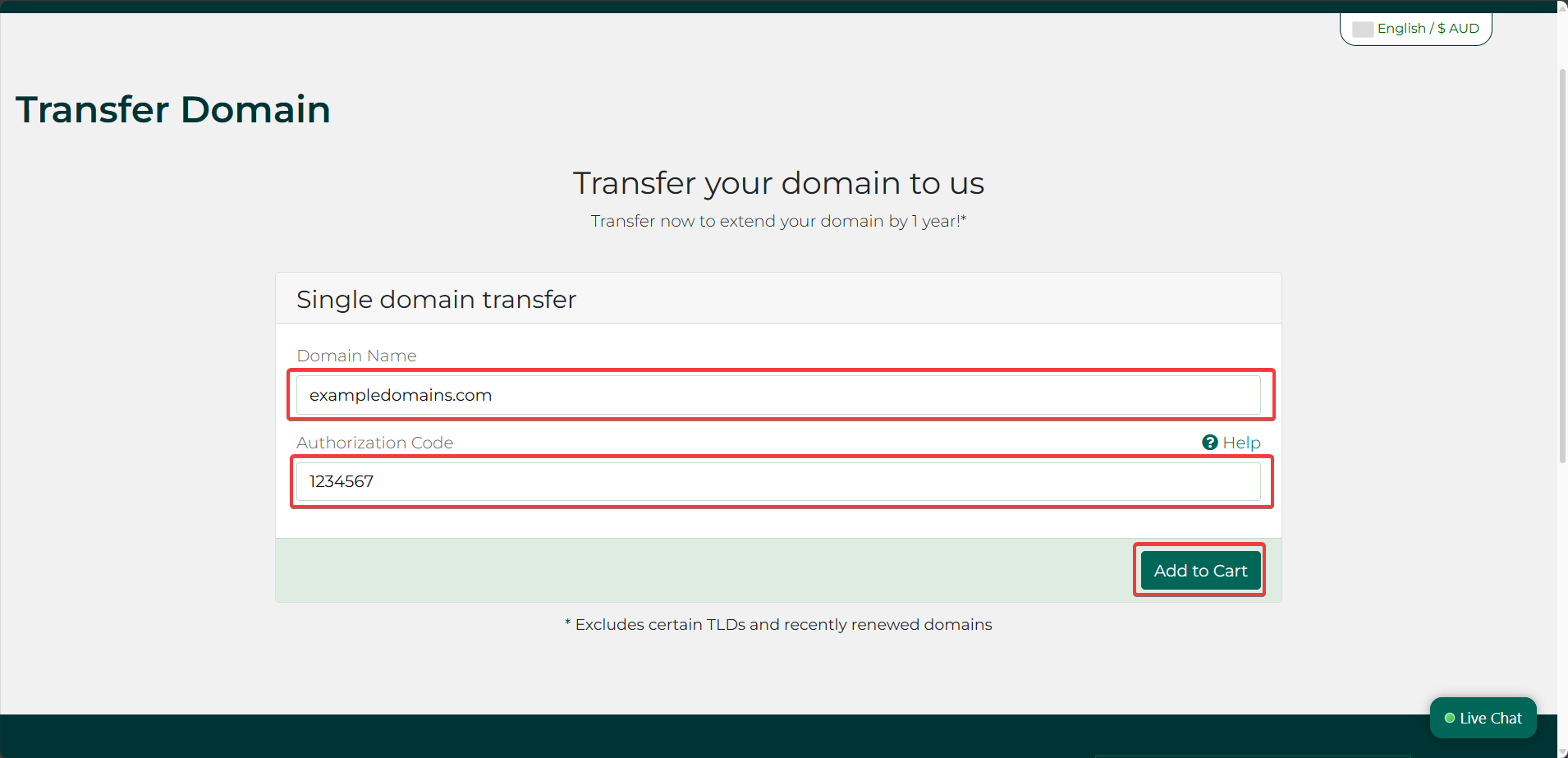
On the next screen, review that your domain name and authorization code are correct. If you want to add WHOIS privacy to your domain, tick the box labeled "ID Protection."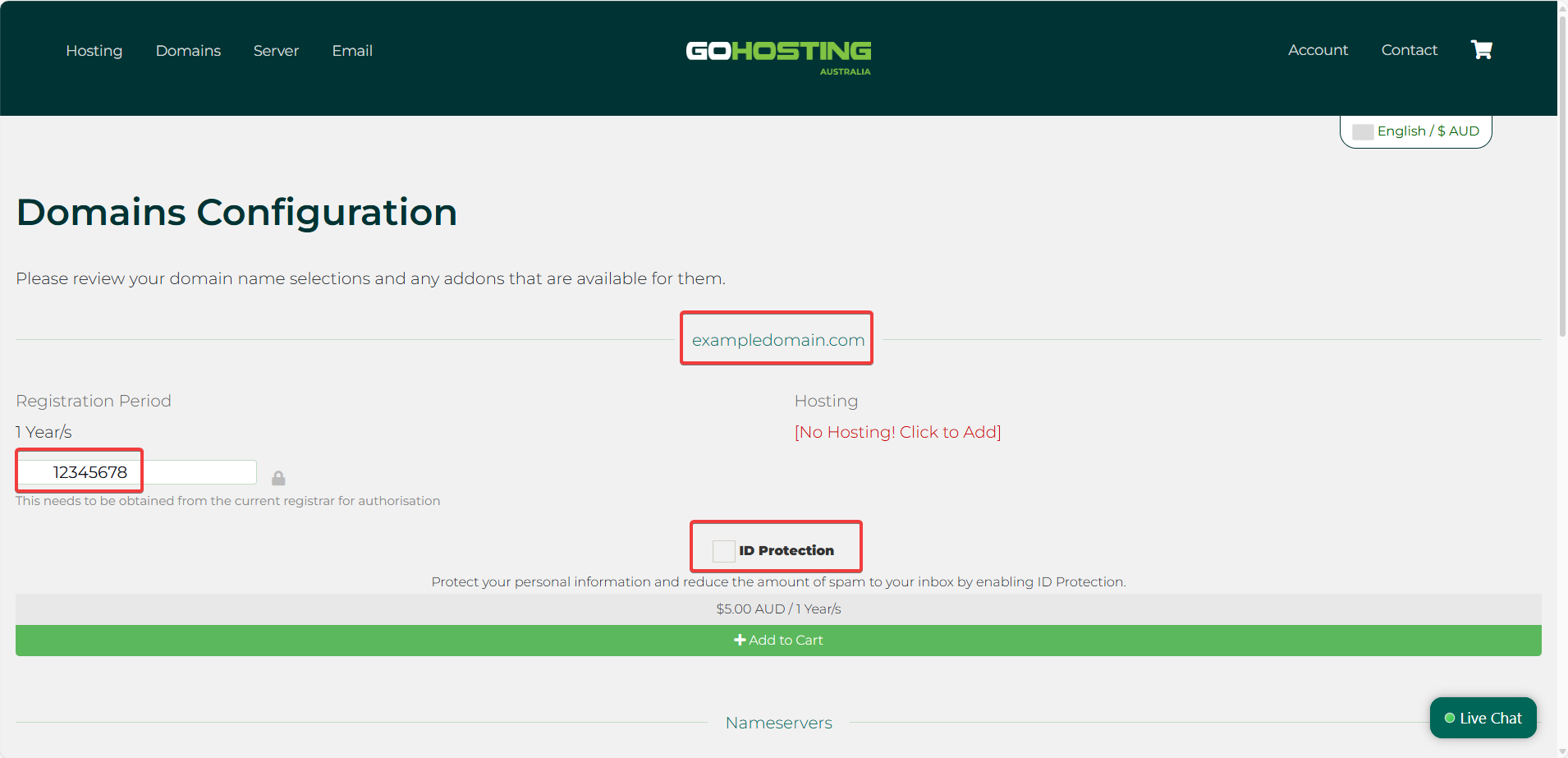
If you are transferring an Australian domain, you’ll also need to provide your eligibility information:
Eligibility Name: Your legal name, business, organization, or trademark name.
Eligibility ID Type: The form of ID you're using to prove eligibility (e.g., ABN, driver’s license).
Eligibility ID: An ID number that matches the selected ID type.
Eligibility Type: Your legal structure or organisation type (e.g., citizen/resident, business, charity).
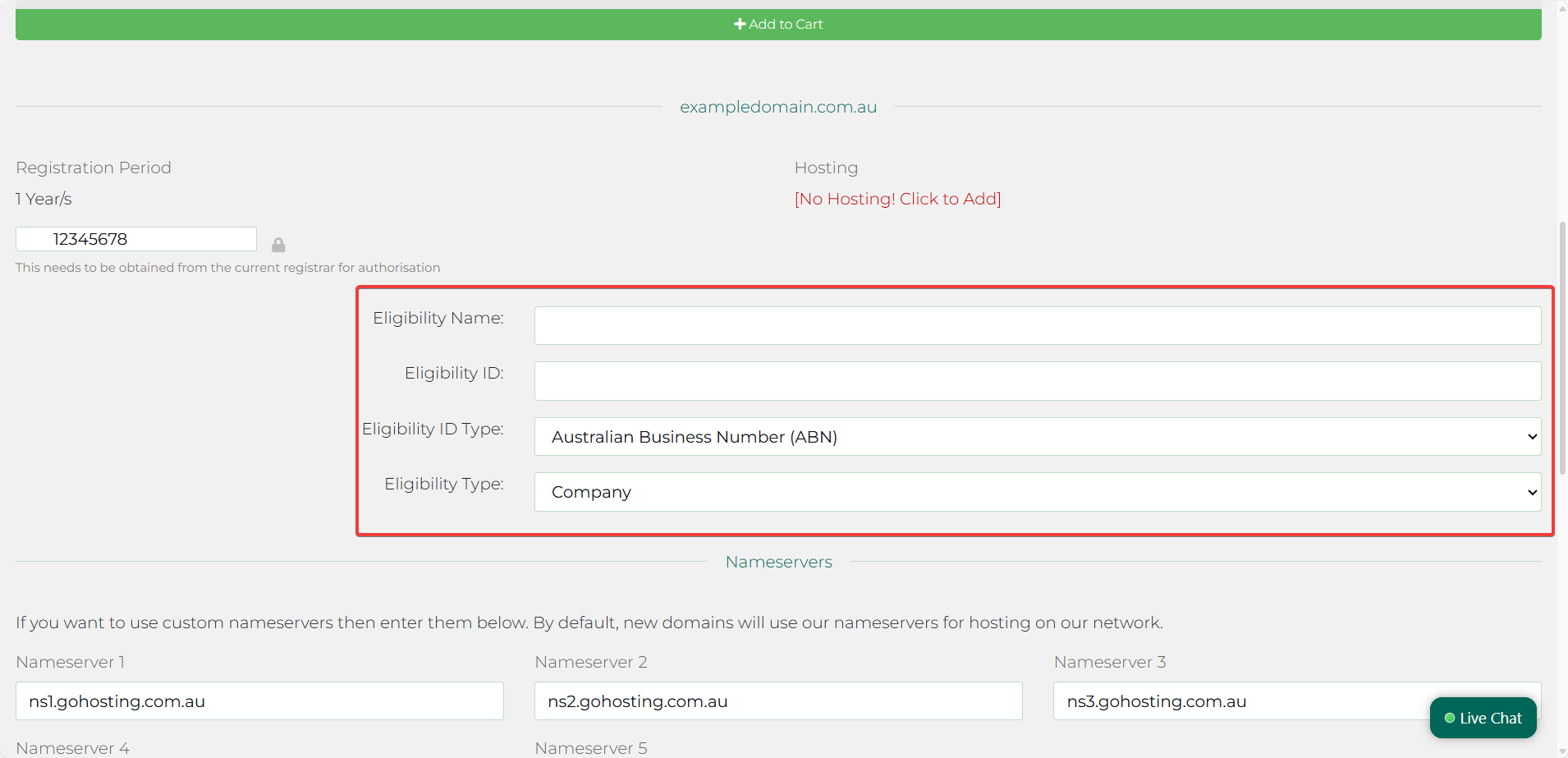
Once everything looks correct, click “Continue.”
Step 5: Place a transfer order with GoHosting
On the "Review & Checkout" page, ensure that the details in your order summary are correct and that you’re satisfied with the domain transfer fee.
A domain transfer fee is standard across most registrars. This is because transferring a domain includes renewing it for one additional year, as required by ICANN, not just by the registrar.
When you're ready, click Checkout.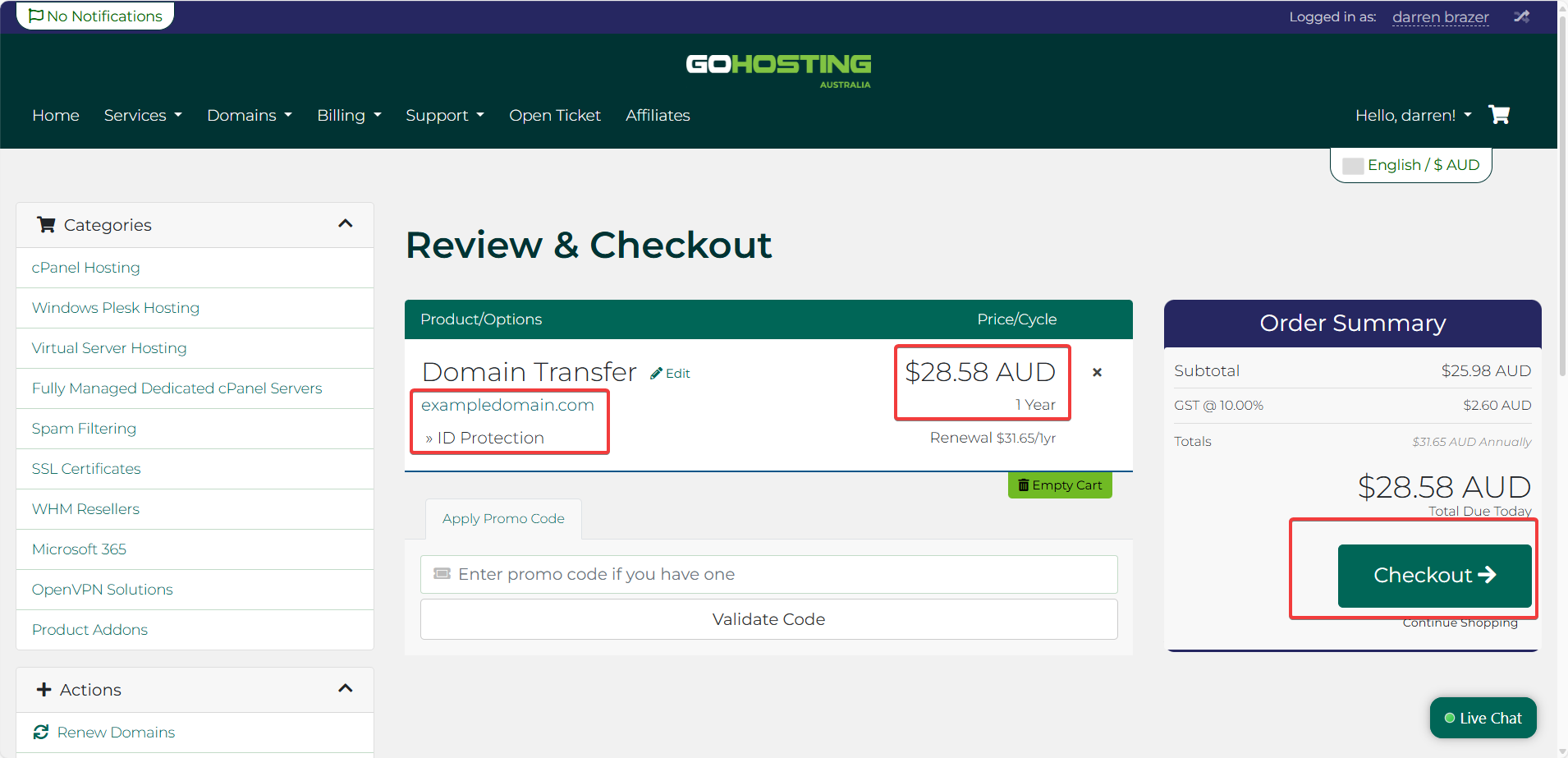
On the "Checkout" page:
If you're a new user, you'll need to provide your personal information, billing address, and payment information, and create a password for your new GoHosting account.
If you already have a GoHosting account, your personal and billing details may be pre-filled. Simply review and confirm that the information is accurate.
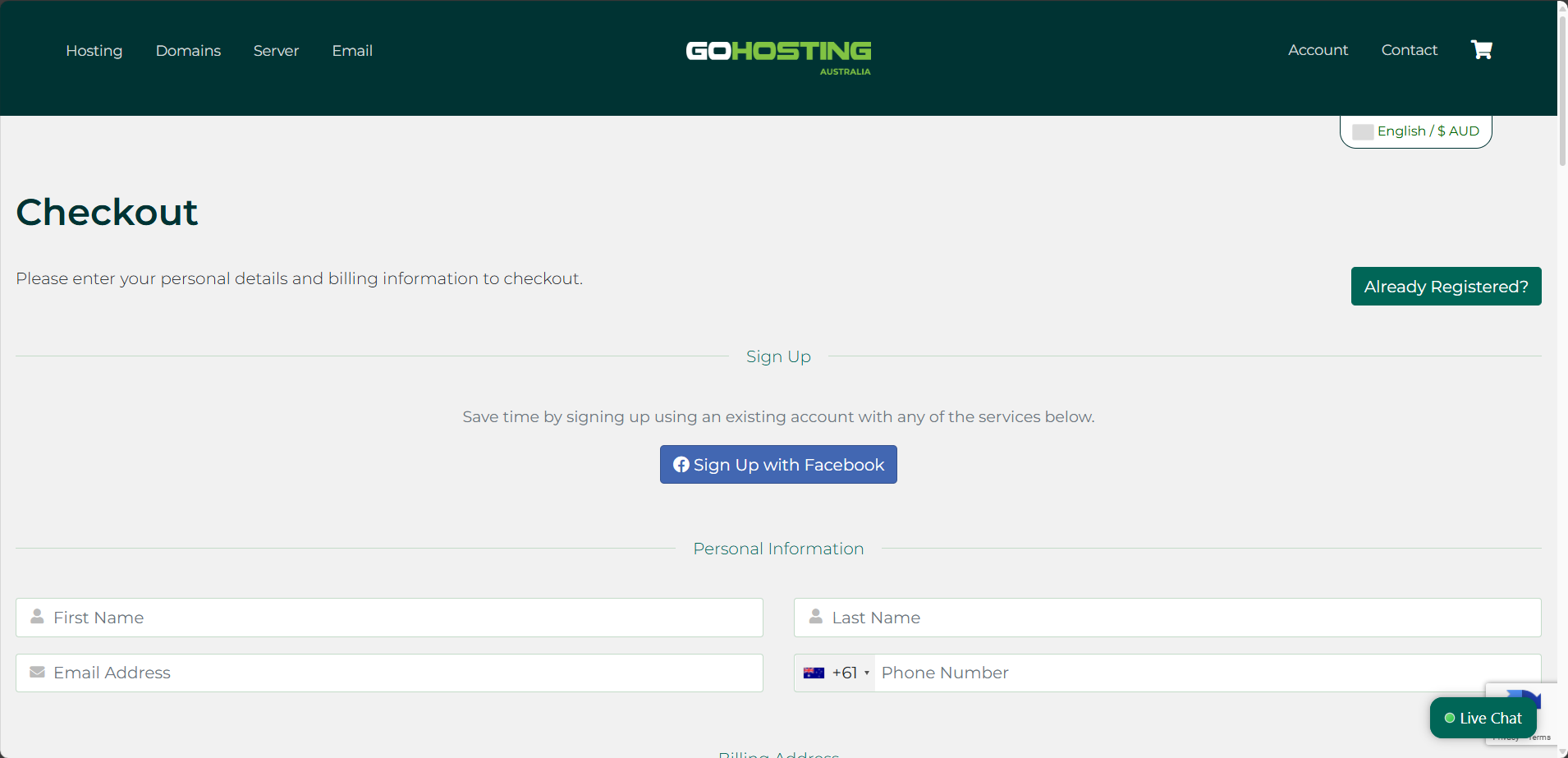
If you're placing an order on behalf of someone else or an organization, you have the option to enter alternative contact details for the domain registration. If this doesn't apply, you can skip that section.
Once all required information is completed and accurate, read and agree to the Terms of Service, then click "Complete Order."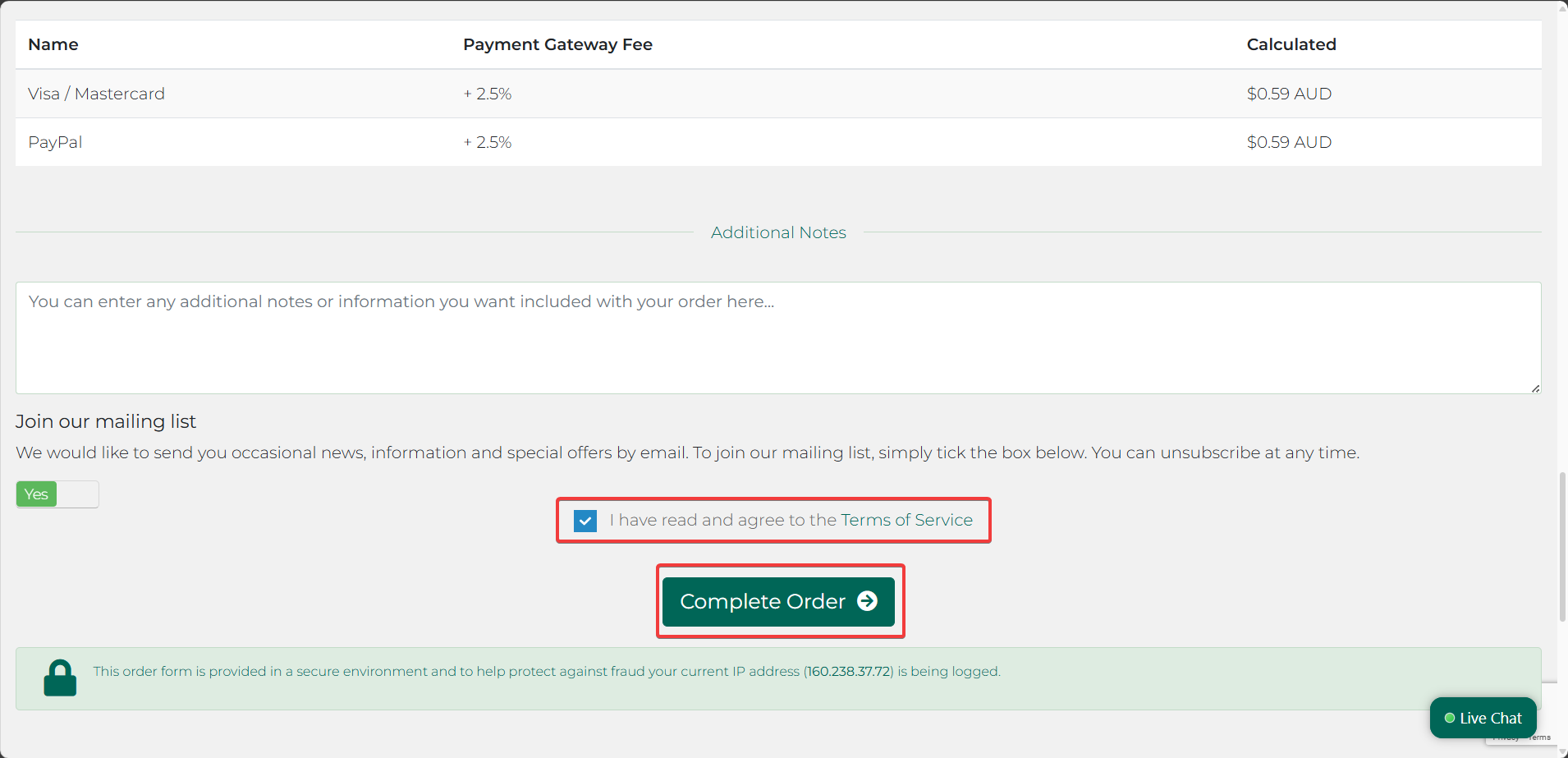
Step 6: Approve the transfer
Once the order is placed, you’ll receive an email sent to the domain’s admin email address asking you to approve the transfer. Follow the instructions in the email to authorize the move.
All steps are now complete, and you just need to wait for the transfer to finalize. This process usually takes 24–48 hours, and you will receive a confirmation email once it’s complete.
Congratulations! You have successfully transferred your domain to GoHosting.
You can log in to your GoHosting account to manage nameservers, update contact information, and check renewals on the domain name.
