
Meta Title: How can I check what is using my disk space on my GoHosting cPanel hosting package?
Meta Description: Quickly check disk space usage on your GoHosting cPanel hosting package with the Disk Usage tool — this step-by-step guide shows you how.
Slug: how-can-i-check-what-is-using-my-disk-space-on-my-gohosting-cpanel-hosting-package
To check what is using disk space on your GoHosting cPanel hosting package, you can use the built-in "Disk Usage" tool in cPanel.
This tool provides a detailed breakdown of your disk space usage, allowing you to see how much space is being consumed by different folders and files within your account.
How to check disk space usage on your GoHosting cPanel
Follow these steps to check what’s consuming disk space on your GoHosting cPanel hosting package.
1. Log in to your GoHosting cPanel
Use the link provided in your GoHosting welcome email to open the cPanel login page. Enter your username and password to sign in.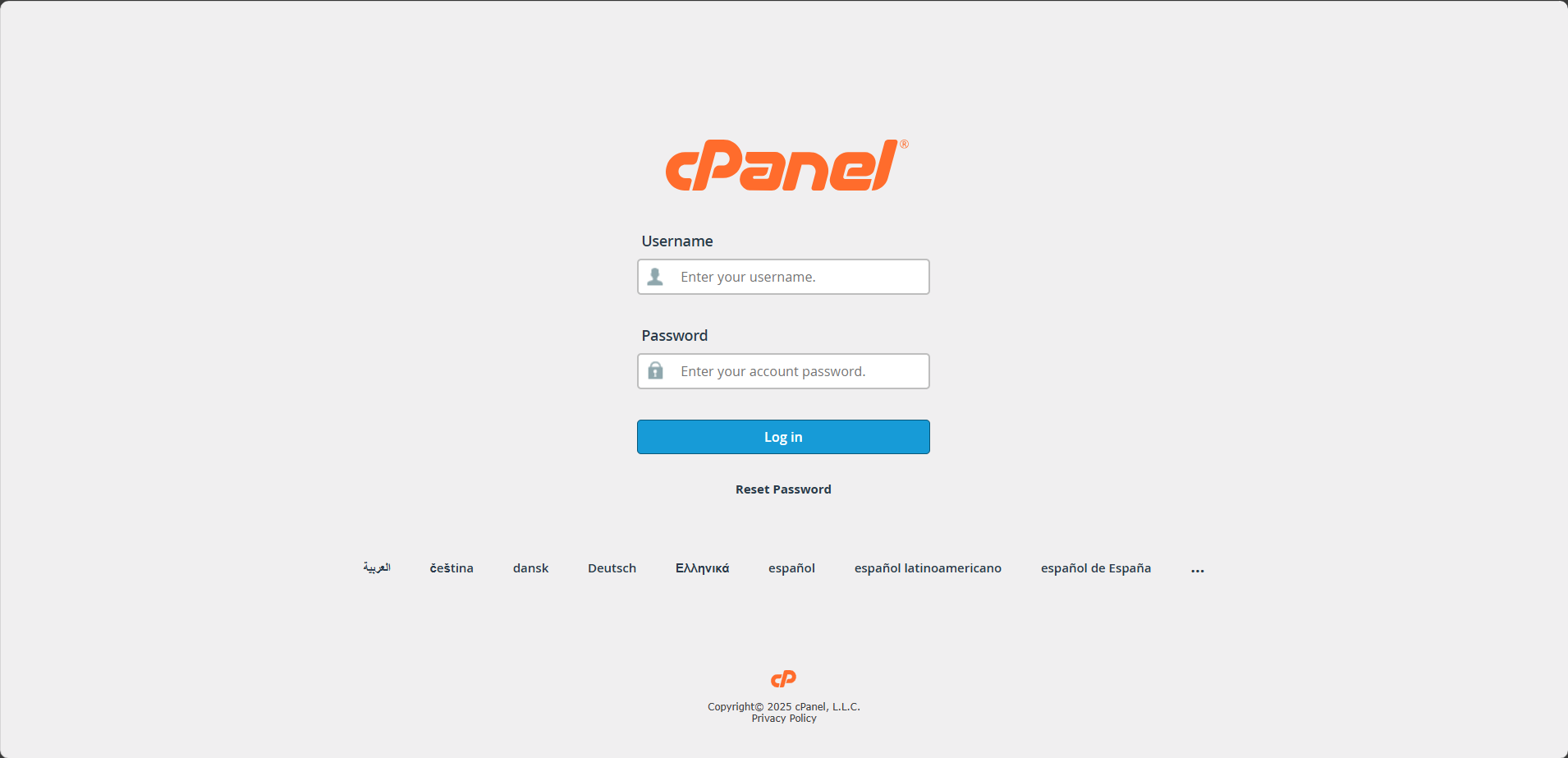
Alternatively, head to gohosting.com.au, sign in to your account, and select “Log in to cPanel” from your client dashboard.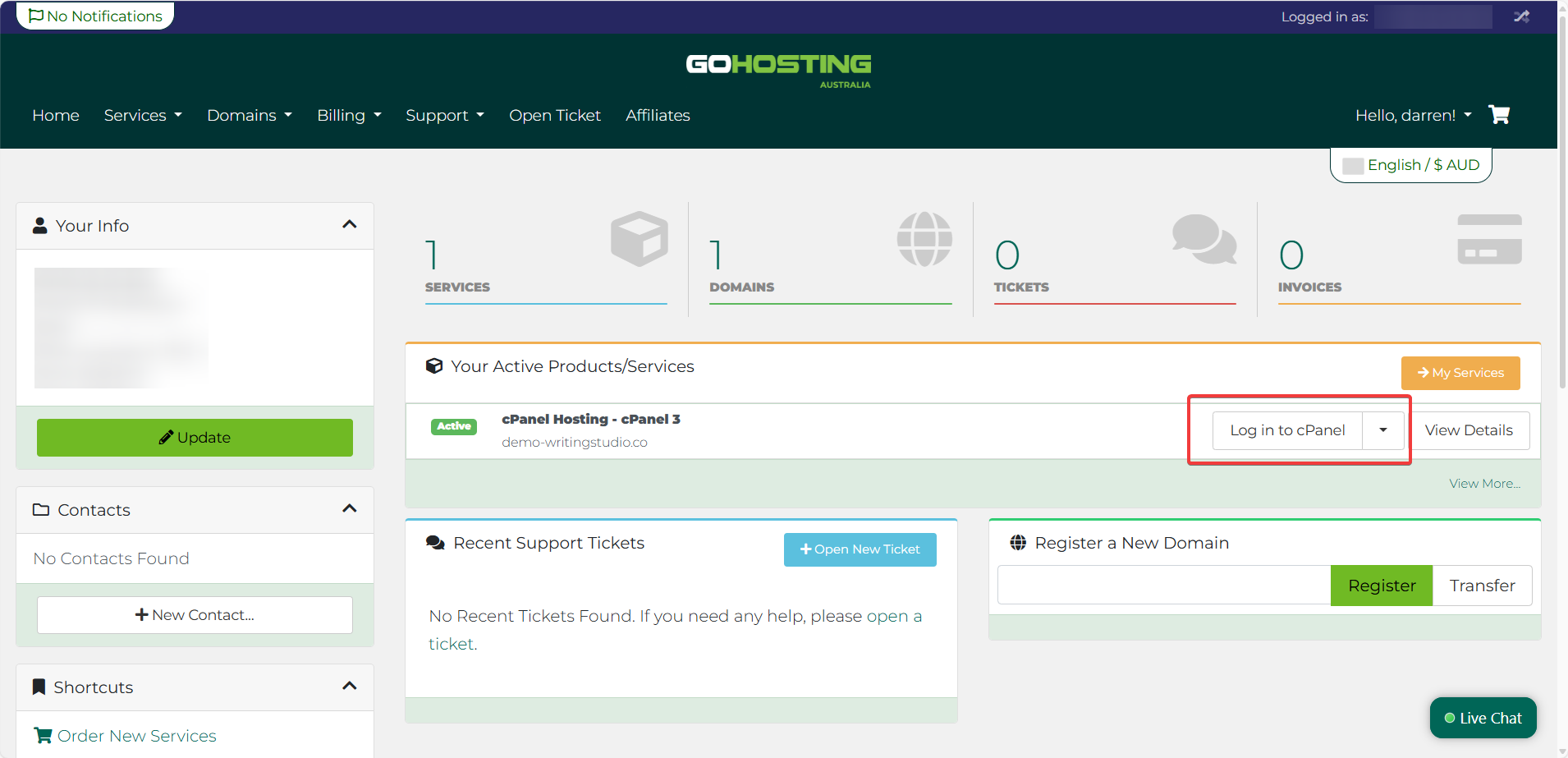
2. Locate the Disk Usage tool
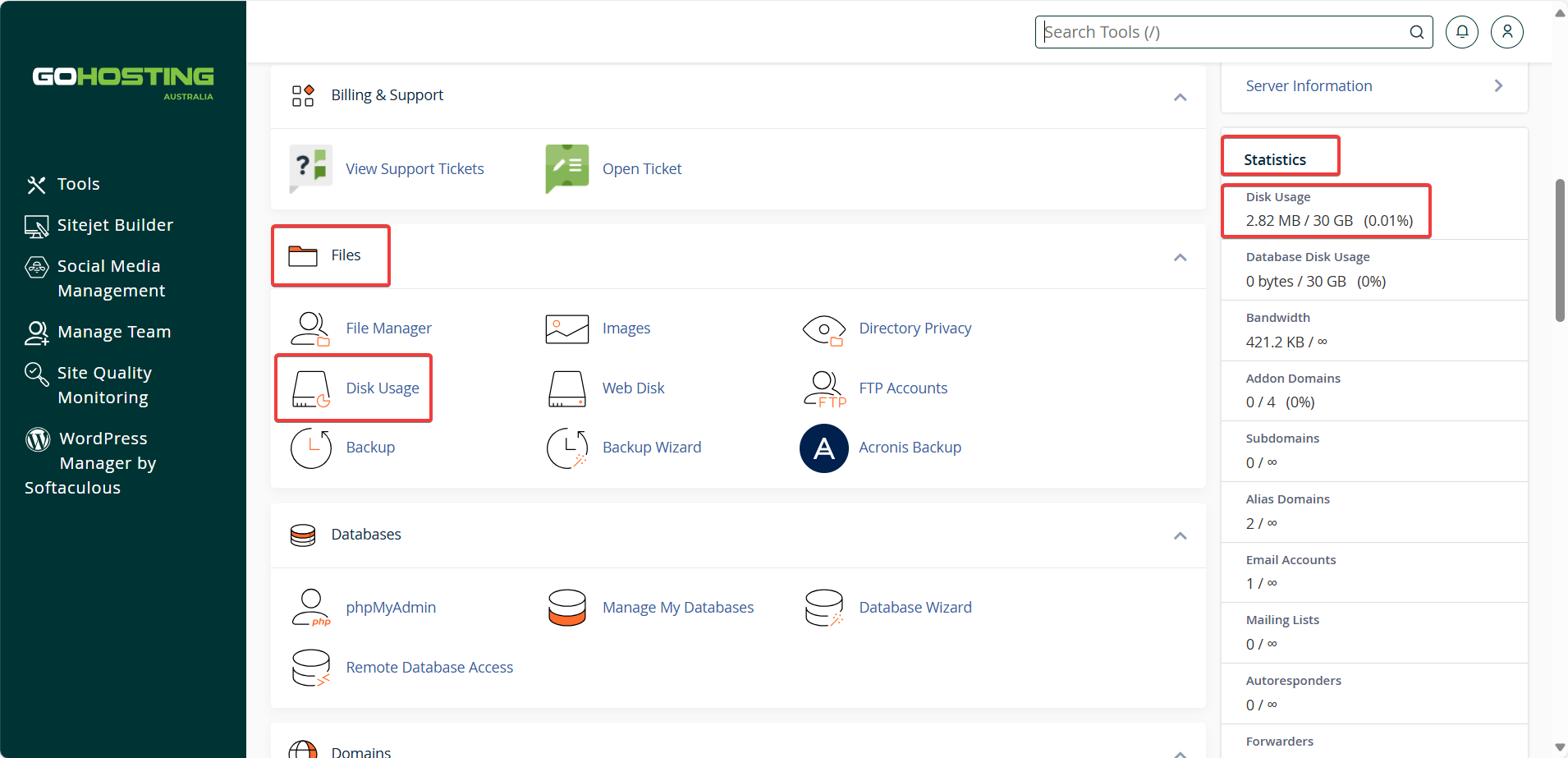
From the cPanel dashboard, navigate to the “Files” section and select the “Disk Usage” icon.
Tip: On your cPanel dashboard, you can also see an at-a-glance summary of your disk usage in the "Statistics" panel on the right-hand side.
3. View disk space usage
At the top of the "Disk Usage" page, you’ll see a visual bar chart that makes it easy to identify which folders are using the most space.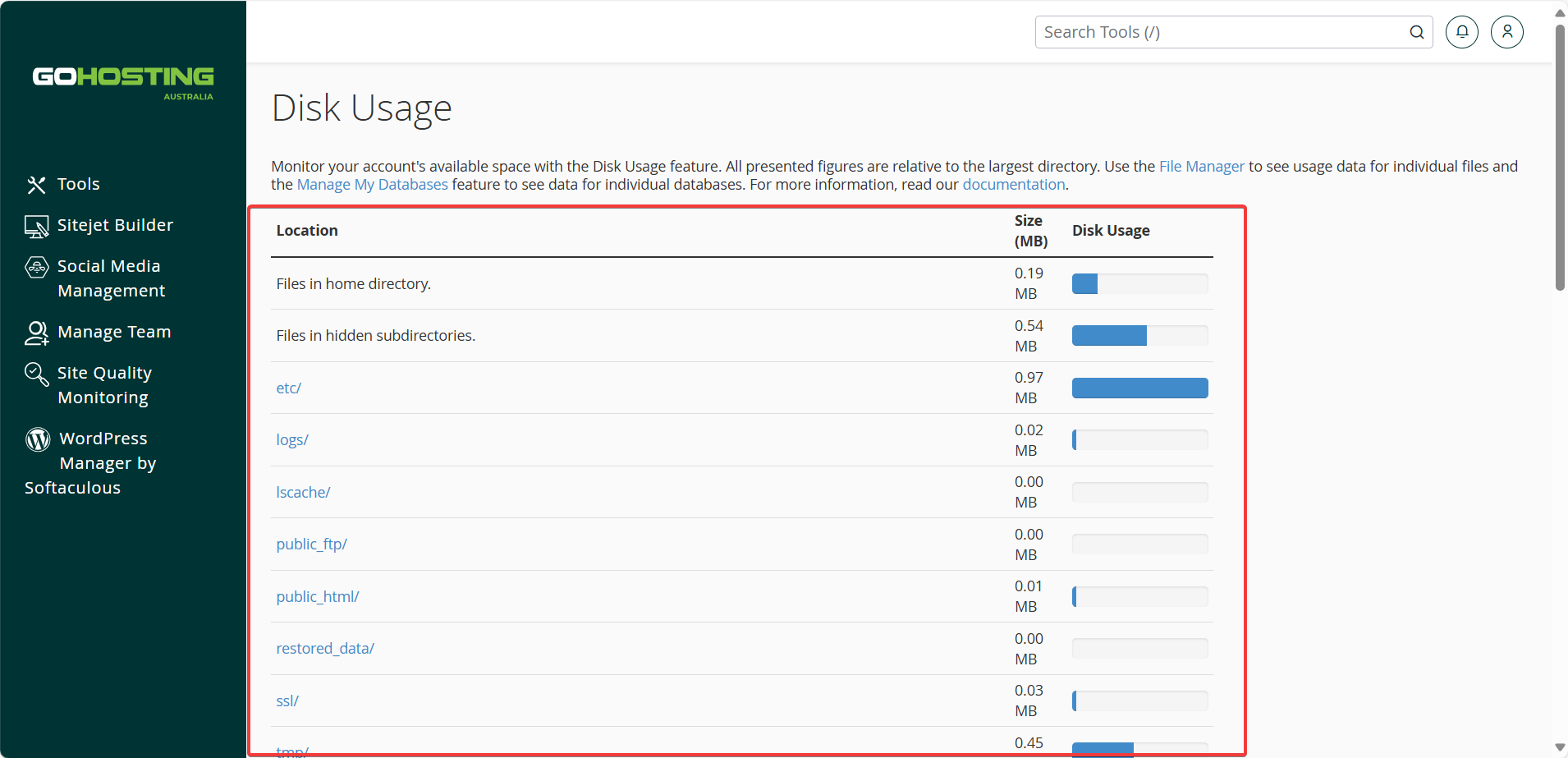
Below the chart, you’ll find a collapsible list of directories, which you can sort by "Name" or "Disk Usage".
You can click the arrows next to directories to expand them and view subfolders and files — this helps you pinpoint exactly where space is being used.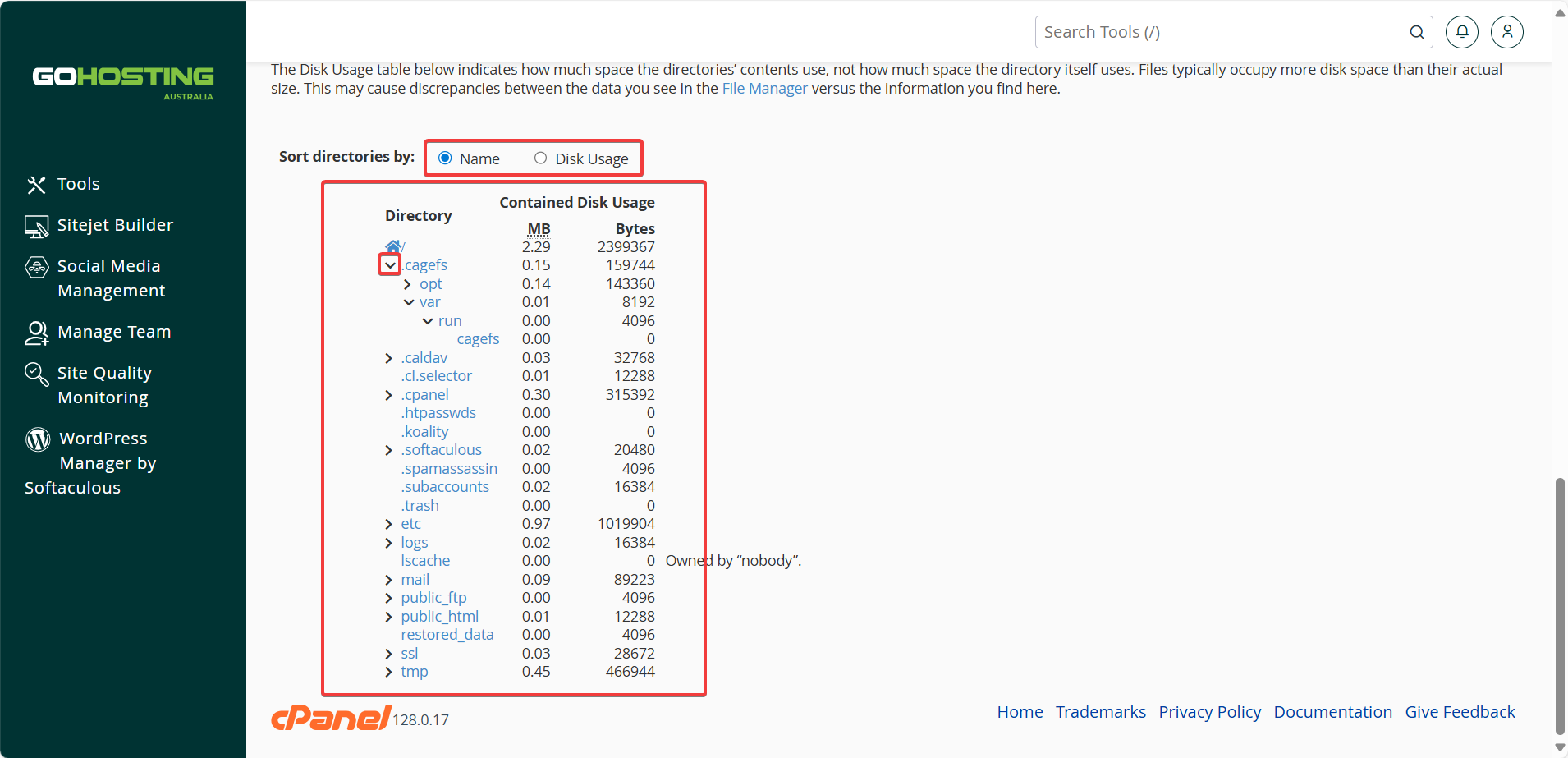
Clicking a folder name typically opens it in "File Manager", making it easier to manage your files.
4. Free up disk space (if needed)
If you're running low on disk space, you can consider the following to free up space:
Delete unnecessary files using "File Manager".
Delete old emails, spam, and empty trash.
Delete old backups you no longer need.
Delete or archive old log files in the logs directory.
Optimize databases (via phpMyAdmin) if they’ve grown large.
Before deleting anything, make sure to back up important data, especially files or databases that are critical to your website or application. If you consistently run low on space, consider upgrading your hosting plan.
