
Encountering a blank page on your WordPress site, often referred to as the "White Screen of Death" (WSOD), can be a frustrating experience for any website owner.
This issue can stem from a variety of causes, most commonly related to plugins, themes, or PHP errors (such as a 500 internal server), leaving your entire site or specific parts of it inaccessible.
This guide will help you troubleshoot the problem by outlining the most likely causes and detailing the steps needed to diagnose and resolve the blank page issue.
Why does a blank page appear?
A blank white screen appears instead of an error message because WordPress turns off error reporting by default to help keep your site secure.
When something goes wrong—such as a broken plugin, coding error, or memory limit issue—this setting prevents the display of server paths, file names, source code, or other sensitive details that hackers could potentially exploit.
How to troubleshoot the blank page (WSOD) on your WordPress site
Follow the steps below to identify the cause and fix the blank screen issue.
Important: Before making any changes, make sure to create a full backup of your WordPress site.
1. Check the admin email
If WordPress encounters a fatal error, it often sends an email to your wp-admin email address. Check your inbox to see if you've received one.
The email will tell you which plugin or theme is causing the problem. It will also include a special recovery link. You can use this link to log in to WordPress in recovery mode and fix the issue.
However, in such cases, you usually won’t see a completely blank white screen when visiting your site. Instead, you’ll see a message that says, "The site is experiencing technical difficulties."
2. Increase the PHP memory limit
A common cause of the WSOD is when WordPress runs out of memory while attempting to load a page or execute a script, causing it to crash before it can complete.
You can fix this by increasing the amount of PHP memory allocated to WordPress. This gives your site the extra resources it needs to execute scripts without interruption.
To increase the PHP memory limit, follow these steps:
Log in to your GoHosting cPanel.
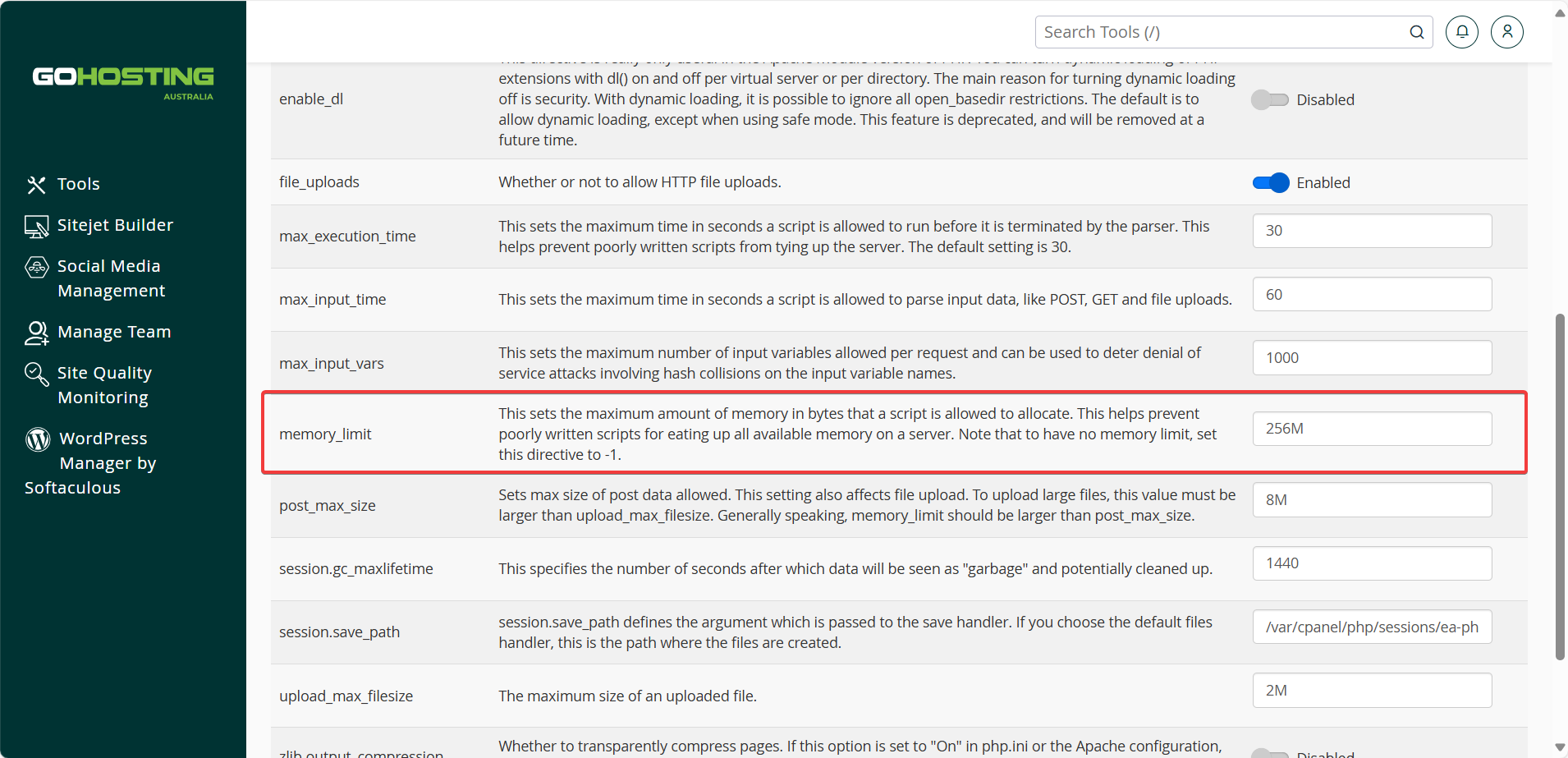
Scroll down to the "Software" section and click "MultiPHP INI Editor".
Select your domain from the dropdown menu.
Locate the "memory_limit" setting and increase it to 256M or 512M.
Click "Apply" to save your changes.
Visit your website to see if it’s now loading correctly.
3. Disable all plugins
Faulty plugins are another top cause of the WSOD. To determine whether a plugin is the issue, start by deactivating all plugins and then check if your site starts working. If it does, you’ve confirmed that a plugin is the culprit.
If you have access to the WordPress admin dashboard, follow these steps:
Log in to your WordPress admin.
Go to the "Plugins" section, then select "Installed Plugins" from the sidebar menu.
Select all plugins using the checkbox.
From the "Bulk Actions" dropdown, select "Deactivate", then click "Apply".
Reload your website to see if it loads correctly now.
If it does, reactivate each plugin one by one, reloading the site each time, until you find the faulty one.
Delete or update the faulty plugin.
If you don't have access to the WordPress admin, which is often the case with WSOD, follow these steps:
Log in to your GoHosting cPanel.
In the "Files" section, click "File Manager".
Navigate to: public_html/wp-content/plugins
Right-click the "plugins" folder and rename it to something like "plugins-disabled".
Reload your website to see if it loads correctly now.
If it works, one of the plugins is at fault. To isolate it:
Rename the folder back to "plugins".
Then, one by one, rename each individual plugin folder inside it, reloading the site each time.
When the site breaks again, you’ve found the faulty plugin.
Delete or update that plugin.
4. Switch to a default theme
A problematic theme can also cause the blank screen issue, similar to a faulty plugin. Switching to a default WordPress theme, such as Twenty Twenty-Four, can help determine if the theme is the problem.
If you can access your WordPress admin:
Go to the "Appearance" section, then select "Themes " from the sidebar menu.
Activate a default theme.
If not, follow these steps:
Access your GoHosting cPanel.
In the "Files" section, click "File Manager".
Navigate to: public_html/wp-content/themes/
Find your active theme folder and rename it.
WordPress will automatically fall back to a default theme if one is available. If not, download a default theme from wordpress.org/themes and upload it via File Manager.
If the site loads successfully, review your original theme’s "functions.php" file for errors, or try reinstalling the theme.
5. Enable Debug Mode
If none of the previous steps resolve the issue, enabling WordPress Debug Mode can help identify the exact cause of the blank screen.
This will cause WordPress to log any PHP errors that occur, making it easier to pinpoint what’s going wrong behind the scenes.
To enable debug mode:
Log in to your GoHosting cPanel.
In the "Files" section, click "File Manager".
Navigate to: public_html/wp-config.php.
Right-click the file and choose "Edit".
Find the line that says: define( 'WP_DEBUG', false );
Replace it with these three lines:
define( 'WP_DEBUG', true );
define( 'WP_DEBUG_LOG', true );
define( 'WP_DEBUG_DISPLAY', false );Click "Save Changes", then reload your website.
WordPress will now log all errors to a file located at:
public_html/wp-content/debug.log
Open this file to review any recent error messages. These logs can help you identify the cause of the issue.
Once you’ve finished debugging, remember to turn off debug mode by setting WP_DEBUG back to false.
