
Setting up your GoHosting email on an iPhone, iPad, or Mac makes it easy to manage your emails from anywhere. Follow the simple steps in this guide to configure your GoHosting email account using either the POP3 or IMAP protocol on your Apple device. If you haven't created your mailbox yet, do that first.
Gather your email settings
Before you begin setting up, ensure you have the following details at hand:
Your GoHosting email address (e.g., [email protected])
Your email password
Your GoHosting POP/IMAP server settings
To find your GoHosting server settings:
Access your GoHosting cPanel.
Go to the "Email" section and click "Email Accounts".
Select "Connect Devices" next to the email account you wish to use.
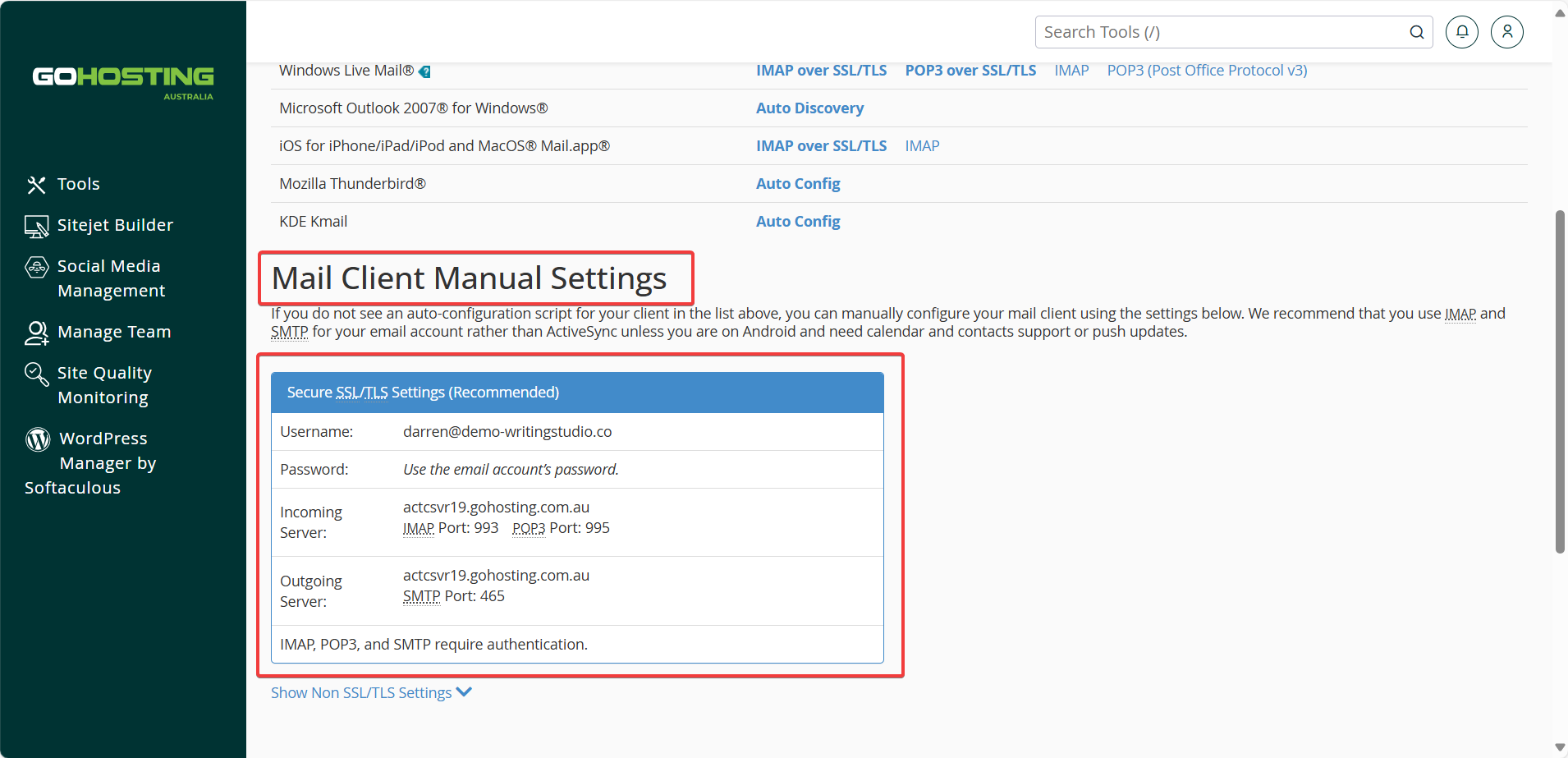
Scroll down to "Mail Client Manual Settings". Here you’ll find the incoming (IMAP/POP) and outgoing (SMTP) server details you’ll need.
Set up on iPhone or iPad
To set up your GoHosting email using Apple Mail on an iPhone or iPad, follow these steps:
Open Settings on your device.
Tap "Apps", then "Mail", then "Mail Accounts".
Tap "Add Account".
Choose "Other".
Tap "Add Mail Account".
Enter your full name, GoHosting email address, password, and a description, then tap "Next".
Choose IMAP or POP based on your preference. We recommend IMAP for most users.
- Under "Incoming Mail Server", enter:
Host Name: Incoming server address from "Mail Client Manual Settings" in cPanel.
Username: Your full GoHosting email address.
Password: Your GoHosting email password.
- Under "Outgoing Mail Server", enter:
Host Name: Outgoing server address from "Mail Client Manual Settings" in cPanel.
Username: Your full GoHosting email address.
Password: Your GoHosting email password.
Tap "Next" and wait for verification.
Tap "Save" to complete the setup.
Your GoHosting email is now ready to use on your iPhone or iPad. Please test sending and receiving emails to ensure everything is working correctly.
Set up using Apple Mail on Mac
To configure your GoHosting email account on a Mac using the built-in Apple Mail app, follow these steps:
Open the Mail app on your Mac.
If this is your first time setting up an email account in Apple Mail, you’ll be prompted to add one. Otherwise, go to "Mail" in the menu bar and select "Add Account…"
Choose "Other Mail Account", then click "Continue".
Enter your full name, GoHosting email address, password, and a description, then click "Sign In".
When prompted, select the account type: IMAP (recommended) or POP.
Enter the Incoming Mail Server address from "Mail Client Manual Settings" in cPanel.
Enter the Outgoing Mail Server from "Mail Client Manual Settings" in cPanel.
Click "Sign In".
Click "Done".
Your GoHosting email is now set up on your Mac. Please test sending and receiving emails to confirm everything is working properly.
