
Getting Microsoft 365 through GoHosting is a great way to keep your email, hosting, and domain services all in one place. We’ve supported thousands of businesses in making the most of Microsoft 365.
With this quick setup guide, you’ll have your mailbox running on your Android device in no time. Using an Apple device instead? See how to set up Microsoft 365 on Apple.
Set up using Microsoft Outlook
The Outlook app, developed by Microsoft, provides seamless access to your Microsoft 365 email. To add your mailbox to Outlook, follow these steps:
If you don’t have it already, download the Microsoft Outlook app from the Google Play Store.
Open the Outlook app.
On the welcome screen, tap “Add Account.” Or, if you already have another account set up, tap your profile icon and choose “Add an account.”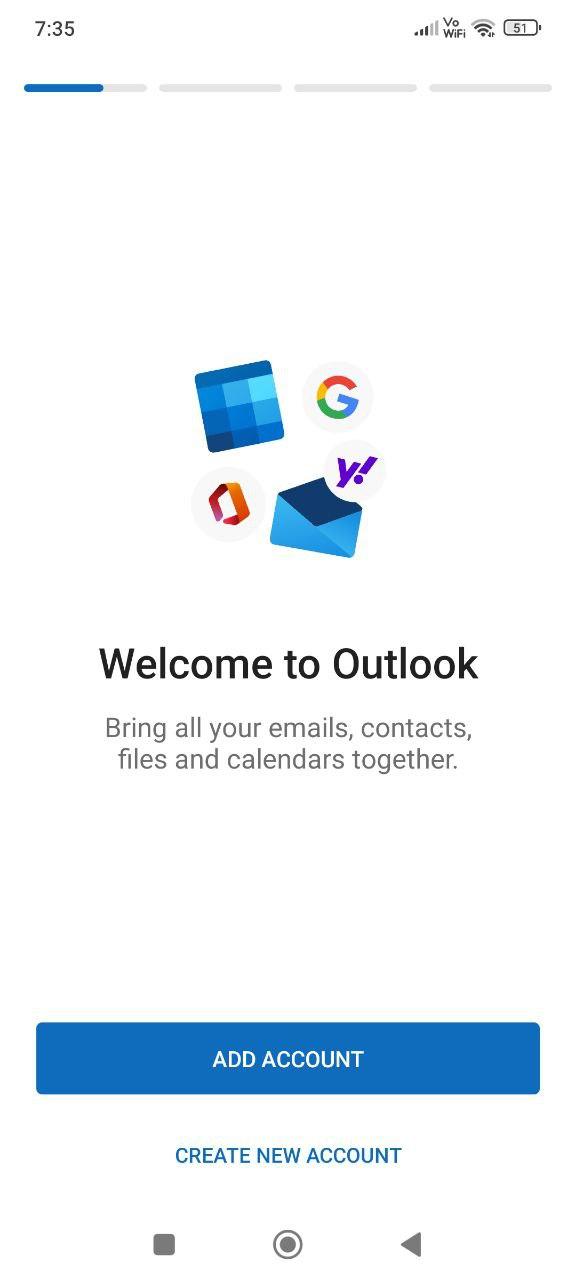
Enter your Microsoft 365 email address and tap "Continue".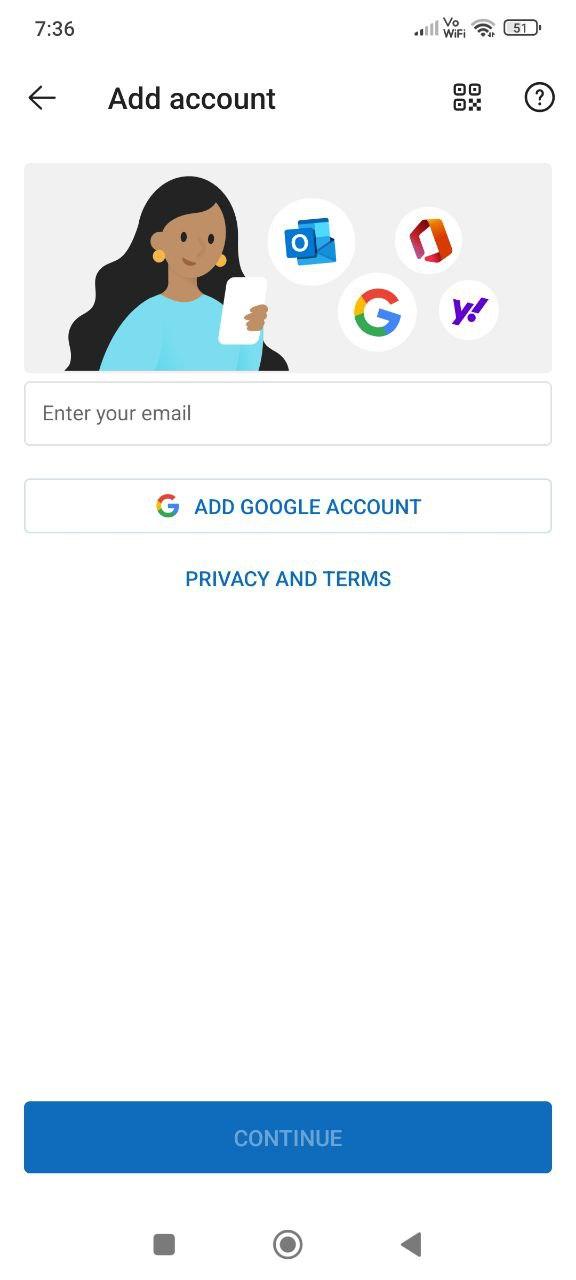
Enter your Microsoft 365 email password and tap "Sign in".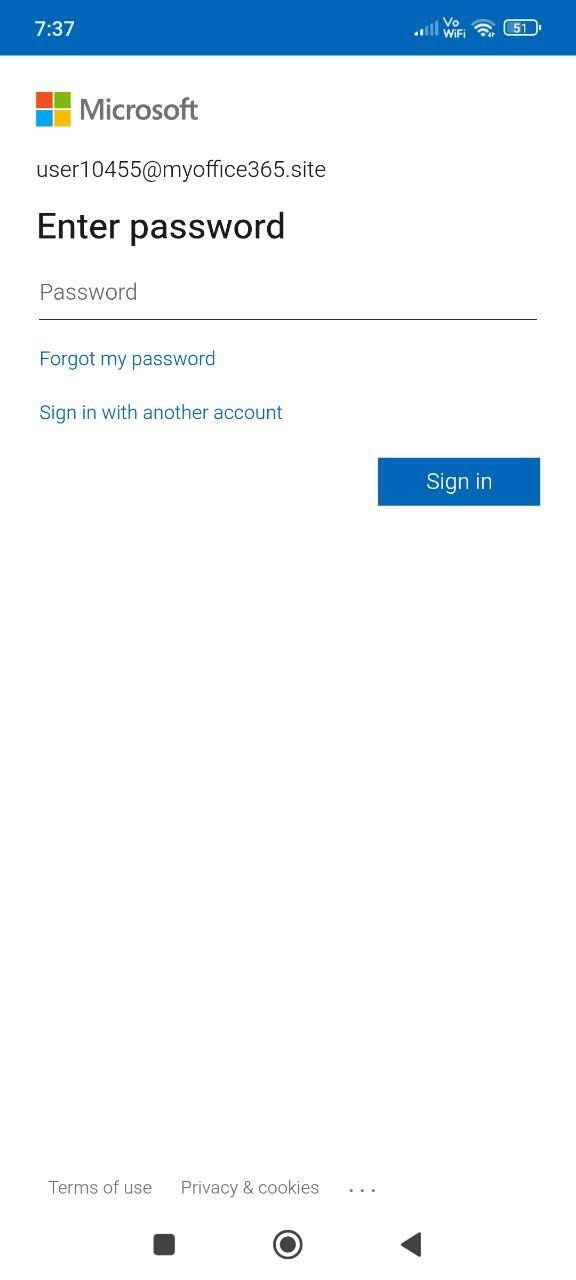
Tap “Maybe Later” when asked if you want to add another account.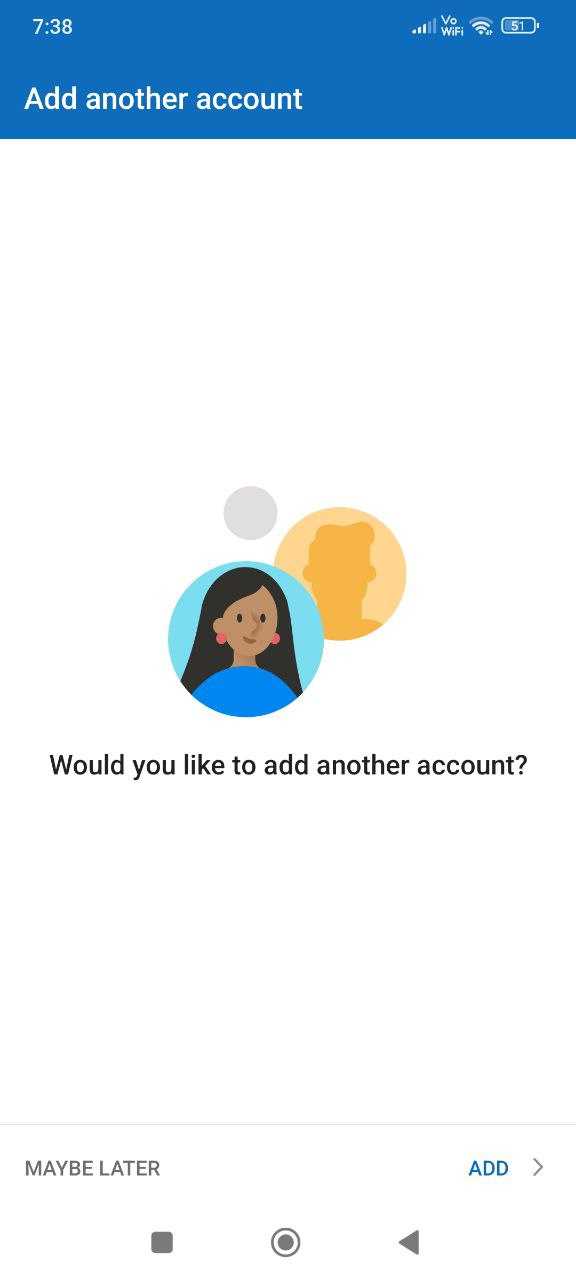
Choose whether to enable notifications or tap “No thanks.”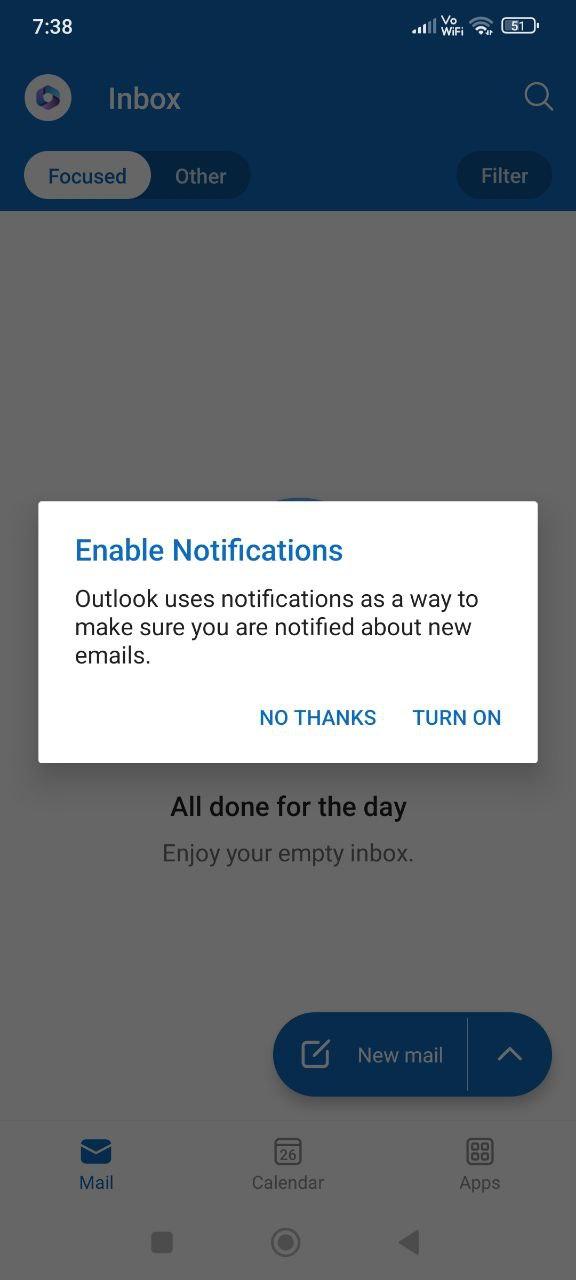
Your Microsoft 365 mailbox is now set up in Outlook!
Set up using Gmail
Gmail allows you to connect your Microsoft 365 account and is pre-installed on most Android devices. To add your Microsoft 365 mailbox to Gmail, follow these steps:
Open the Gmail app.
Tap your profile icon in the top right corner.
Select "Add another account".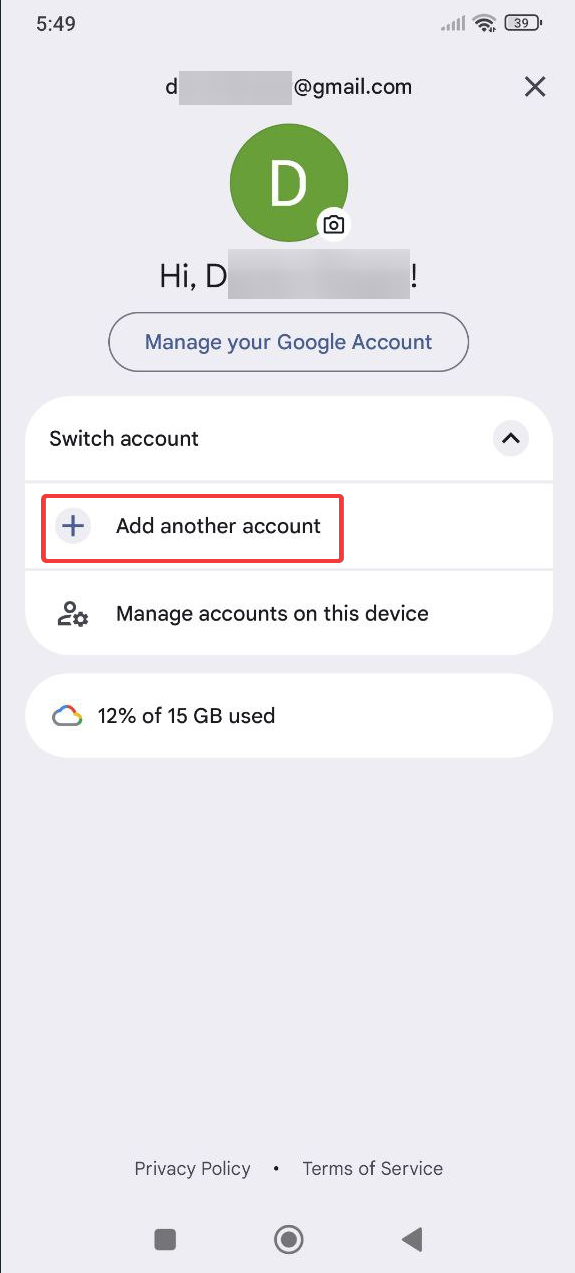
On the "Set up email" screen, choose "Exchange and Office 365".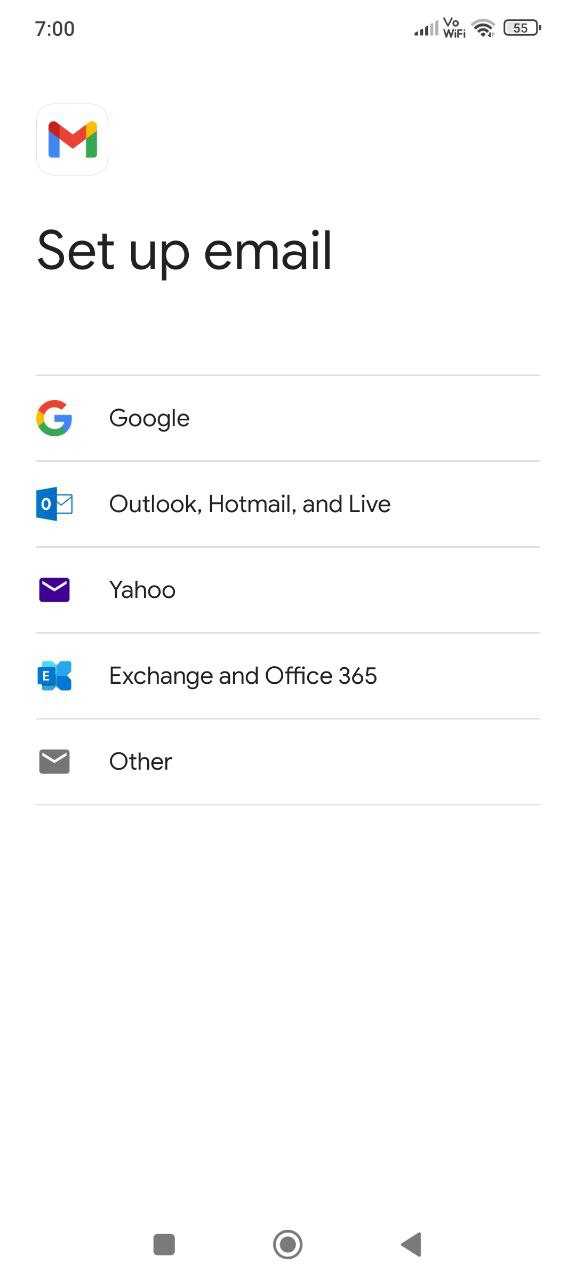
Enter your Microsoft 365 email address and tap "Next".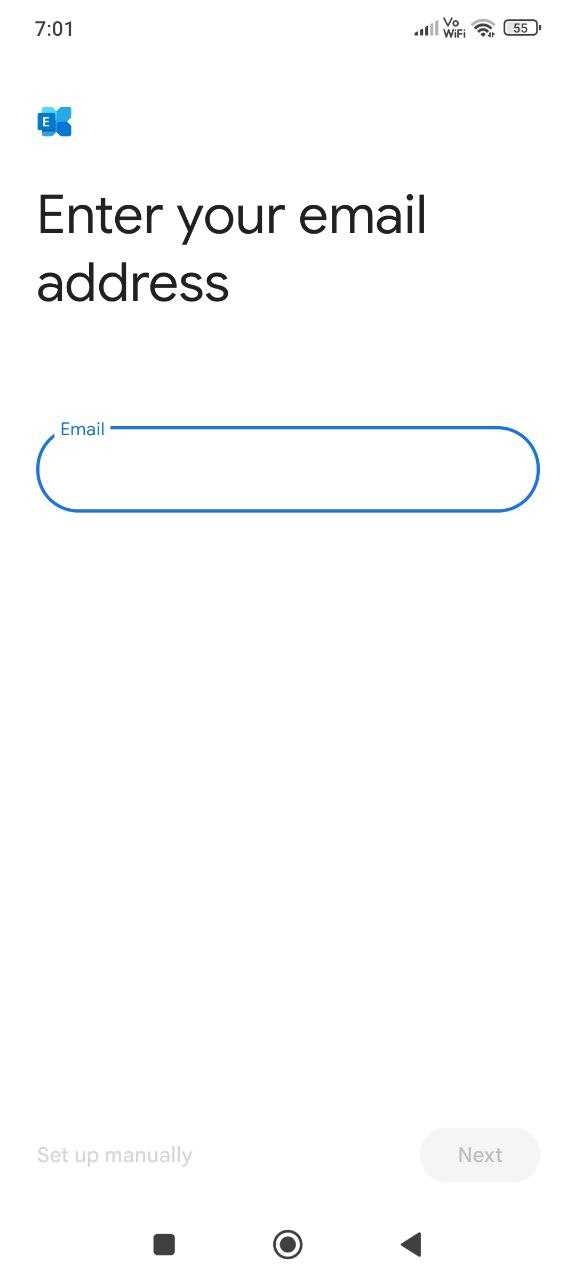
You'll be redirected to Microsoft's sign-in page. Enter your email password and tap "Sign in."
Tap "Accept" to grant Gmail permission to access your Microsoft 365 account.
Wait a few moments for the setup to complete, then tap "Done."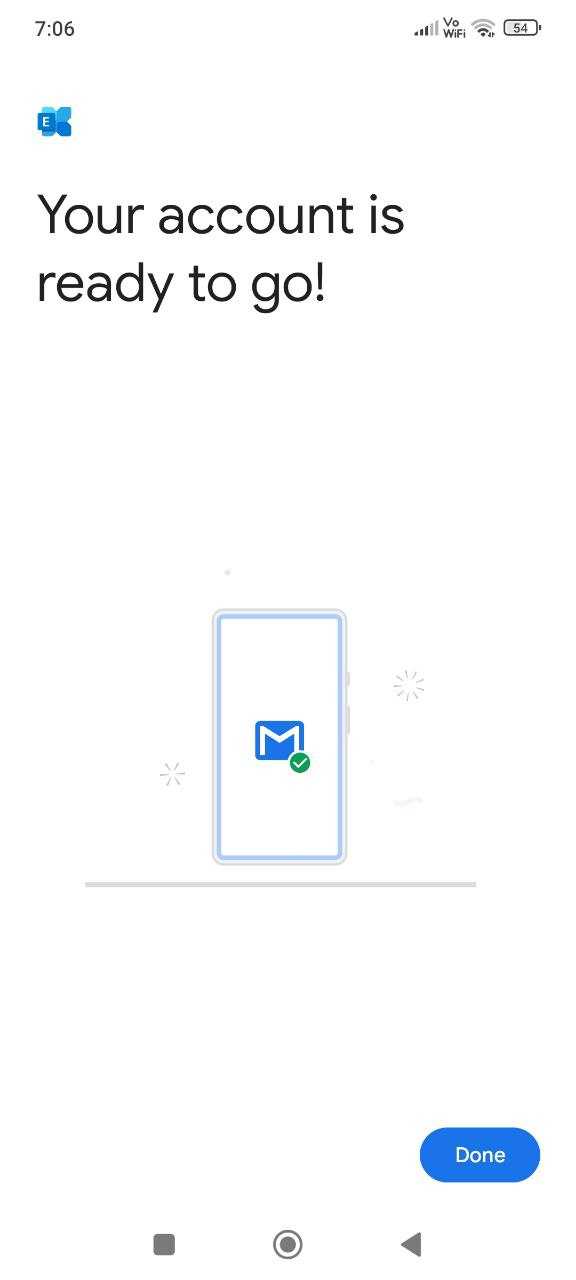
You can now access your Microsoft 365 mailbox in Gmail!
