
The 500 Internal Server Error (also known as HTTP Error 500) is a generic server-side issue that can result from a wide range of underlying problems. Due to its broad nature, it's one of the more frequently encountered web errors.
In this guide, we'll explain what the 500 error means, explore its common causes, and most importantly, help you get it fixed.
What is a 500 Internal Server Error?
A 500 error means that the server has encountered an unexpected issue or configuration problem that prevents it from fulfilling your request. Most of the time, it's a server-side issue on the website's end, rather than a problem with your computer, browser, or internet connection.
It's a generic error, meaning the server knows something has gone wrong but cannot precisely identify the cause, or deliberately hides the details for security reasons. As a result, it displays the standard "500 Internal Server Error" message, or a variation such as:
HTTP Error 500 – Internal Server Error
HTTP Error 500
500 Error
Something went wrong. (500)
Fixing a 500 Internal Server Error as a visitor
There's not much you can do if you encounter a 500 Internal Server Error while visiting a website you don't own or manage. However, there's a slight chance it could be a temporary or local issue on your end.
Before assuming the site is down, try these quick fixes:
Refresh the page: A quick reload sometimes solves temporary glitches.
Switch to another network: Try connecting through mobile data or a different Wi-Fi network.
Clear cache and cookies: Manually delete them in your browser to remove expired or corrupted files, or try using a different browser.
Try again later: The issue may resolve on its own, or the site owner or hosting provider may fix it.
Fixing a 500 Internal Server Error as a site owner
If you're the website owner or webmaster and the quick fixes above don't help, more in-depth troubleshooting is required.
Because there are several possible causes, you'll have to try the following fixes one at a time until you find the solution.
Important: Before you begin troubleshooting, we recommend backing up your website files and database.
1. Check the error logs
The first step in diagnosing a 500 error is to review your server's error logs. These logs contain detailed messages that can help identify what's going wrong behind the scenes.
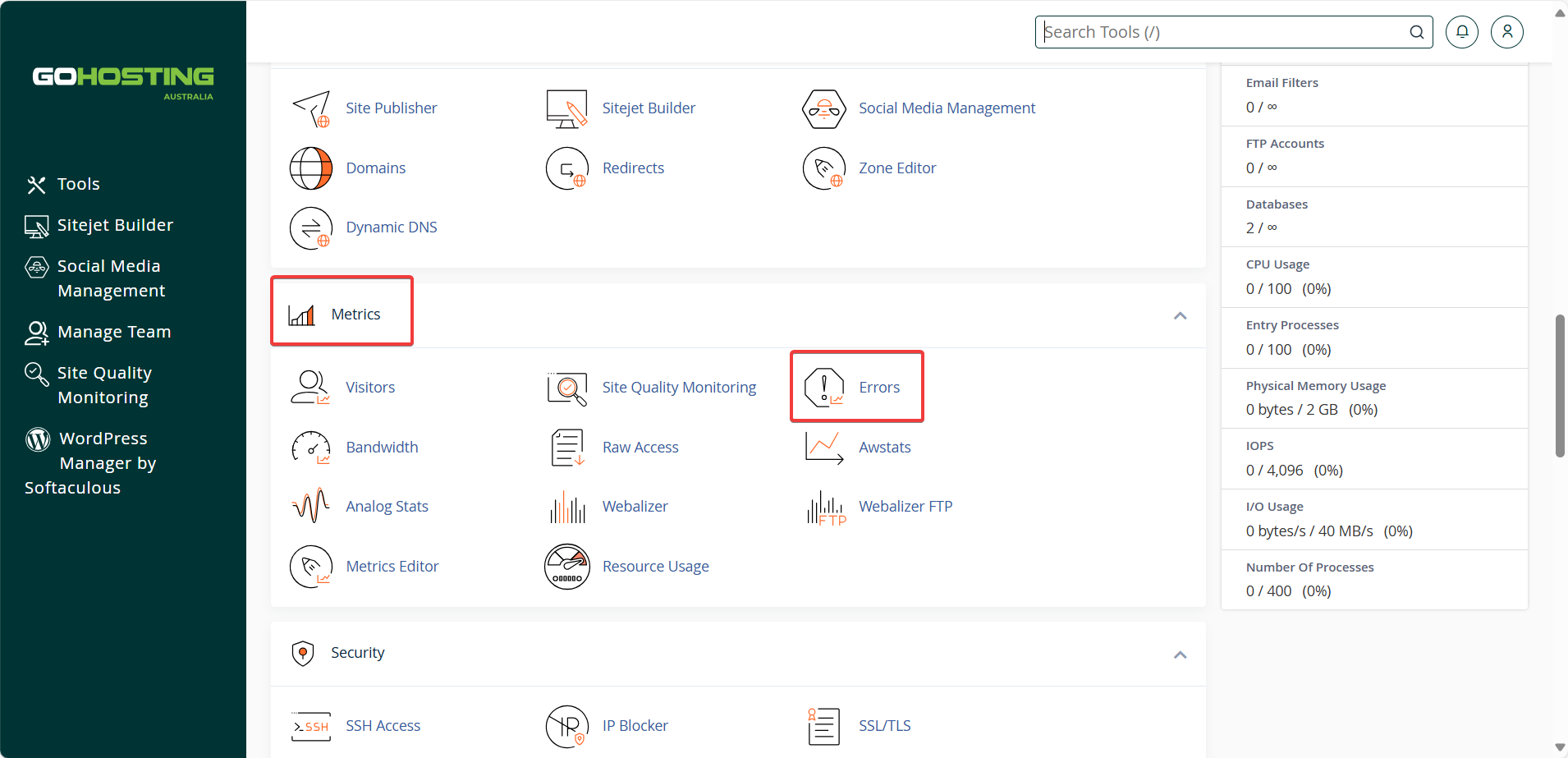
If your site is hosted with GoHosting, you can access the error logs through cPanel:
Log in to your GoHosting cPanel.
Scroll down to the "Metrics" section.
Click on the "Errors" icon.
Review the recent error entries, especially those around the time the 500 error occurred. Look for details such as PHP errors, script failures, missing files, or resource exhaustion.
Use this information to help pinpoint the root cause of the issue.
For more detailed PHP script errors, you can also check the error_log files using the File Manager in cPanel:
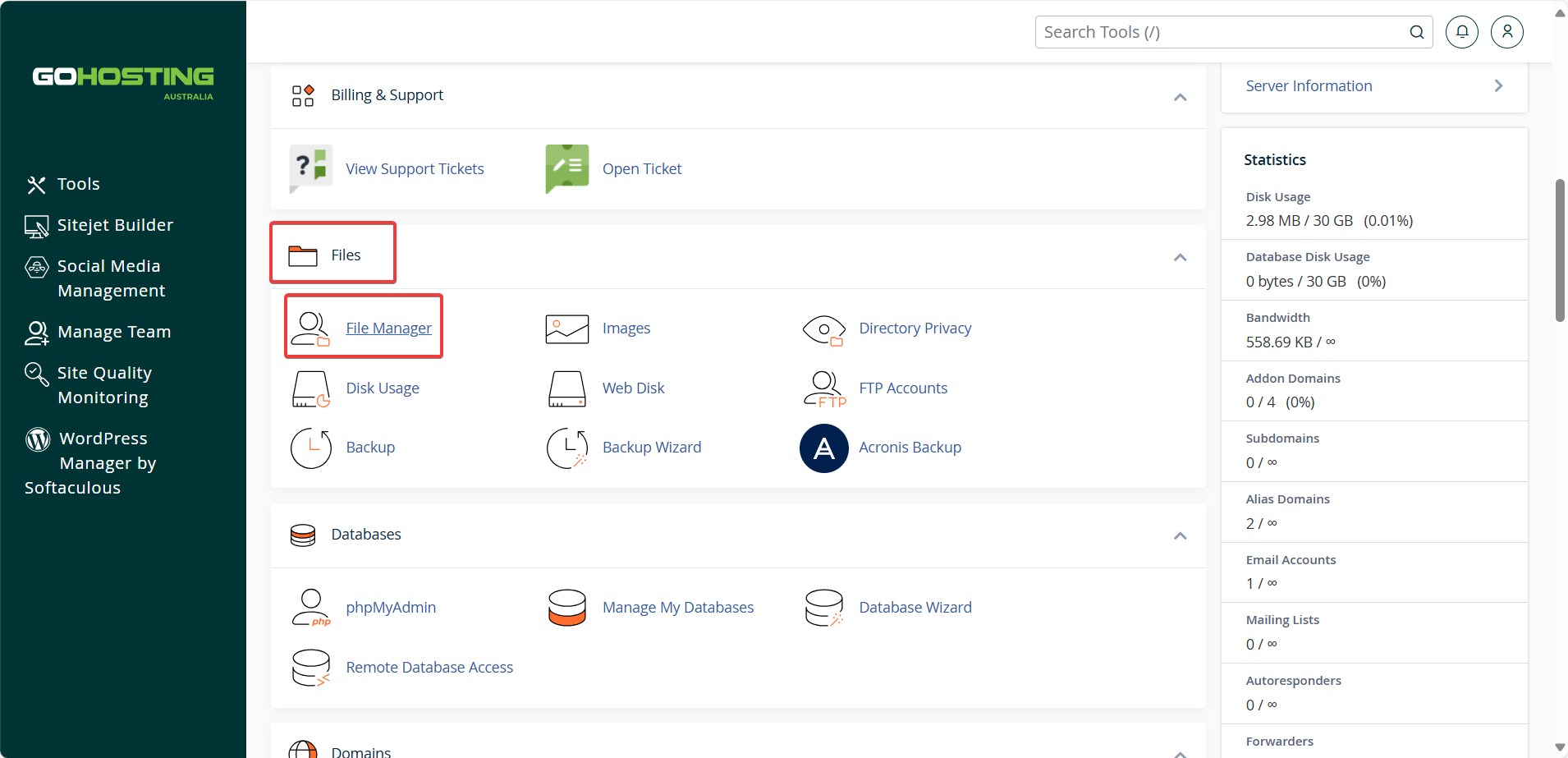
In cPanel, scroll down to the "Files" section.
Click on "File Manager".
Navigate to your website’s root directory, typically public_html (/home/{username}/public_html)
Look for an error_log file and view or download it.
Look for entries that match the time when the error occurred.
2. Inspect the .htaccess file
A corrupted or misconfigured .htaccess file is a frequent culprit for 500 errors.
Use cPanel's File Manager to locate .htaccess in your site's root directory:
Log in to your GoHosting cPanel.
Scroll down to the "Files" section and click on "File Manager".
Navigate to your website's root directory, typically public_html (/home/{username}/public_html).
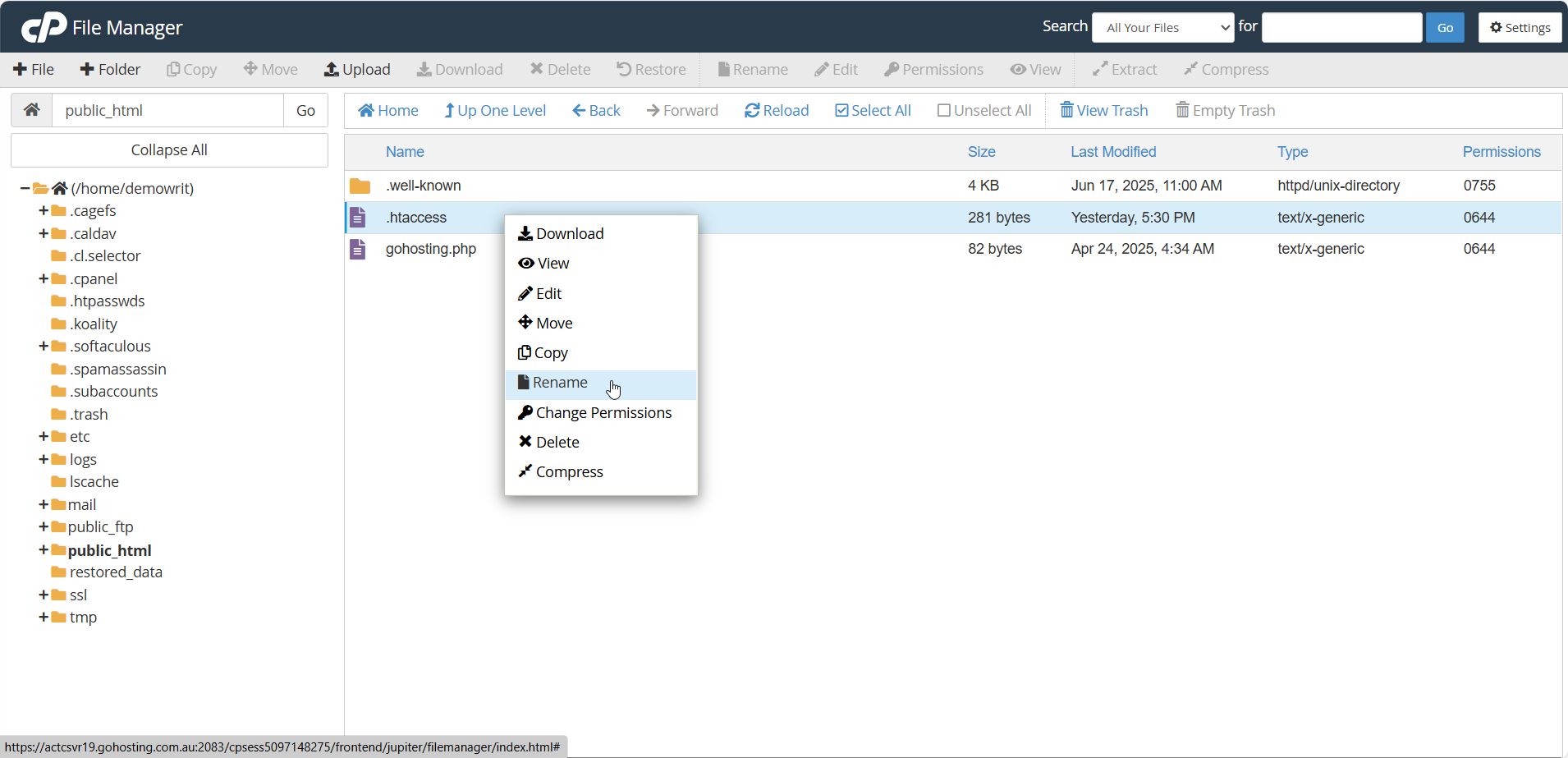
Locate the .htaccess file. If you don't see it, enable "Show Hidden Files" in File Manager settings.
Temporarily rename it (e.g., to .htaccess_old).
Reload your website in your browser.
If the site loads, there's an error in the .htaccess. To resolve:
Rename it back to .htaccess.
Edit the file to remove or fix any invalid lines (e.g., syntax errors, incompatible directives).
Save the file and test your site again.
Alternatively, you can replace it with a clean default .htaccess file, especially if you're using a CMS like WordPress.
3. Check file and folder permissions
Incorrect file or folder permissions can prevent the server from accessing the resources it needs, resulting in a 500 error.
You can check and correct permissions in cPanel:
Log in to your GoHosting cPanel.Open the "File Manager".
Enable "Show Hidden Files" in File Manager settings.Navigate to the root directory of your website (typically public_html).
Right-click each folder in the root directory, choose "Change Permissions", and set the value to 755.
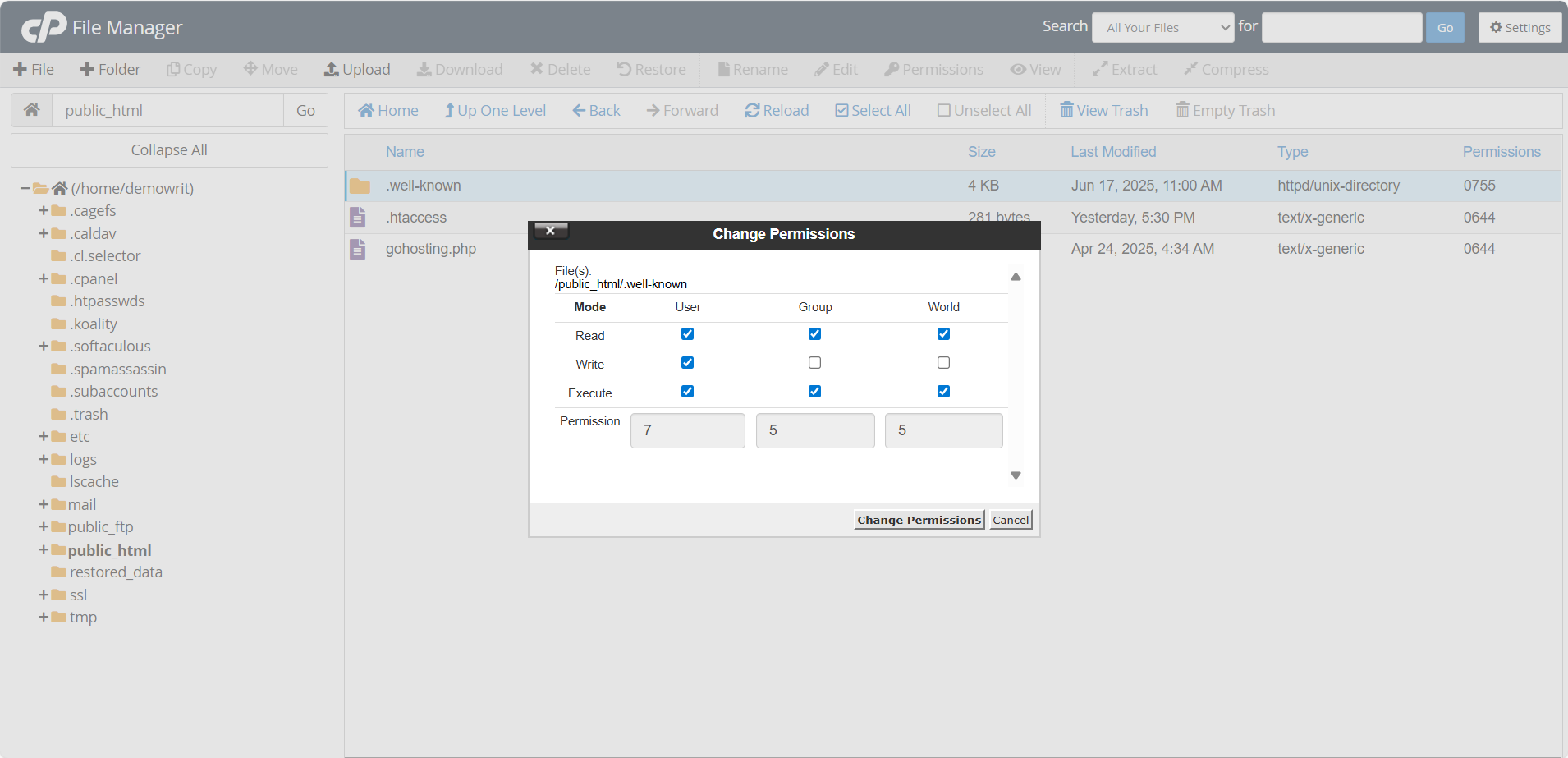
Right-click each file (like index.php, wp-config.php, or .htaccess), choose "Change Permissions", and set the value to 644.
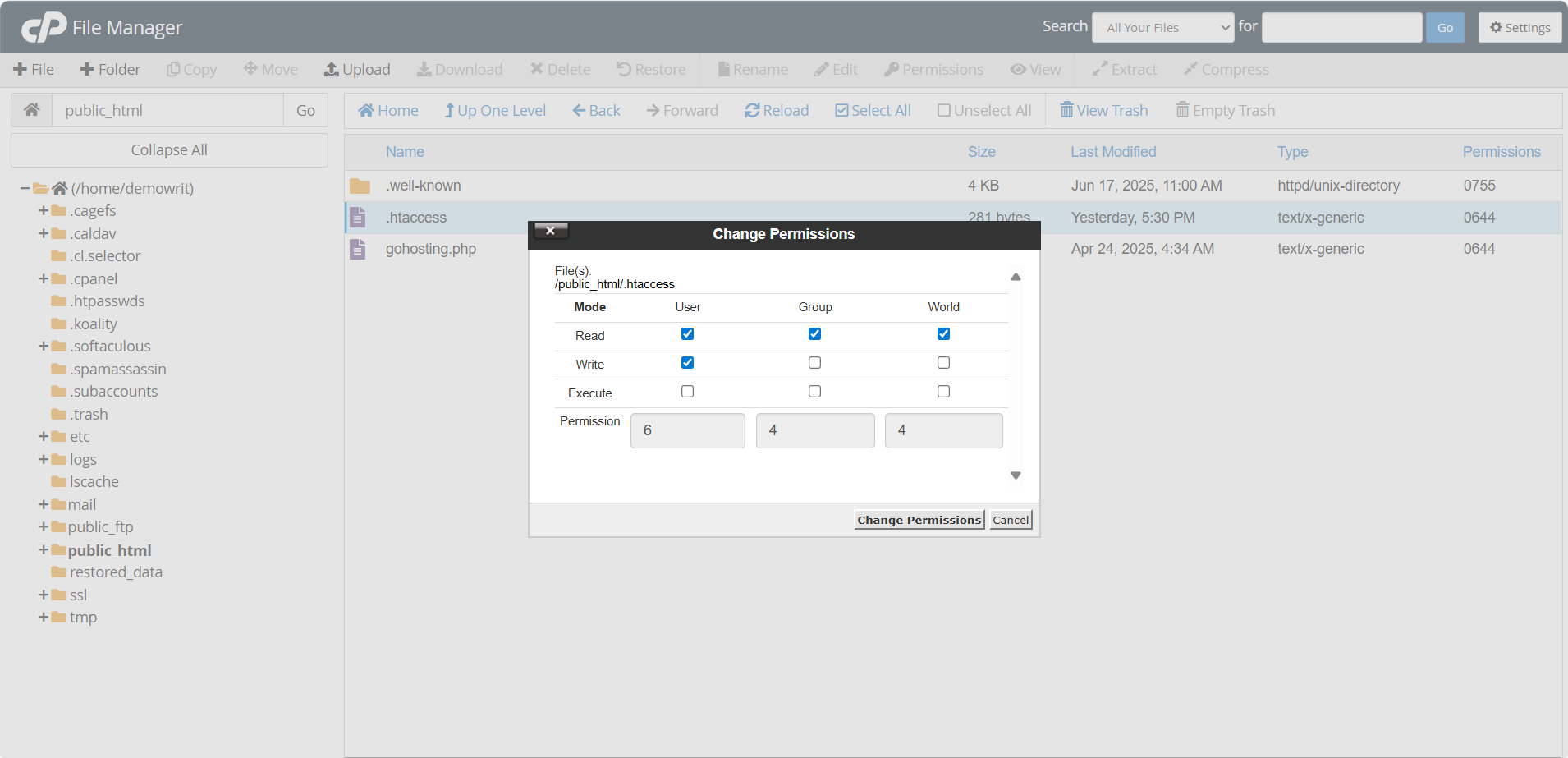
Reload your website in a browser to see if it now works.
4. Change the PHP version or increase the PHP memory limit
A 500 Internal Server Error can sometimes occur if your website is using an incompatible PHP version or doesn't have enough memory to run scripts.
To increase the PHP memory limit, follow these steps:
Access your GoHosting cPanel.
Go to the "Software" section and click "MultiPHP INI Editor".
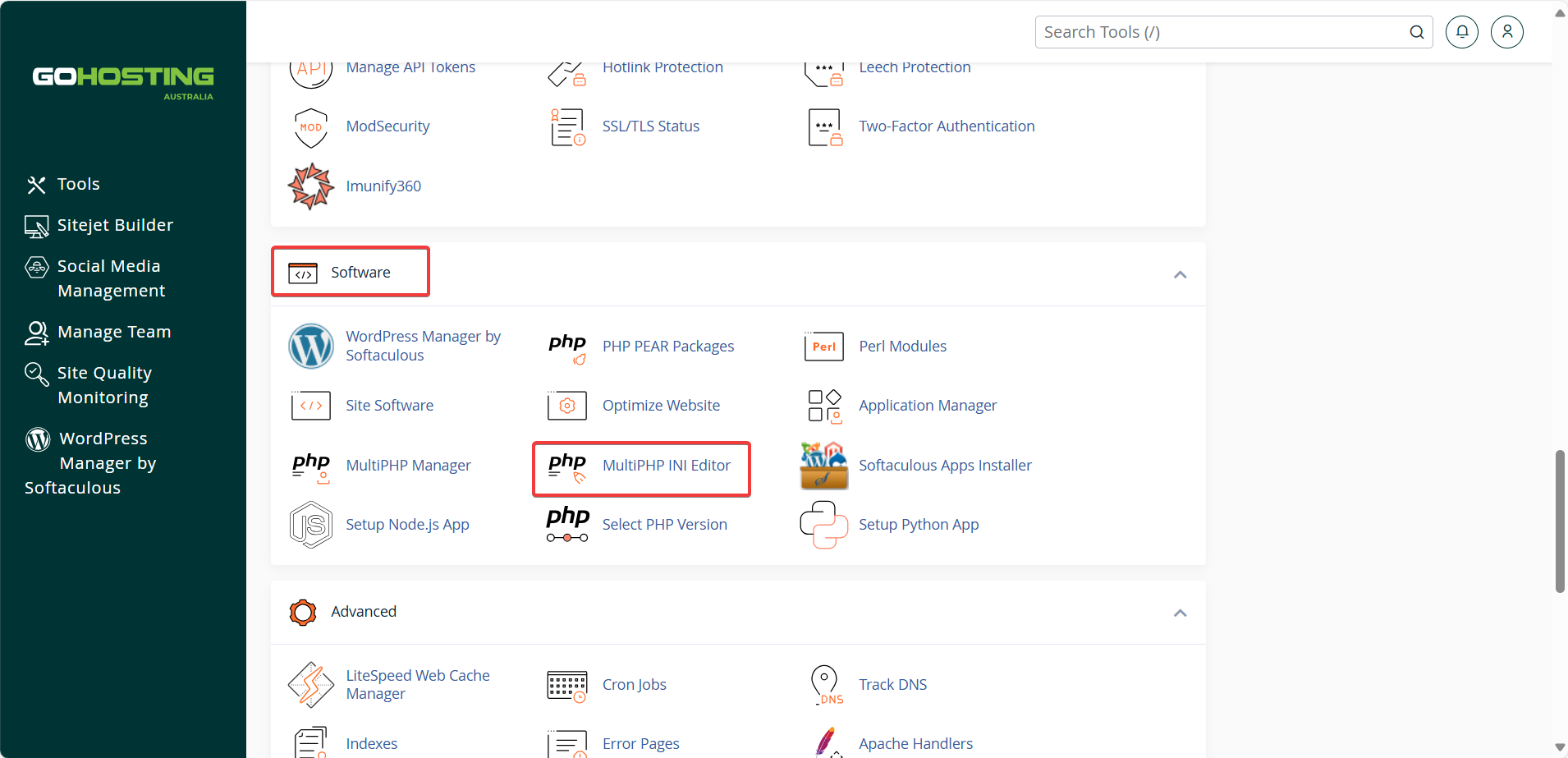
Choose your domain from the dropdown list.
Find the "memory_limit" setting and increase it to 256M or 512M.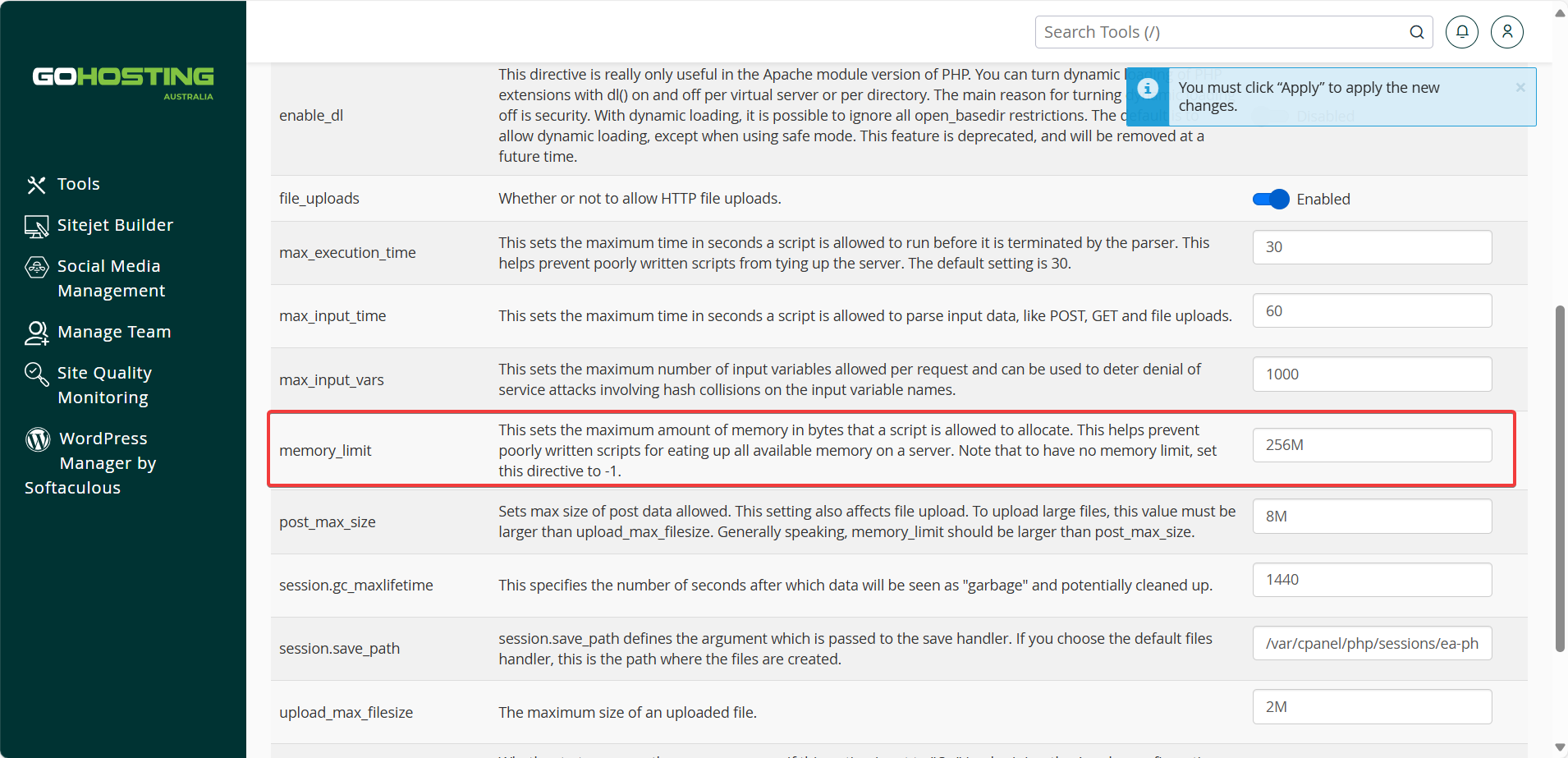
Click "Apply" to save.
Refresh your website in your browser.
You can also change the PHP version in cPanel:
In the "Software" section, click "MultiPHP Manager" (not the INI Editor).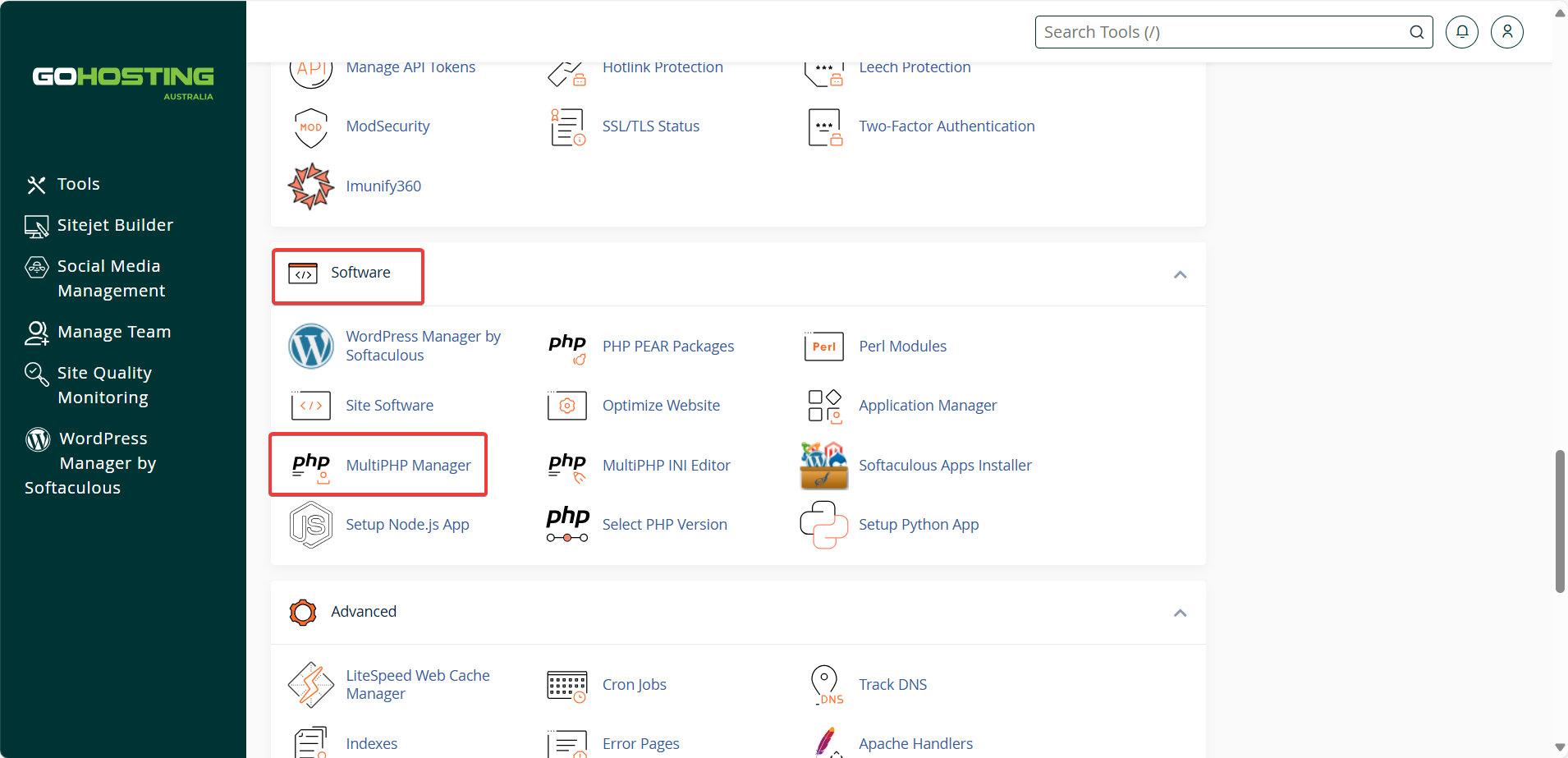
Check the box next to your domain.
On the right, choose your preferred PHP version from the "PHP Version" dropdown.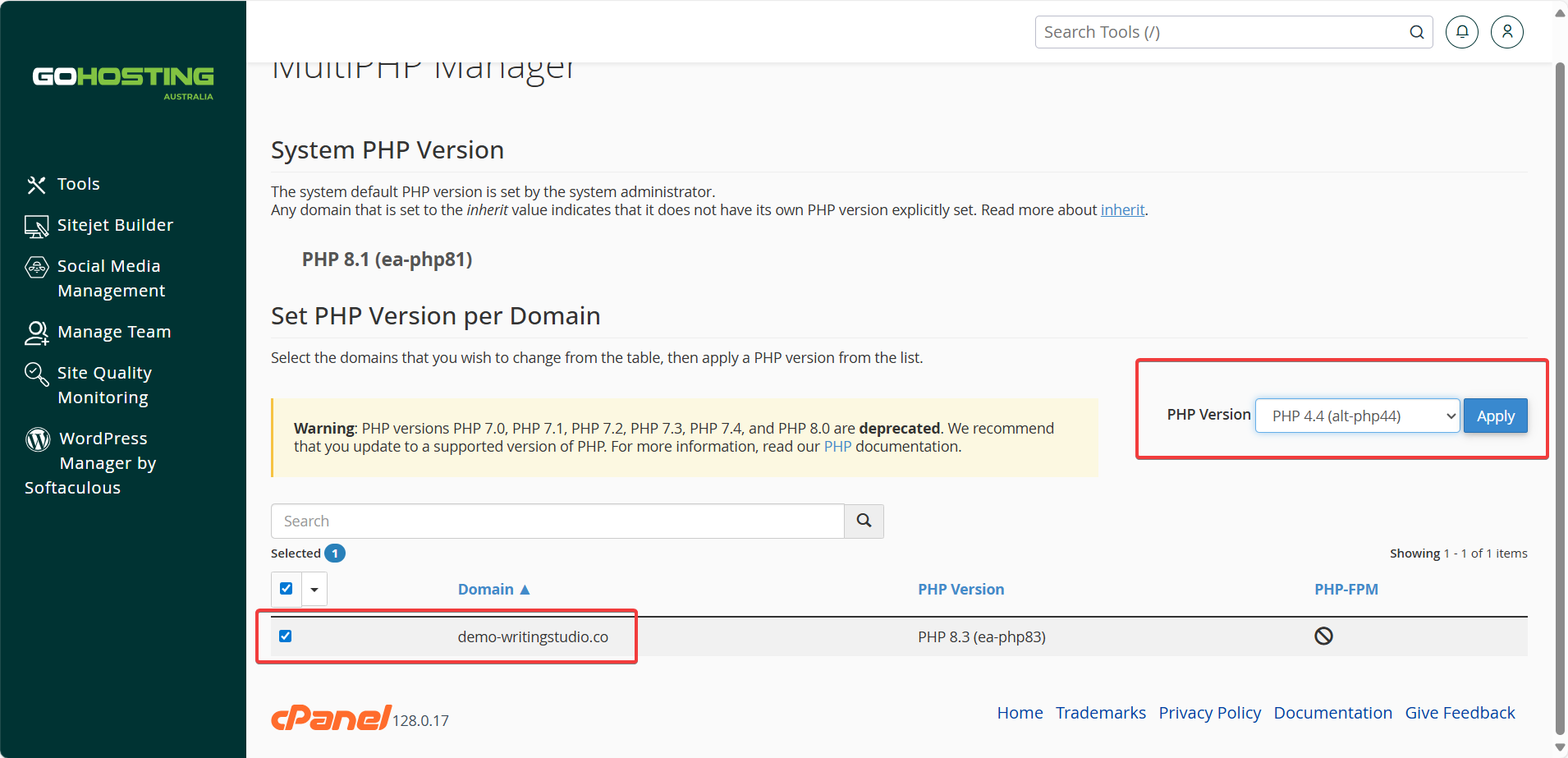
Click "Apply".
Reload your website to see if the issue is fixed.
If you're unsure which PHP version to choose, check the requirements of your website platform or CMS (like WordPress or Joomla). When in doubt, use the latest version your site supports.
For more detailed instructions, read our guide:
5. Disable WordPress plugins
If you're using WordPress, a faulty plugin is a common cause of 500 errors. To find out if a plugin is responsible, start by disabling all of them. If your site starts working afterwards, you've confirmed that's the case.
If you can access the WordPress admin dashboard, follow these steps:
Log in to your WordPress admin area.
Go to the "Plugins" section, then click "Installed Plugins" from the sidebar.
Select all plugins using the checkbox at the top.
In the "Bulk Actions" dropdown, choose "Deactivate" and click "Apply".
Reload your website in a browser.
If the site loads correctly, reactivate the plugins one at a time, refreshing the site after each one, until the error returns. The last plugin you activated is likely the one causing the issue. Delete it or update it to a fixed version.
If you can't access the WordPress admin, which is common with a 500 error, follow these steps:
Log in to your GoHosting cPanel.
In the "Files" section, open "File Manager".
Navigate to public_html/wp-content/plugins.
Right-click the "plugins" folder and rename it to something like "plugins-disabled".
Reload your website.
If the site loads now, one of the plugins is to blame. To identify which one, first rename the folder back to "plugins". Then, go through each plugin folder inside it one by one, renaming them individually and reloading the site after each change.
When the site breaks again, you've found the faulty plugin. You can then delete it or update it to a fixed version.
6. Change your WordPress theme
Just like plugins, a broken or incompatible theme can cause a 500 error on WordPress sites. Switching to a default WordPress theme can help you figure out if your current theme is the issue.
If you can access your WordPress dashboard, follow these steps:
Go to the "Appearance" section.
Click on "Themes".
Activate a default theme like "Twenty Twenty-Four".
Reload your website in a browser.
If you don't have dashboard access, follow these steps:
Log in to your GoHosting cPanel.
Open the "File Manager" from the "Files" section.
Navigate to public_html/wp-content/themes/.
Find the folder of your active theme and rename it (for example, "theme-name-old").
WordPress will automatically try to load a default theme if one is installed. If no default theme is available, download one from wordpress.org/themes, then upload and extract it into the "themes" folder using File Manager.
If your site starts working, it's likely your original theme was the problem. You can try reinstalling it or check its "functions.php" file for errors.
7. Restore a backup of the website
If none of the troubleshooting steps above resolve the 500 Internal Server Error, your safest and quickest option may be to restore your website from a backup created before the issue occurred.
For detailed step-by-step instructions on how to do this, read our guide:
