
You can easily change the PHP version for your GoHosting-hosted website using cPanel. Whether you're updating the PHP version for better performance, software compatibility, or improved security, the process is simple and only takes a few clicks.
How to change the PHP version
To update the version of PHP you are using, follow these steps:
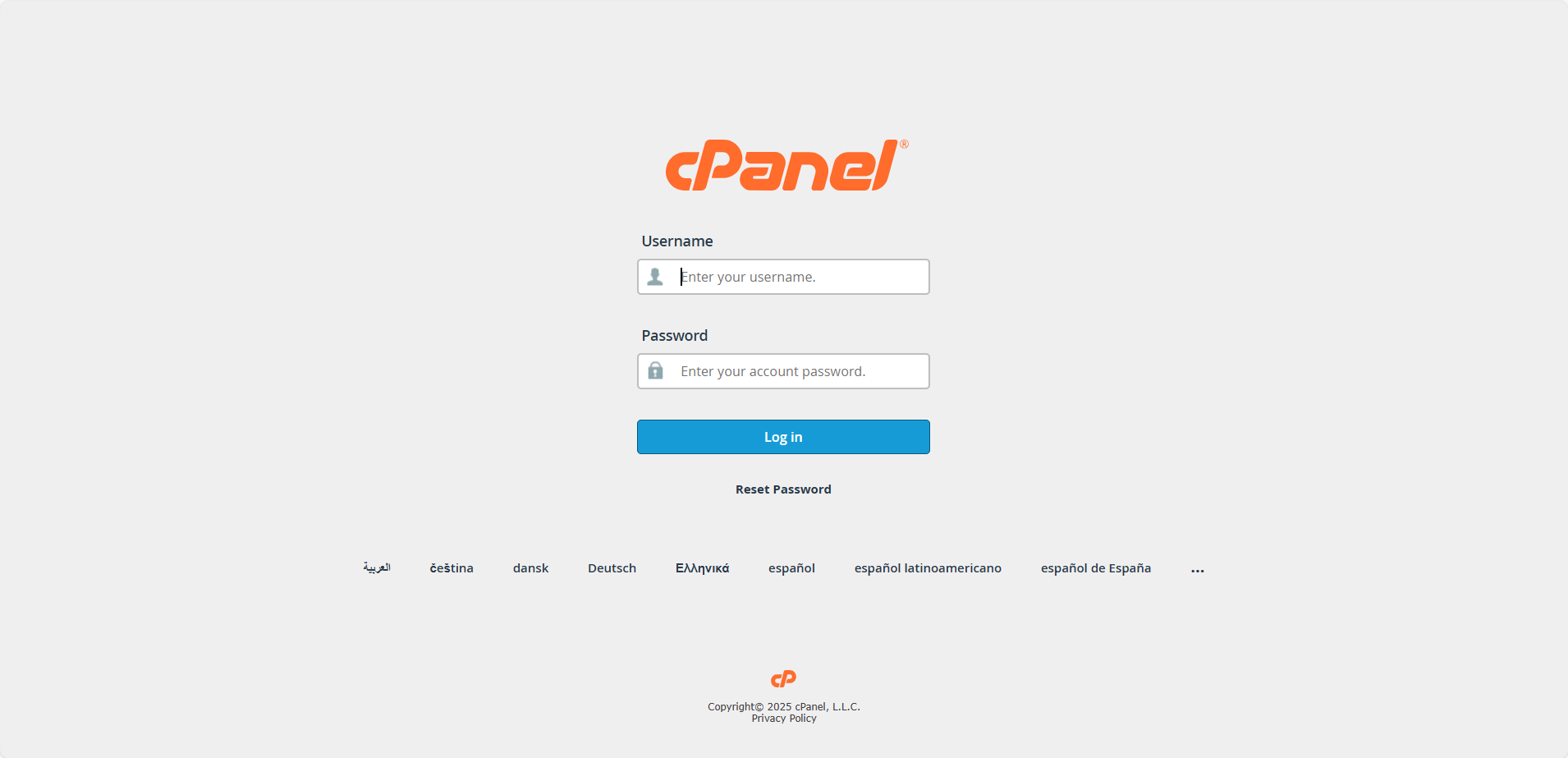
1. Log in to your cPanel
You can access your GoHosting cPanel in any of the following ways:
From your welcome email: Click the cPanel login link included in the email you received from GoHosting.
Via your GoHosting account: Go to gohosting.com.au, log in, and click “Log in to cPanel” on your dashboard.
Using your domain name: If your domain’s DNS is pointing to GoHosting, go to: https://{yourdomain}.com/cpanel
2. Go to the "Software" section
Scroll down to the "Software" section on the main cPanel Tools page.
Here, you’ll likely see two tools, one labelled "Select PHP Version" and the other called "MultiPHP Manager".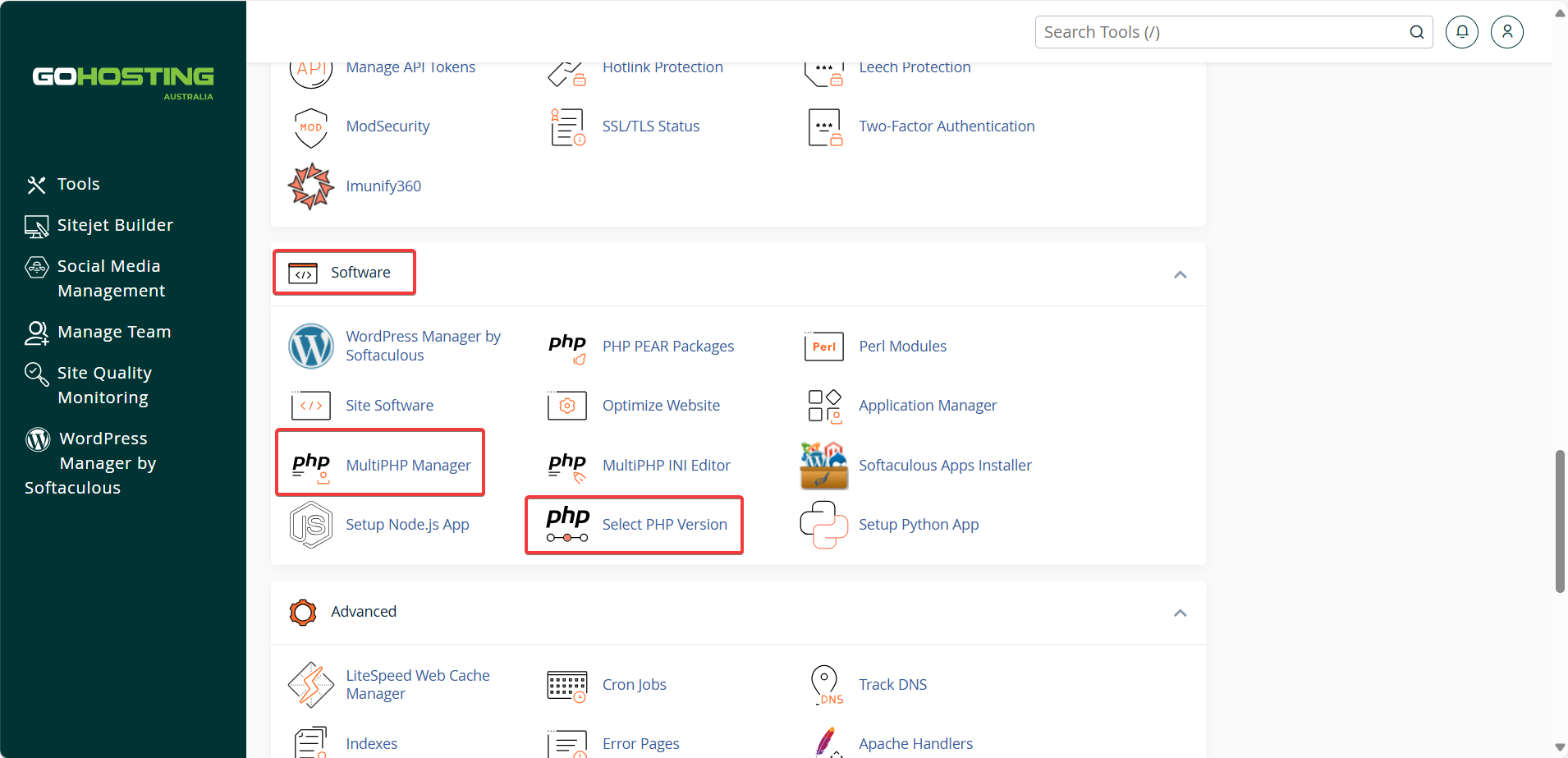
Both tools let you change the PHP version, but in different ways:
Select PHP Version changes the version globally for your entire cPanel account.
MultiPHP Manager allows you to change the PHP version on a per-domain basis.
Click on the tool you would like to use.
3. Change PHP Version using Select PHP Version
This method is quick and effective if you're running a single site or want all websites under your cPanel account to use the same PHP version.
At the top of the page, you’ll see a dropdown menu labelled "Current PHP version". Click the arrow to open the list of available PHP versions.
Select the version you want to use, then click “Apply.”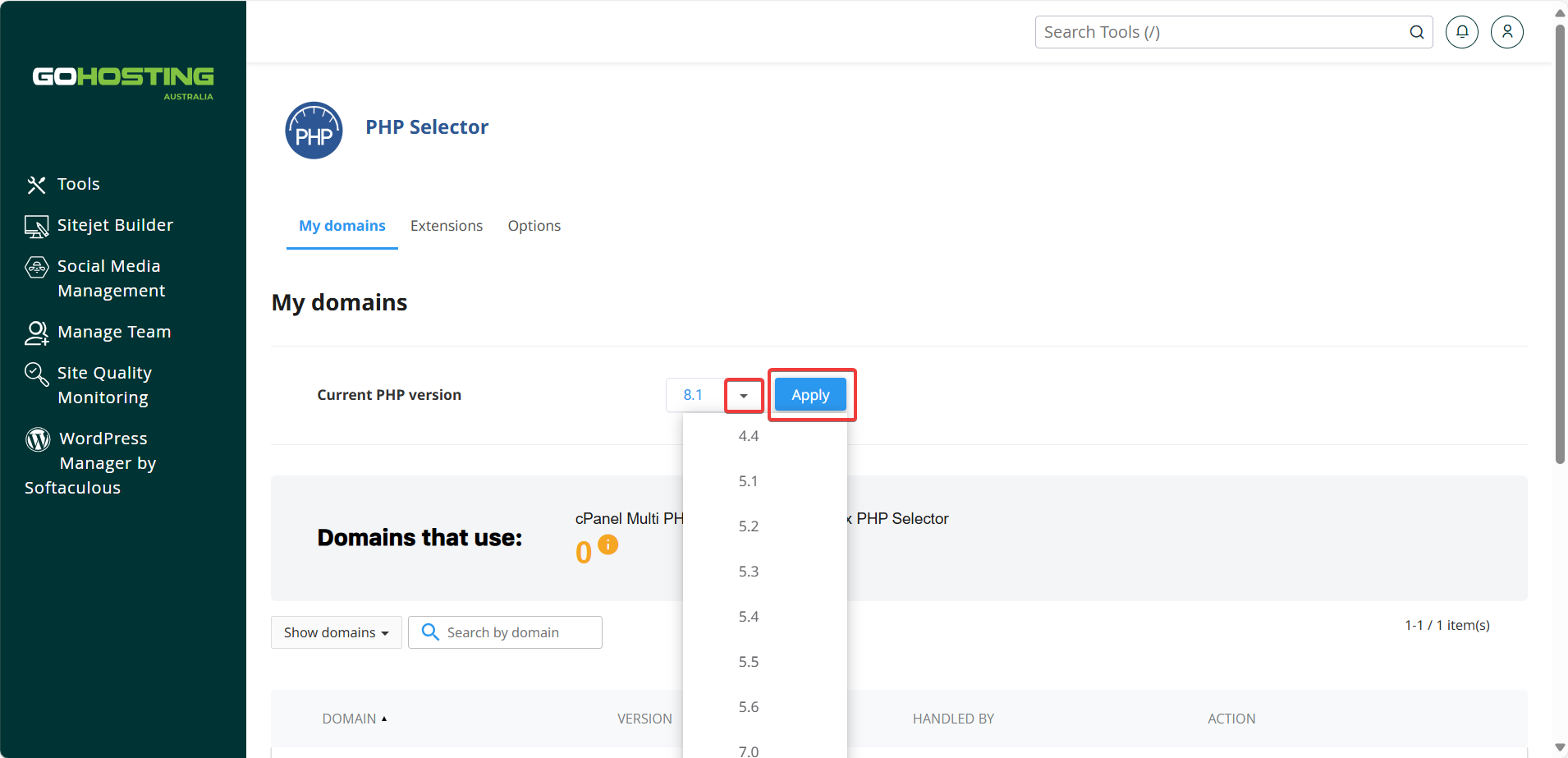
After a few seconds, the change will take effect.
You can confirm the update by checking the list of your domains below—under the “VERSION” column, you’ll see the active PHP version now in use.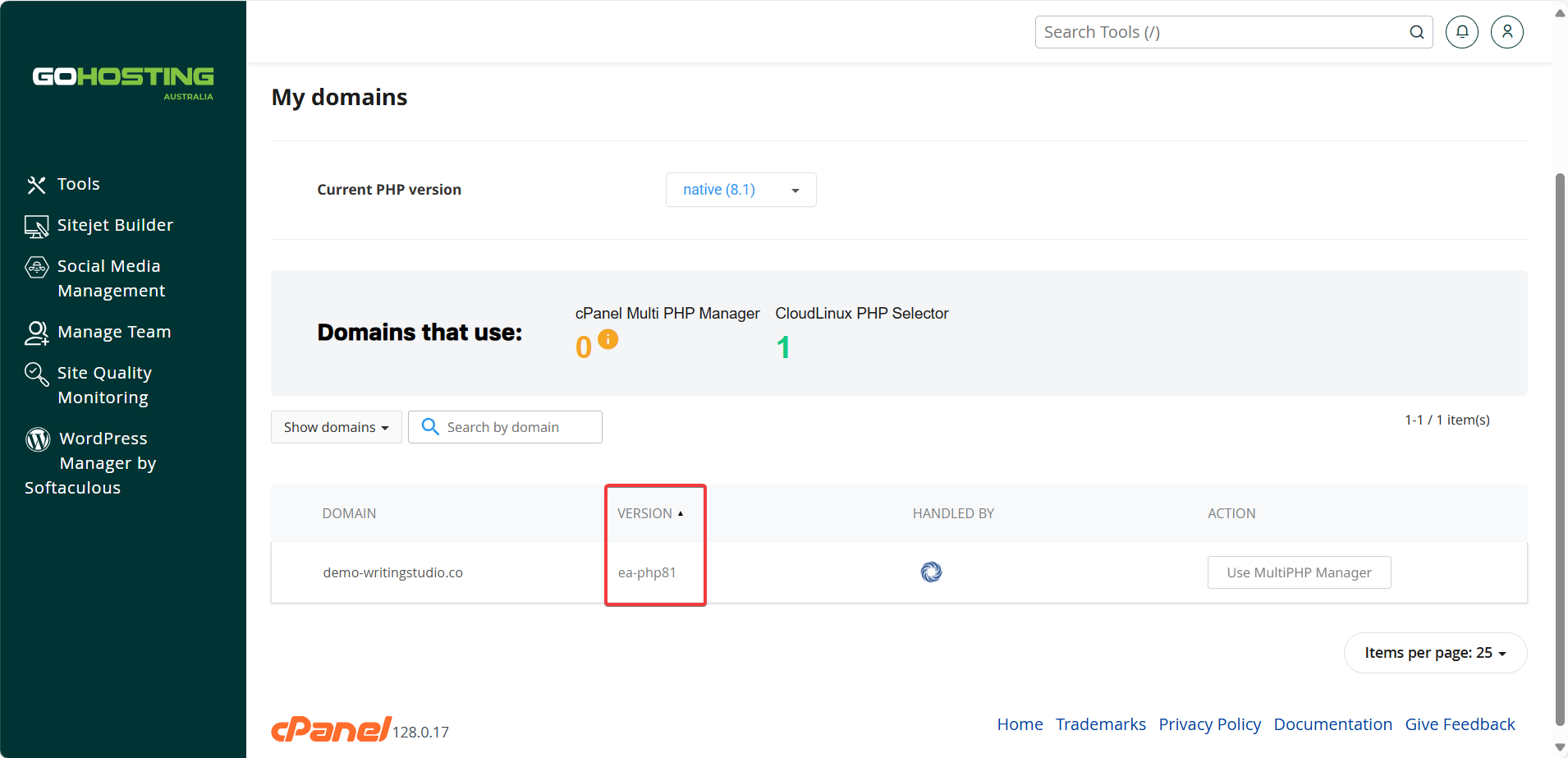
4. Change PHP Version using MultiPHP Manager
Use this method if you want to assign different PHP versions to specific domains or subdomains.
On the MultiPHP Manager page, you’ll see a list of your domains near the bottom. Select the checkbox next to the domain you wish to update.
Next, use the dropdown menu on the right labelled "PHP Version" to choose the version you want to use. Once selected, click “Apply.”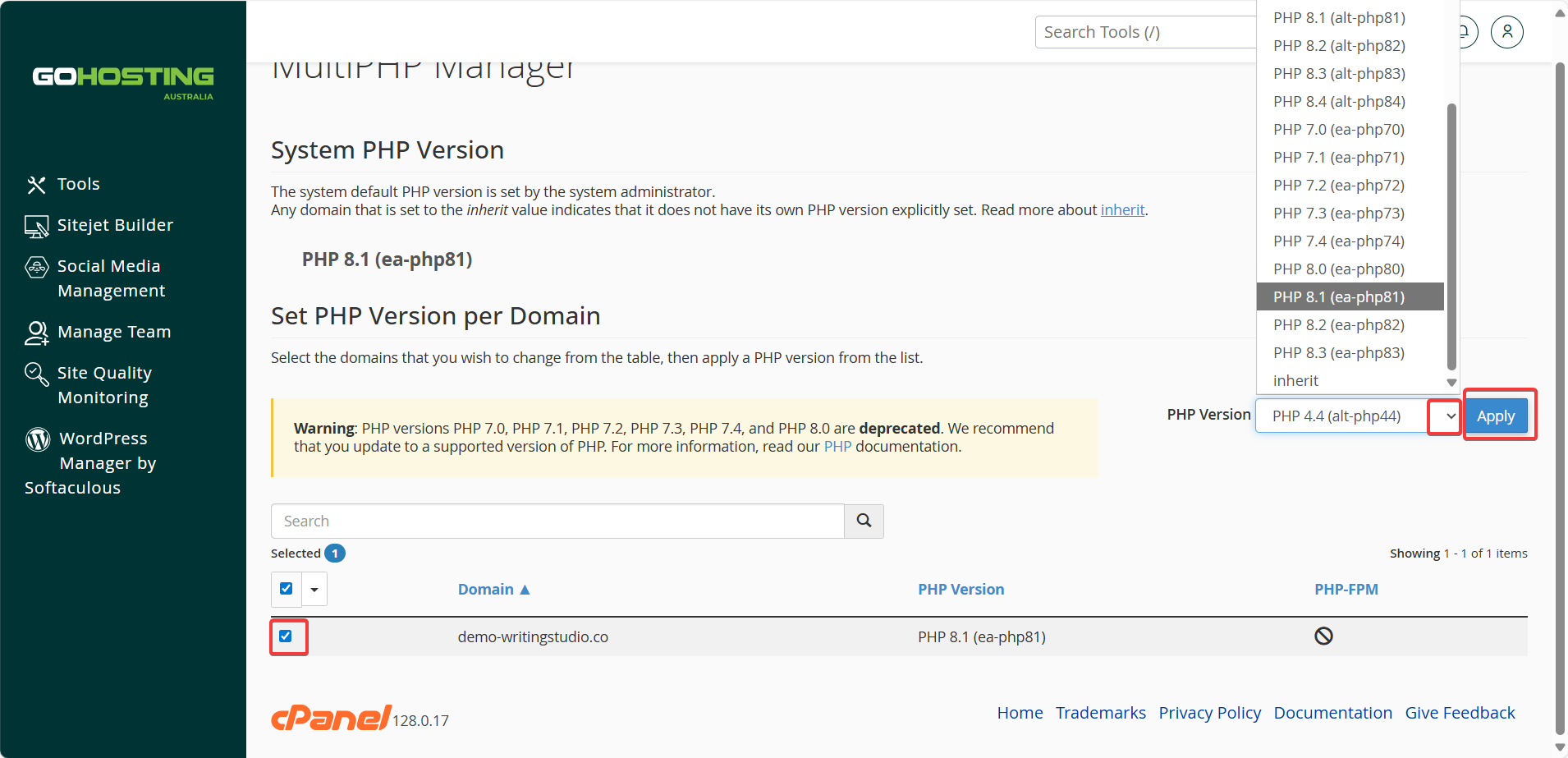
You’ll see a confirmation message once the change has been successfully applied. The PHP version for the selected domain will update in the list.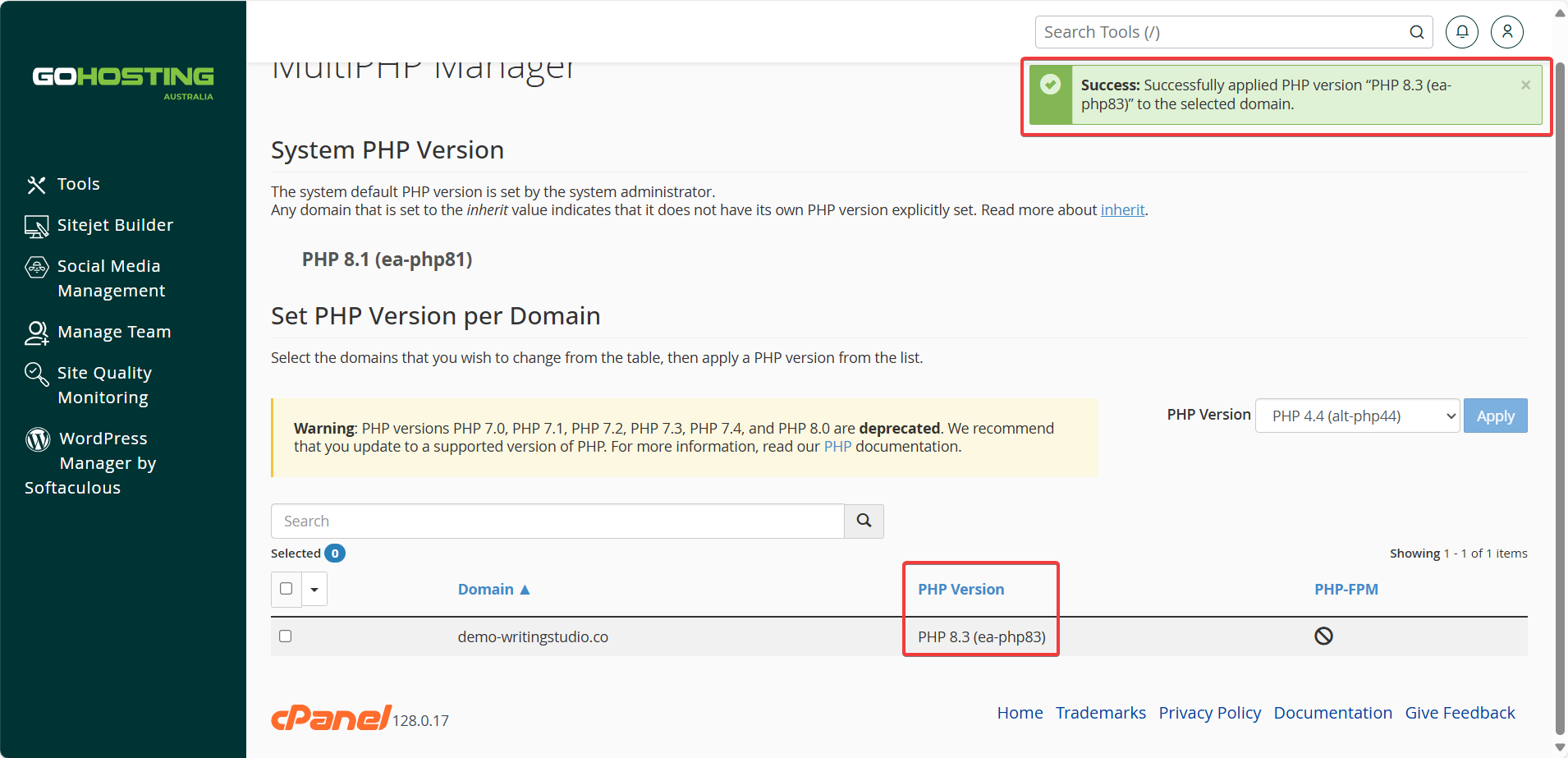
5. What to do after updating
After updating the PHP version, thoroughly test all pages of your website to ensure they are functioning correctly. An incompatible version is a common cause of a blank WordPress page. If you discover any issues, you can easily revert to a previous version using the same steps.
Ensure that your plugins, CMS (such as WordPress), or scripts are compatible with the new version.
