
Restoring a single file using Acronis in cPanel is a quick way to recover lost, deleted, or corrupted data without affecting the rest of your website or server. This targeted approach saves time and minimizes risk by allowing you to retrieve only the specific file you need - such as a configuration file, image, or script.
Need to restore everything instead? See how to restore a complete hosting package.
How to restore a single file
Follow these simple steps to restore a single file with Acronis in cPanel on GoHosting:
1. Log in to cPanel
Access your cPanel using the login link provided in your GoHosting welcome email.
Or, if your domain is already pointed to GoHosting, go to:
Enter your username and password to log in.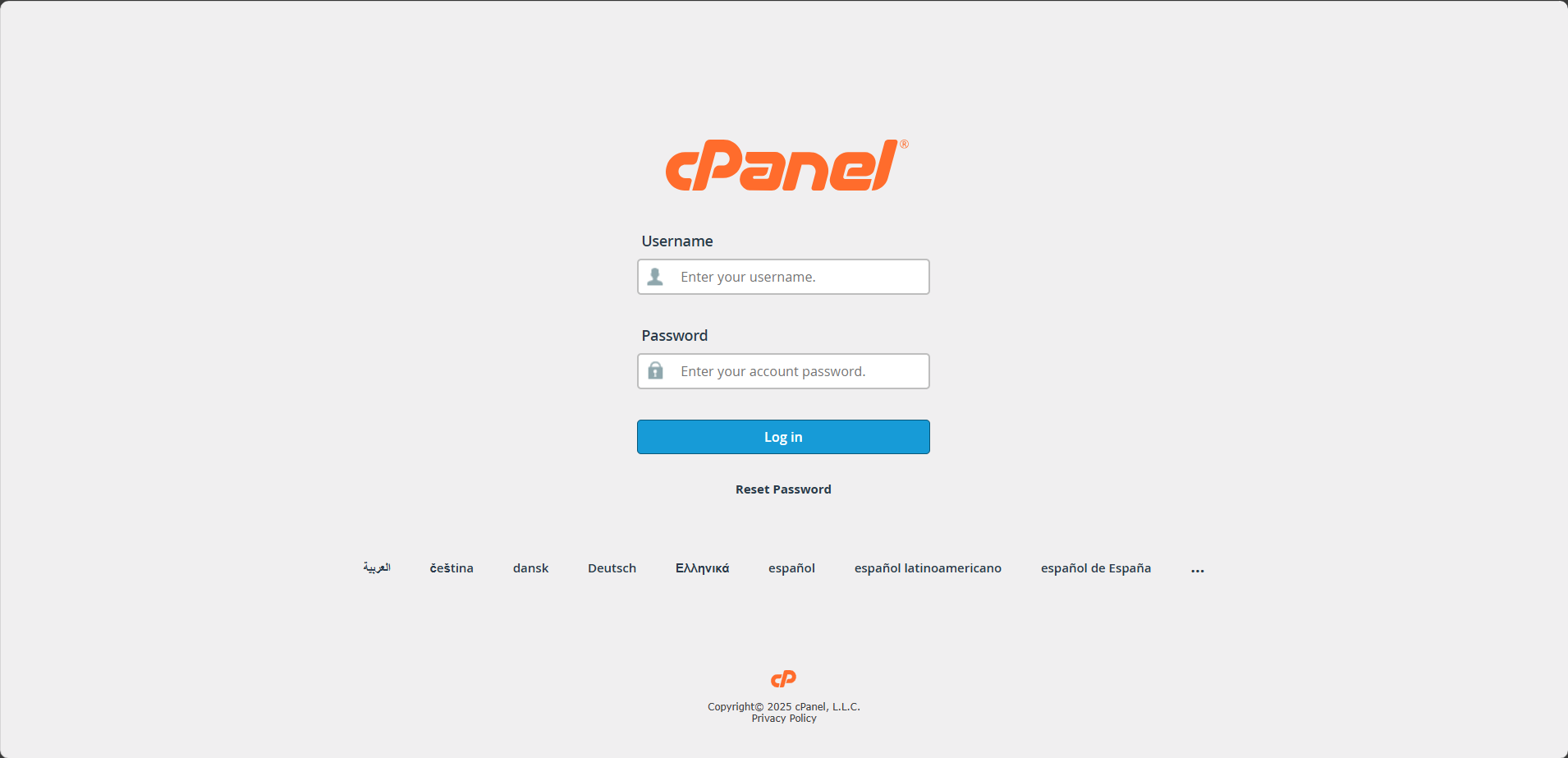
2. Open Acronis Backup
In your cPanel dashboard, scroll down to the "Files" section, then click on the "Acronis Backup" icon.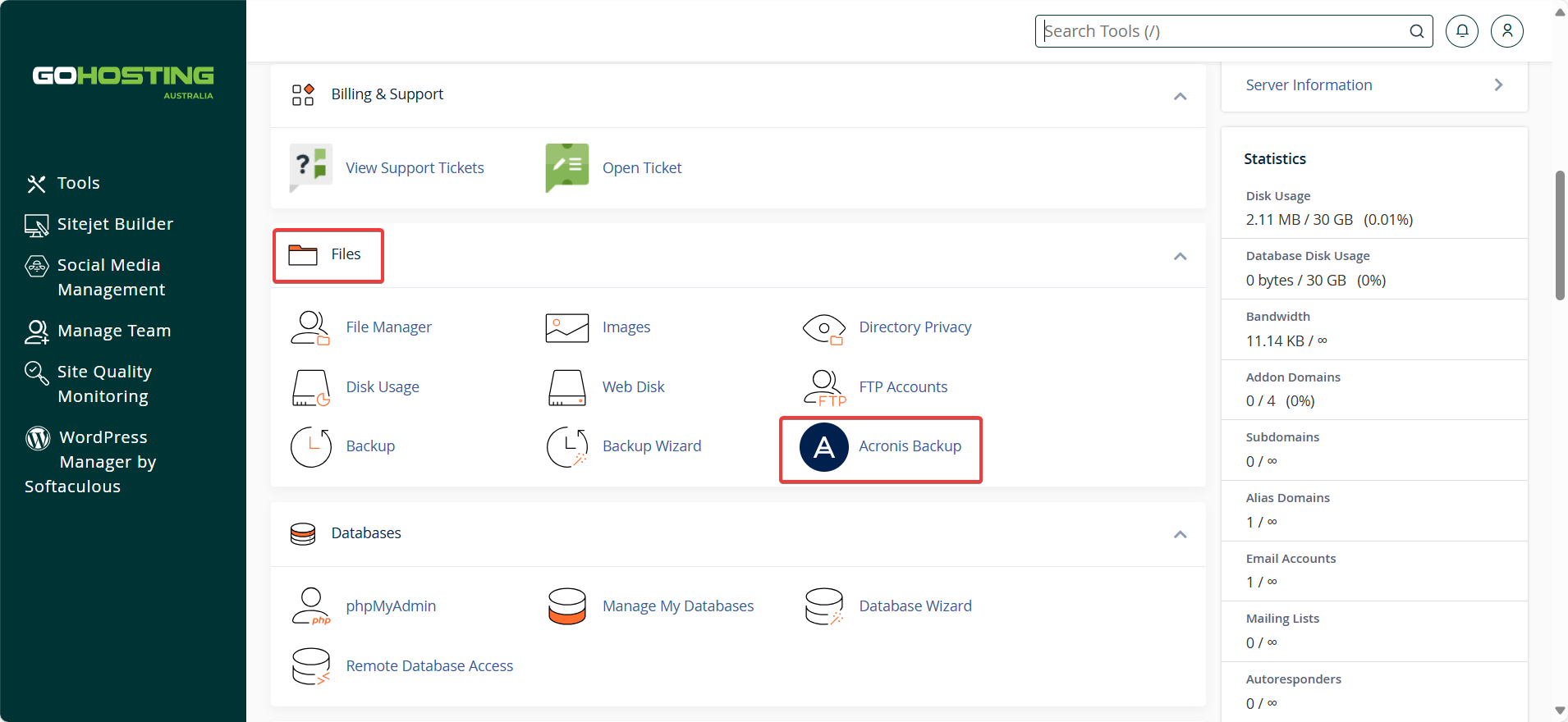
Wait a few seconds while the system loads your backup details.
3. Select a backup date
In the “Backups” tab, choose the date and time from which you want to restore the file.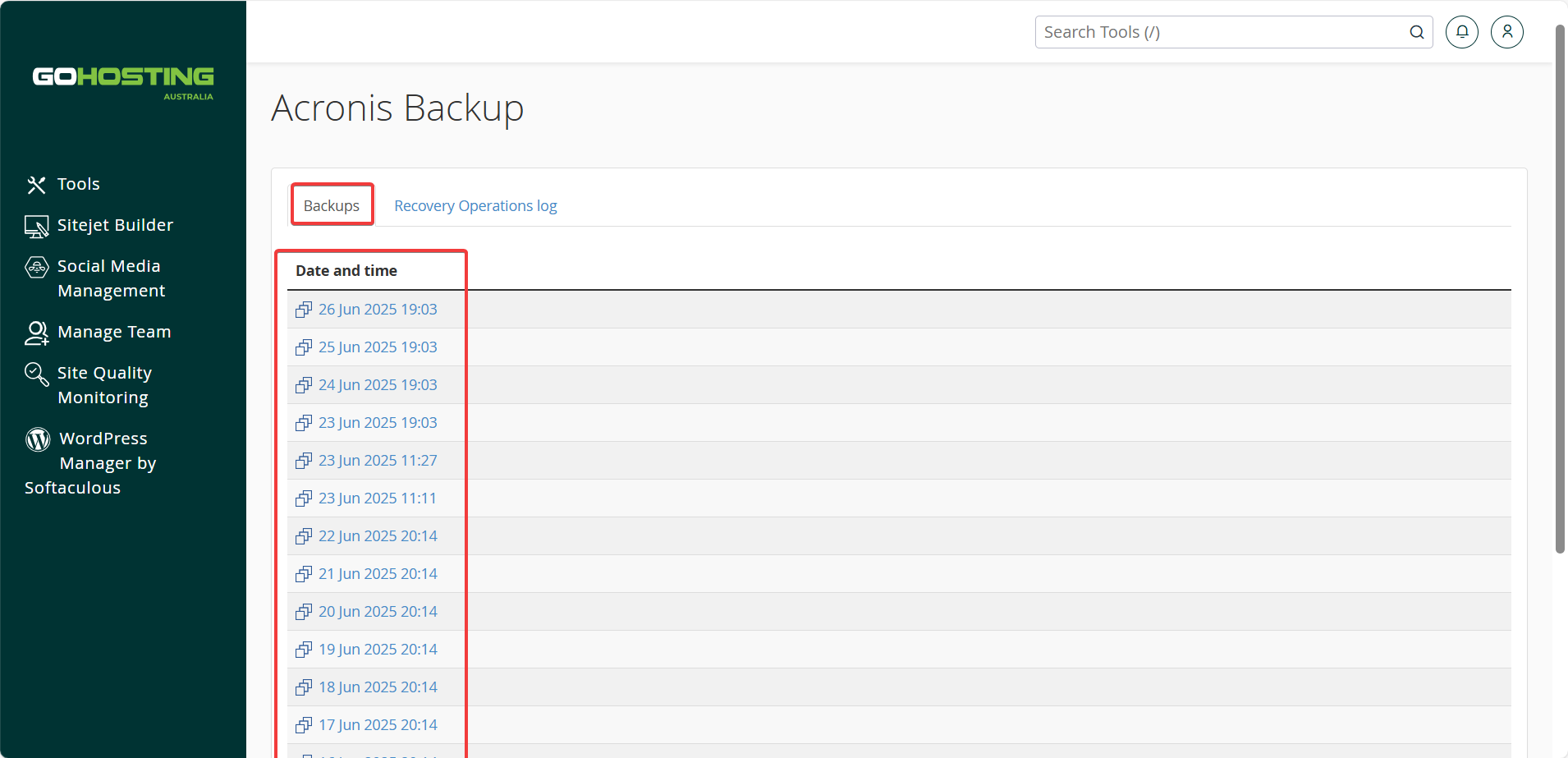
Wait for the system to load the backup details—this may take a few seconds, depending on the size of your backup.
4. Navigate to Files
Once the backup is loaded, click “Files” under the "Types" section to view the contents of the backup.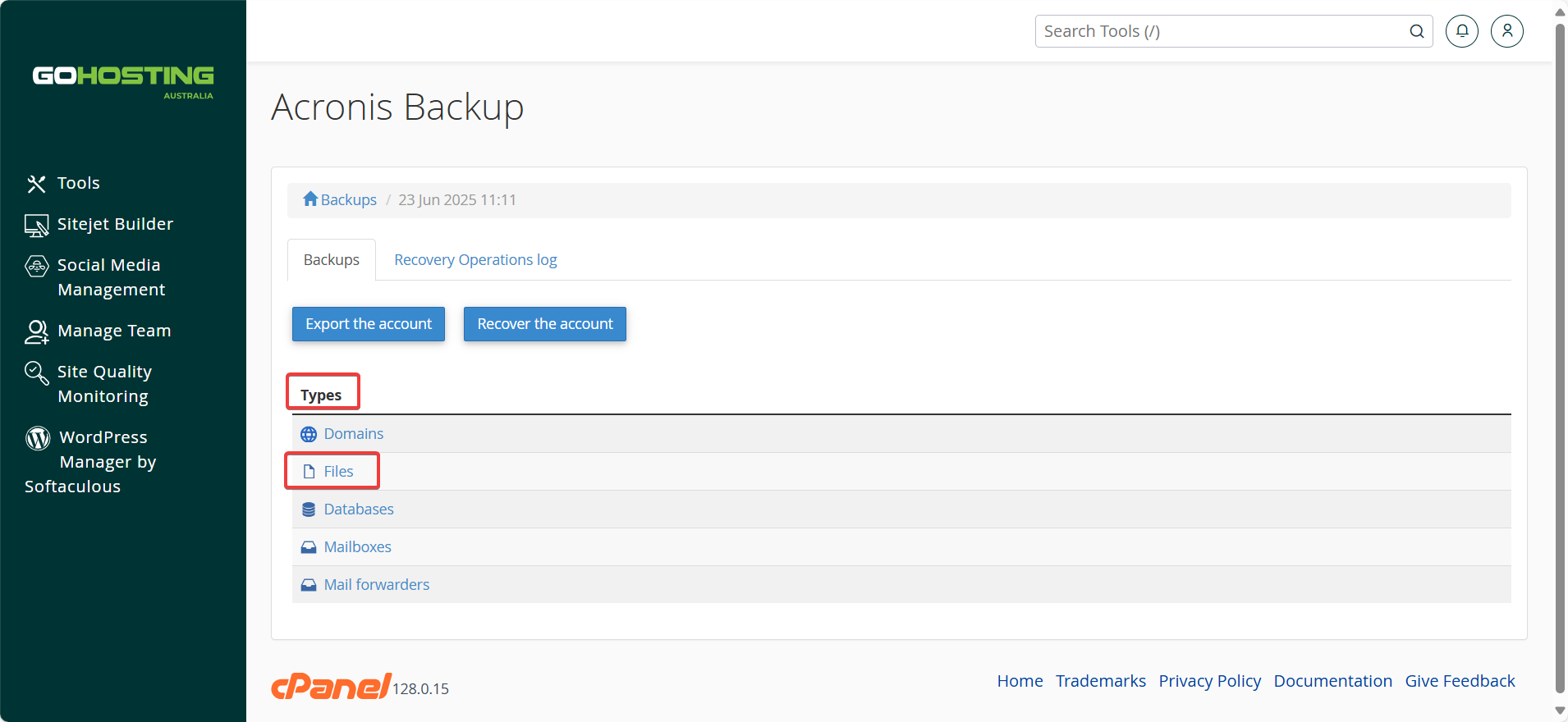
5. Select the file
Browse through the directory structure to locate the single file you wish to restore. Click on folders to expand them if needed.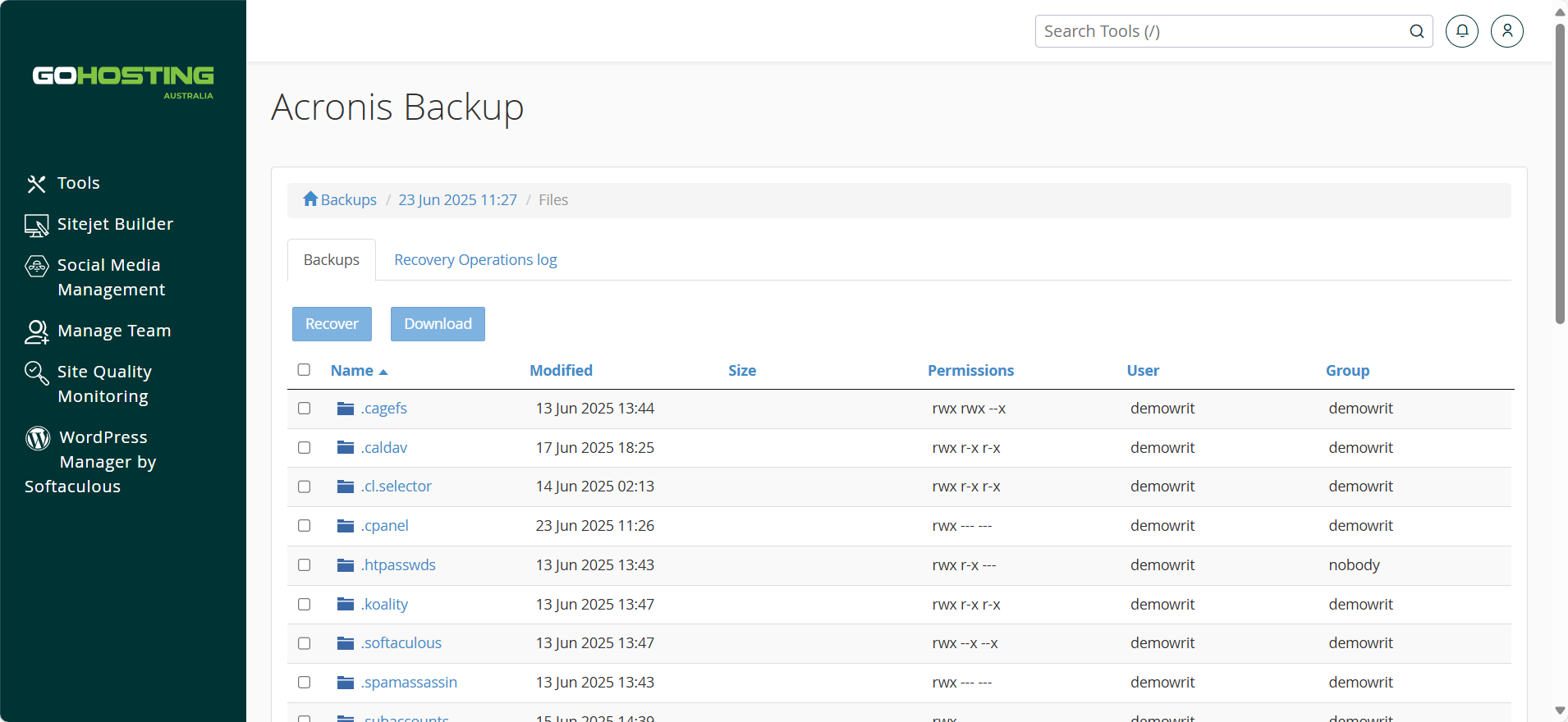
Tick the checkbox next to the file, then click the "Recover" button.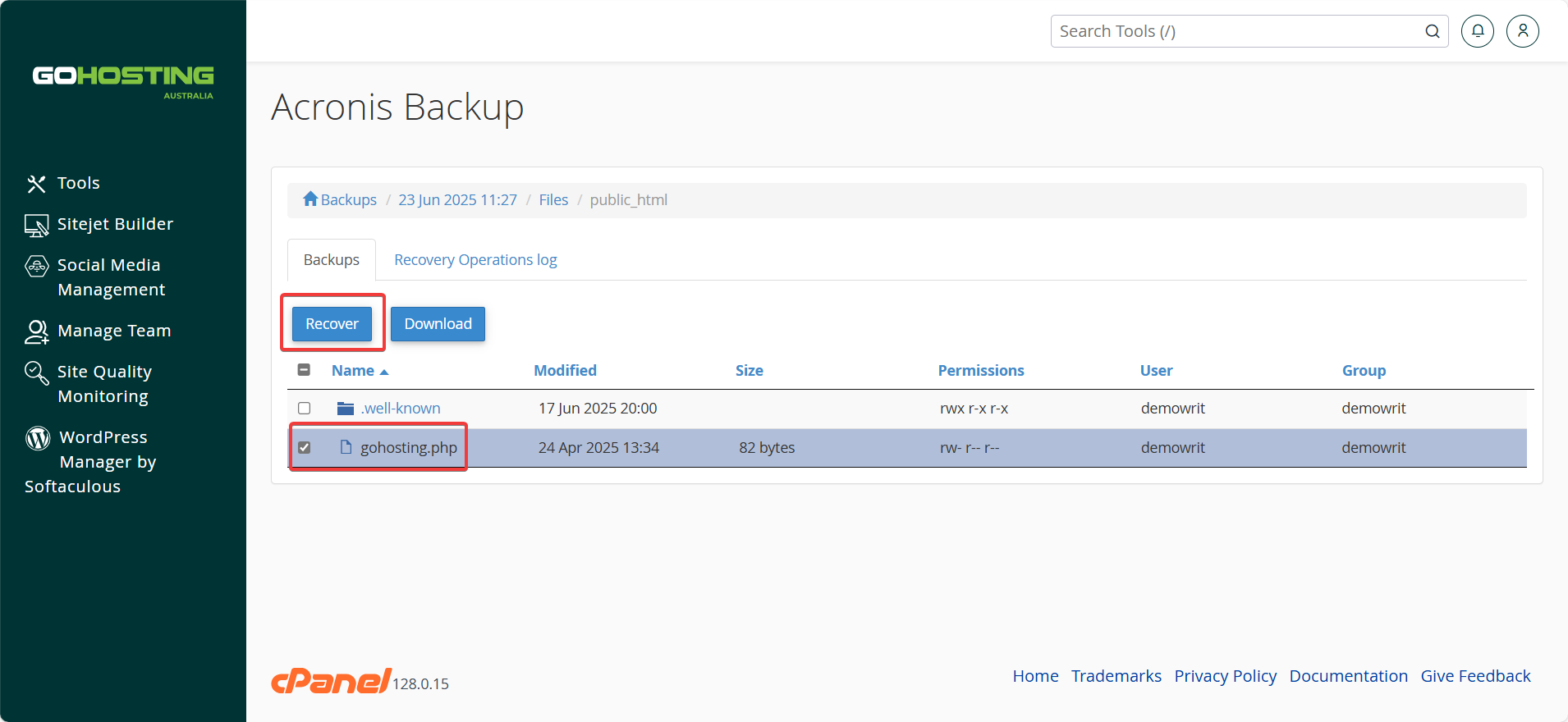
6. Start the recovery
A prompt will appear asking if you want to “Delete any files in the original location that were created after the backup.”
Leave this box unchecked unless you’re certain you want to remove newer files in the same folder. This option is useful only when restoring an older version of a file and wanting to avoid conflicts.
Click "Start recovery" to begin the restoration.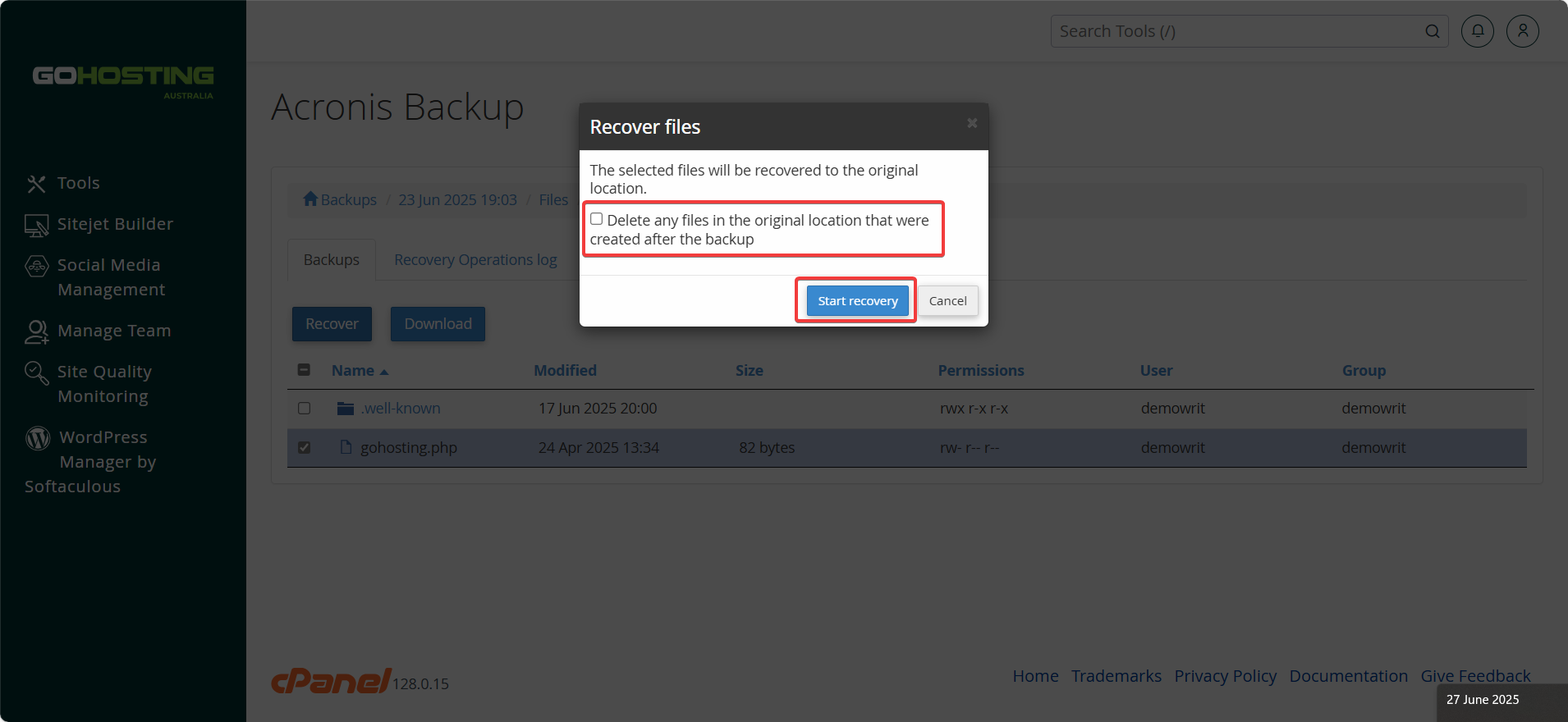
Tip: If you’re unsure about overwriting the current file, download the backup version first and review it before starting the recovery.
7. Monitor the recovery
The recovery time depends on the size of the file. You can monitor the progress under the "Recovery Operations Log" tab.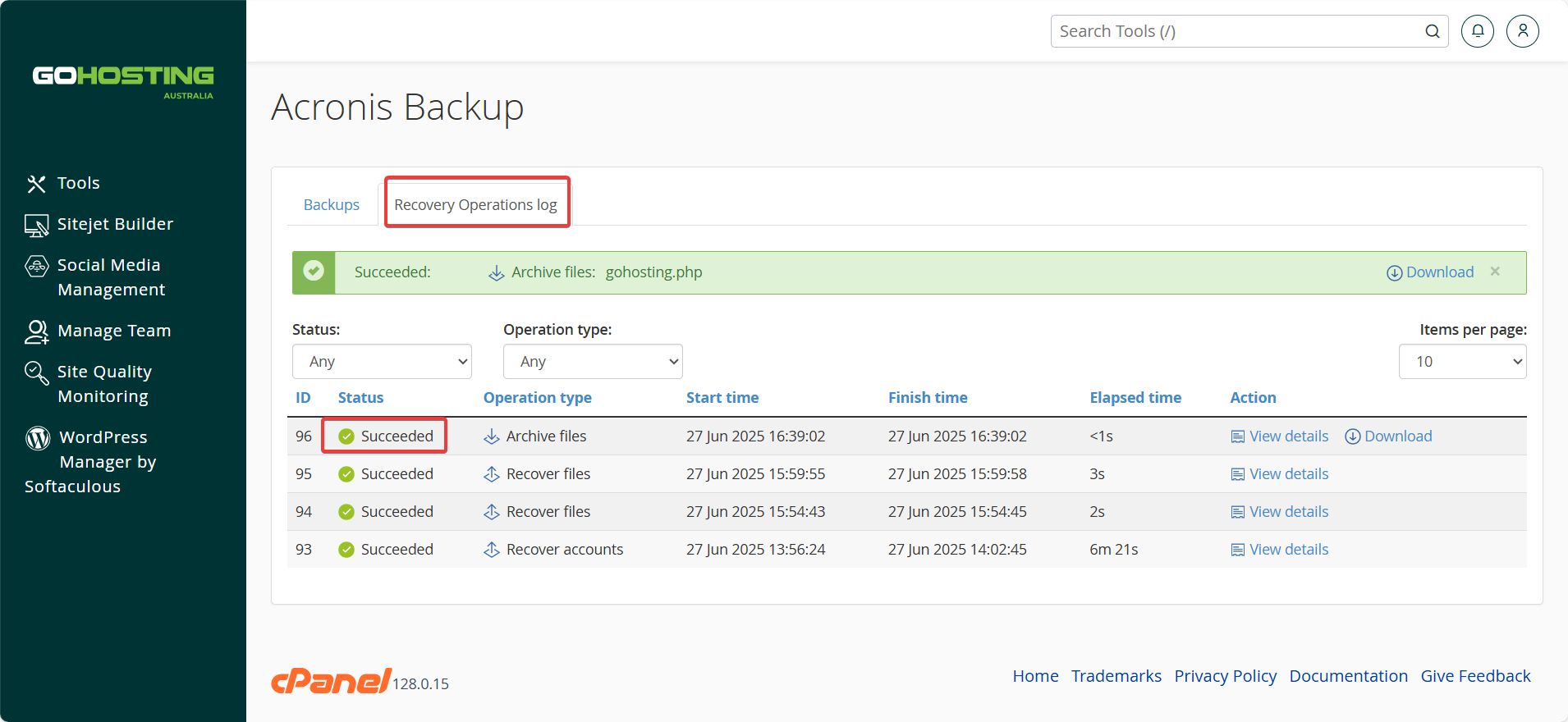
Once completed, your file will be restored to its original location in your hosting account.
If this fails, errors or shows any other results you're unsure of then reach out to one of the GoHosting Technical support members at "[email protected]" for further assistance.
